The Activity Logs module in the admin console tracks and stores logs for all activities performed in the system. You can view and download three types of logs: enrollment logs, activity logs, and QR logs.
Enrollment logs
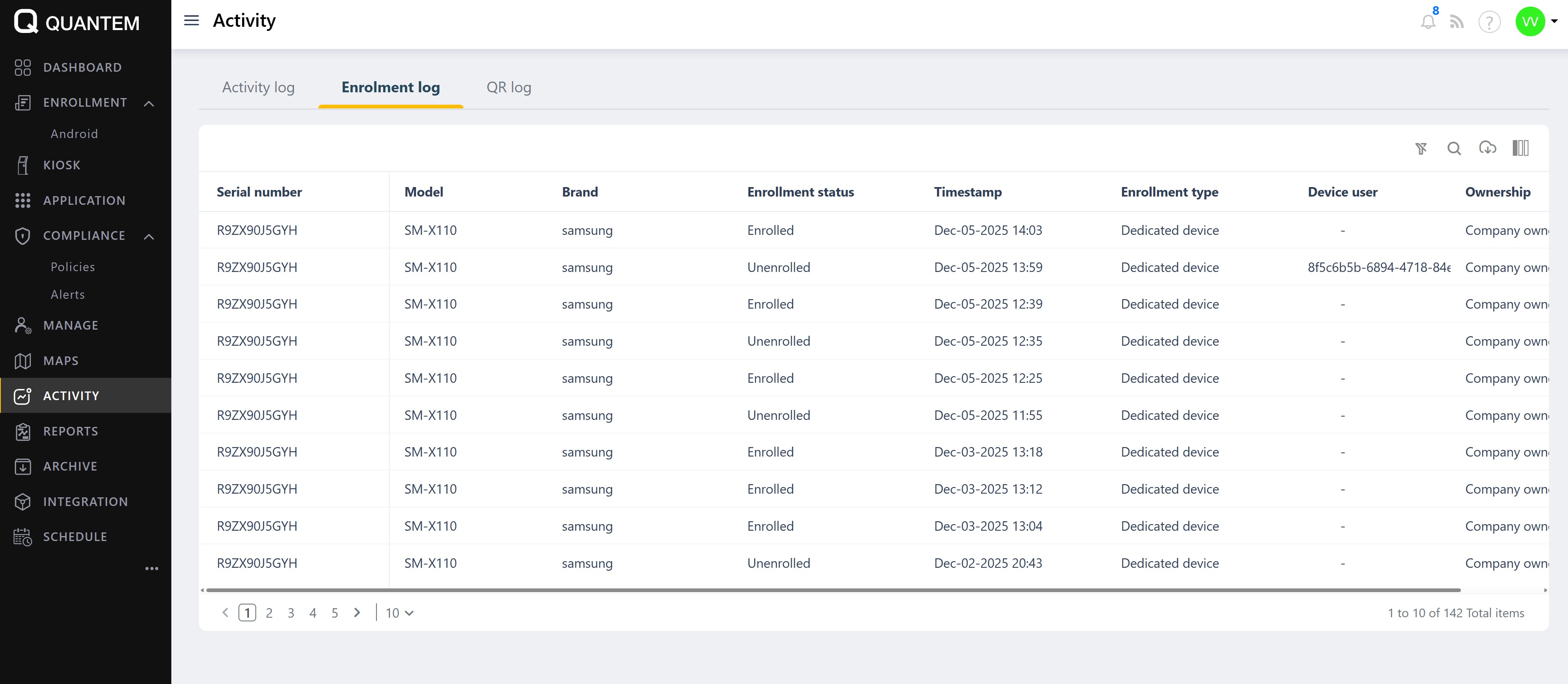
Enrollment logs track all device enrollments and unenrollments.
In the admin console, click the Activity icon from the left navigation menu.
Select the Enrollment logs tab.
The Enrollment logs screen displays a table with the following columns
Serial number – Device serial identifier
Model – Device model name
Brand – Device manufacturer
Enrollment status – Enrolled or Unenrolled
Timestamp – Date and time of the enrollment/unenrollment event
Enrollment type – Type of enrollment (e.g., Dedicated device)
Device user – User associated with the device
Ownership – Company-owned or BYOD (Bring Your Own Device)
To download the enrollment logs, click the Download icon at the top left of the table. The logs will be exported as an Excel file.
Activity logs
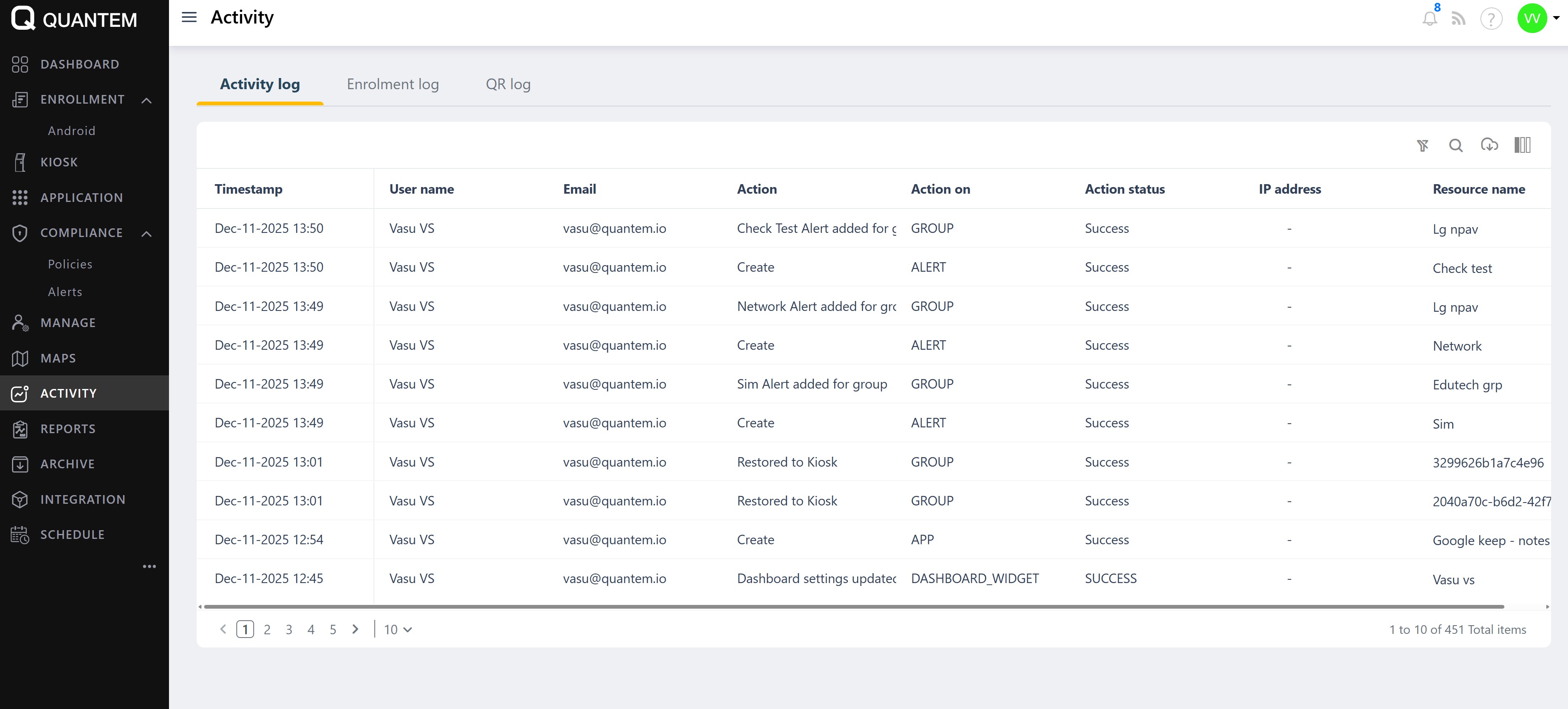
Activity logs record all administrative actions performed in the console.
In the admin console, click the Activity icon from the left navigation menu.
Select the Activity logs tab.
The Activity logs screen displays a table with the following columns
Timestamp – Date and time of the action
User name – Administrator who performed the action
Email – Email address of the administrator
Action – Type of action performed (e.g., Create, Update, Delete, Restore)
Action on – The resource being acted upon (e.g., ALERT, GROUP, APP, DASHBOARD_WIDGET)
Action status – Success or failure status of the action
IP address – IP address from which the action was initiated
Resource name – Name of the resource affected
To download the activity logs, click the Download icon at the top left of the table. The logs will be exported as an Excel file.
QR logs
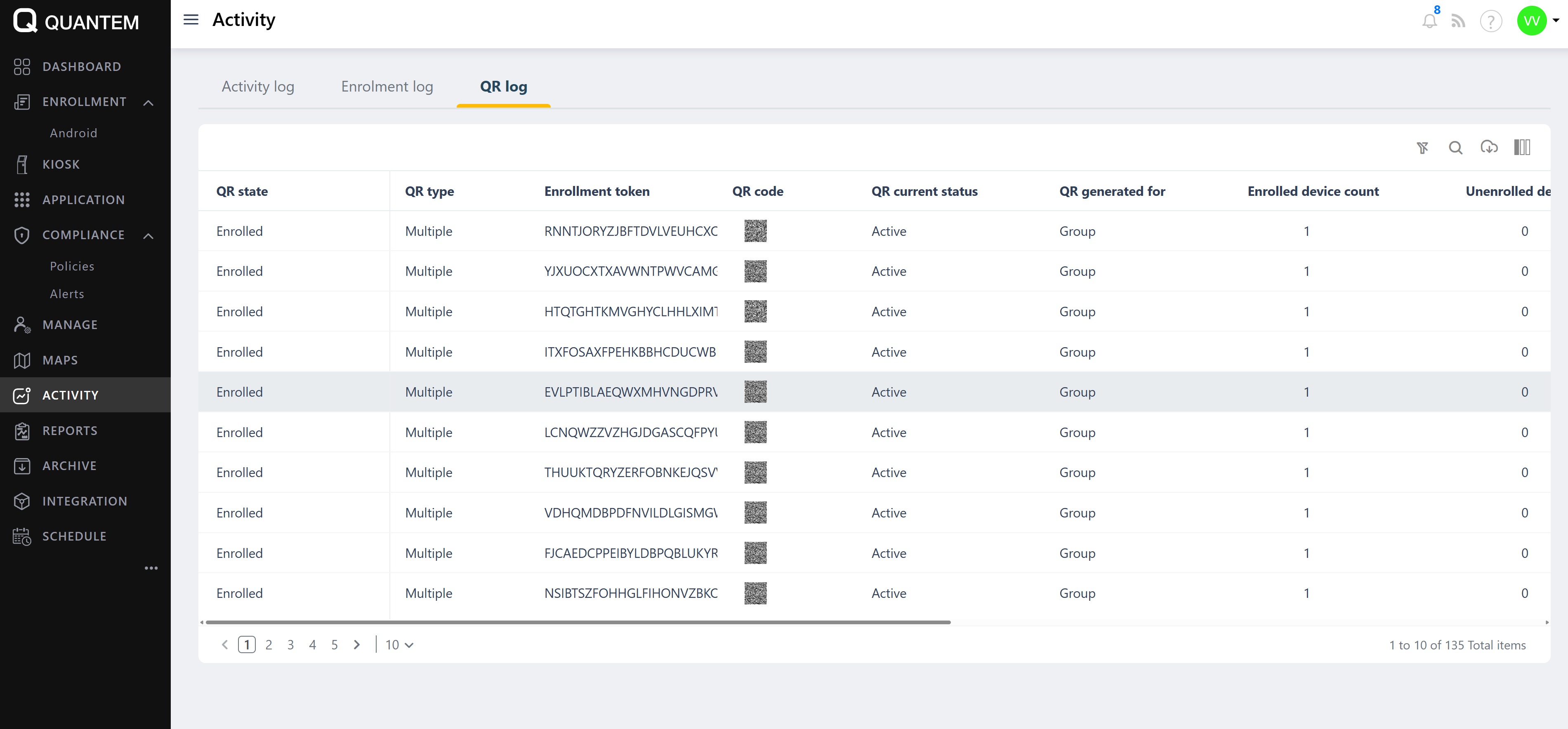
QR logs record all QR codes generated in the admin console for device enrollment.
In the admin console, click the Activity icon from the left navigation menu.
Select the QR logs tab.
The QR logs screen displays a table with the following columns
QR state – State of the QR code (e.g., Enrolled, Active)
QR type – Type of QR code (e.g., Single, Multiple)
Enrollment token – Unique enrollment token associated with the QR code
QR code – The actual QR code value
QR current status – Current status of the QR code (e.g., Active, Inactive)
QR generated for – Target of QR generation (e.g., Group, Device)
Enrolled device count – Number of devices that have enrolled using this QR code
Unenrolled device count – Number of devices that have been unenrolled from this QR code
To download the QR logs, click the Download icon at the top left of the table. The logs will be exported as an Excel file.
Was this article helpful?
That’s Great!
Thank you for your feedback
Sorry! We couldn't be helpful
Thank you for your feedback
Feedback sent
We appreciate your effort and will try to fix the article