This document explains how to sign in to the Quantem admin console, reset a forgotten password, and change the current password.
Sign in to the admin console
Open a browser and go to www.app.quantem.io
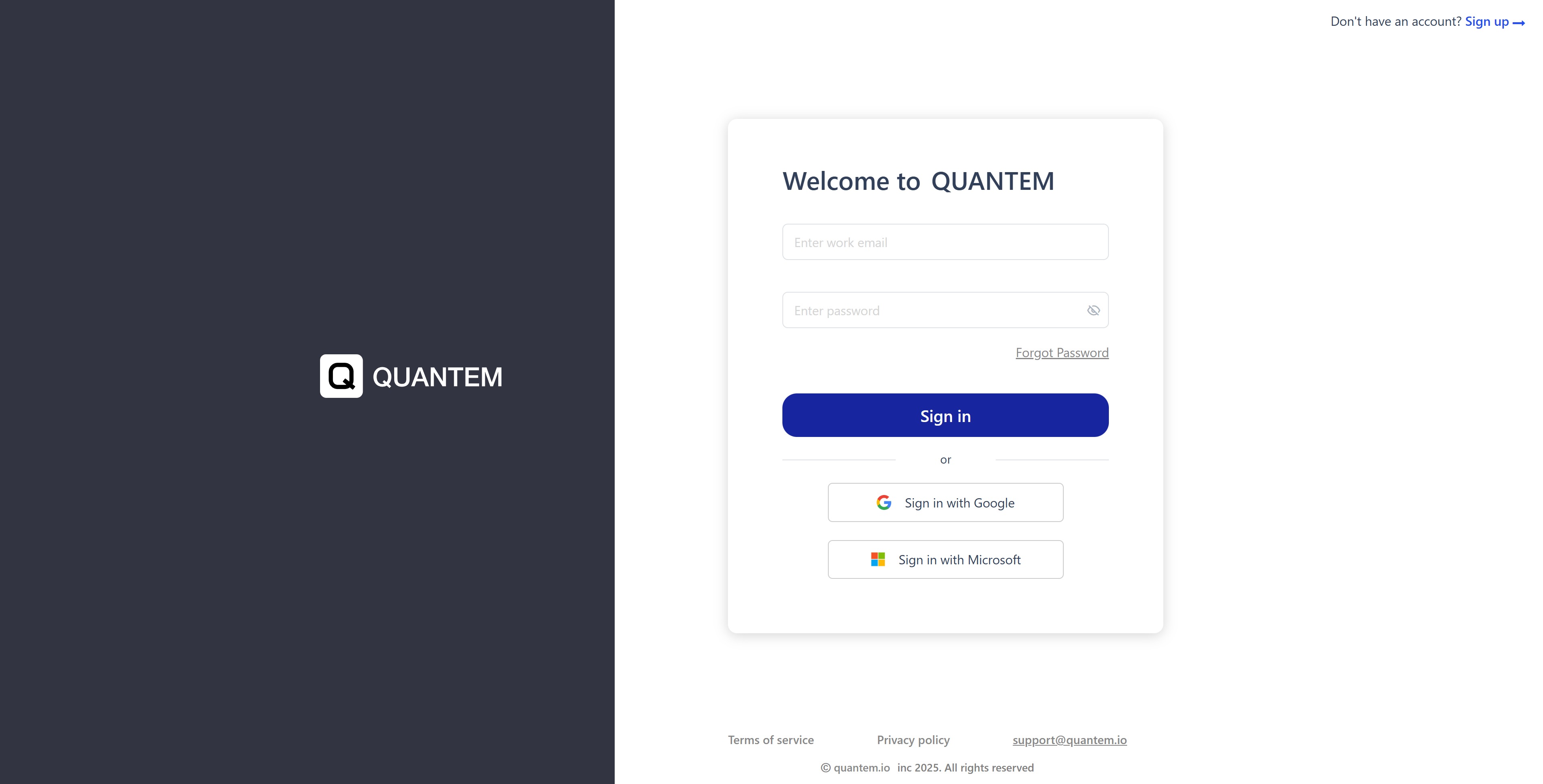
The Quantem sign-in page appears, where you can enter your work email and password, or choose to sign in with Google or Microsoft.
Enter the registered email ID and password.
Click Sign in.
After the credentials are validated, you are signed in to the admin console and the dashboard is displayed as the landing page.
Alternatively, you can click Sign in with Google or Sign in with Microsoft to log in using those accounts, if they are linked to your Quantem account
Forgot password
If you do not remember your password, you can reset it as follows
On the sign-in screen, click the Forgot Password link.
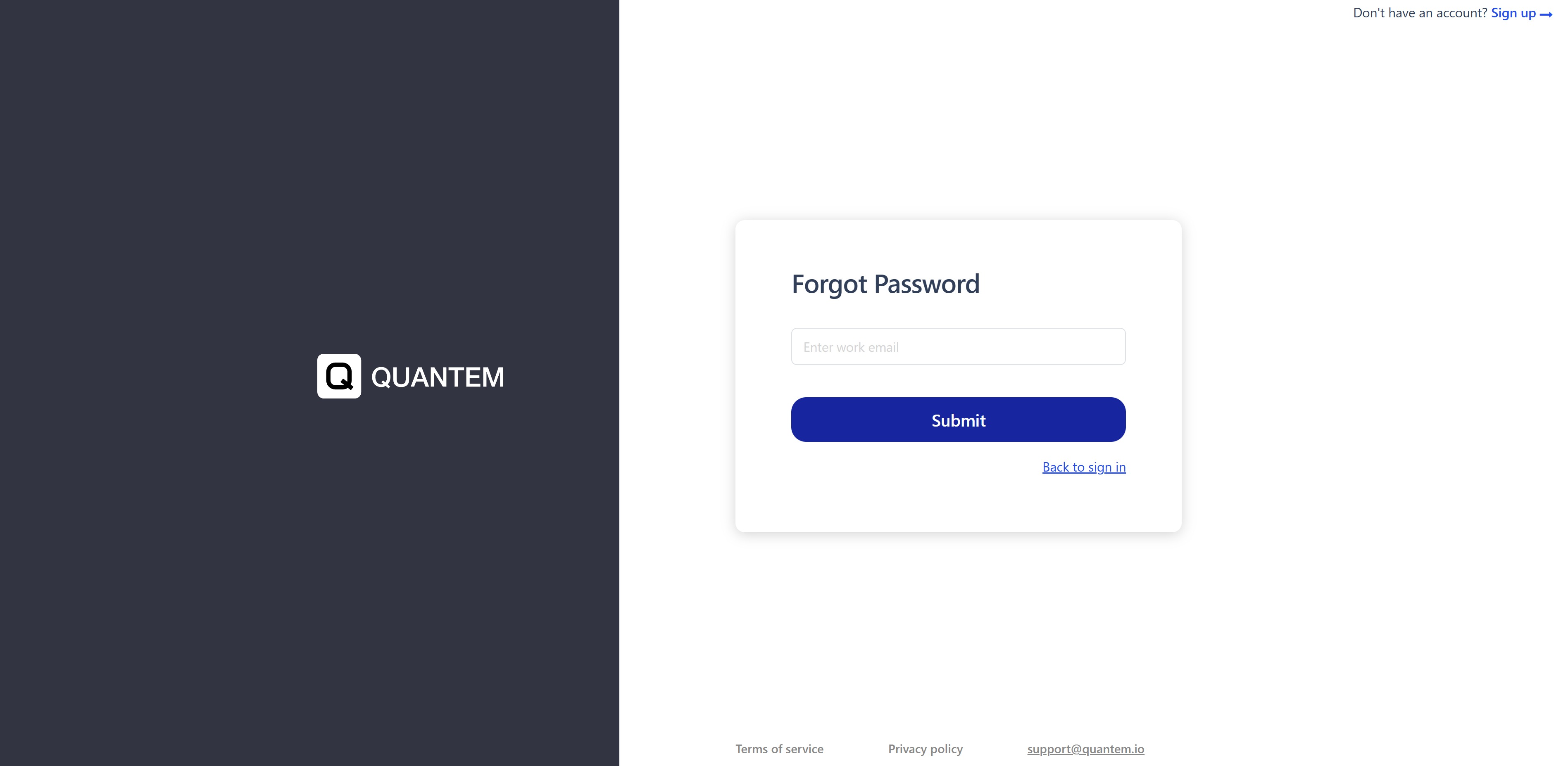
A Forgot Password screen opens, prompting you to enter your work email.
Enter the registered email address and click Submit.
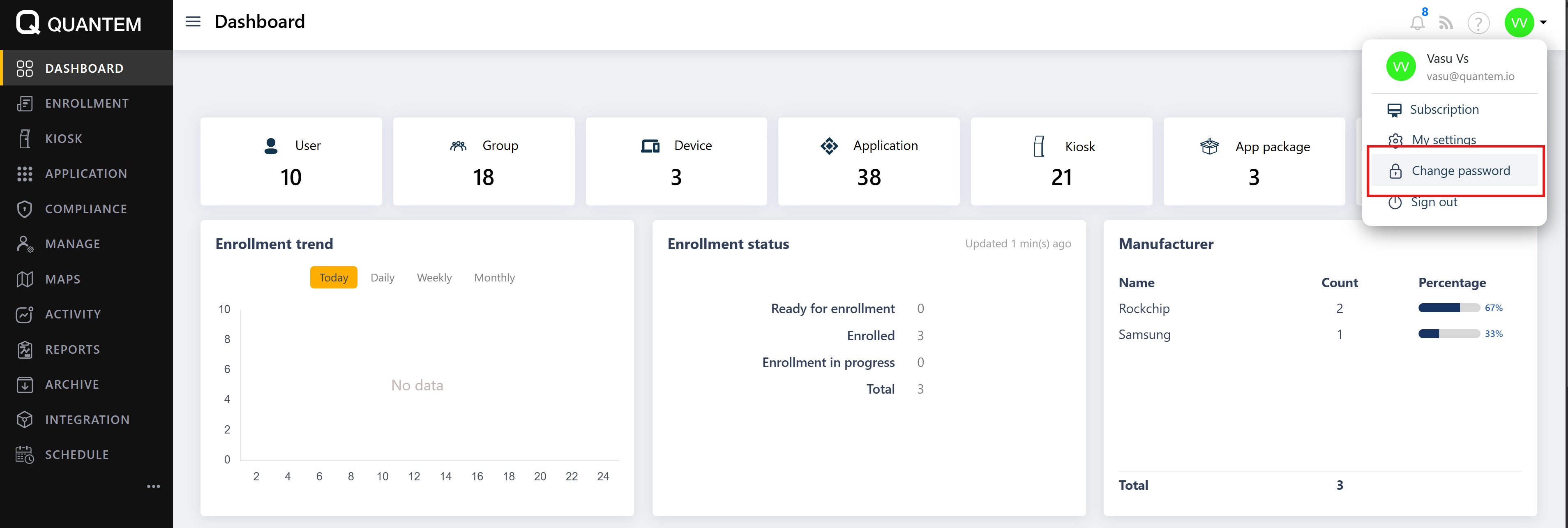
A one-time verification code (OTP) is sent to your registered email address.
On the Validate OTP screen, enter the six-digit code and click Validate OTP.
After successful validation, a Create Password screen is displayed.
Enter a new password, re-enter it in the confirm password field, and click Submit.
Your password is updated, and you can now sign in using the new password.
Change password
To change your existing password while logged in
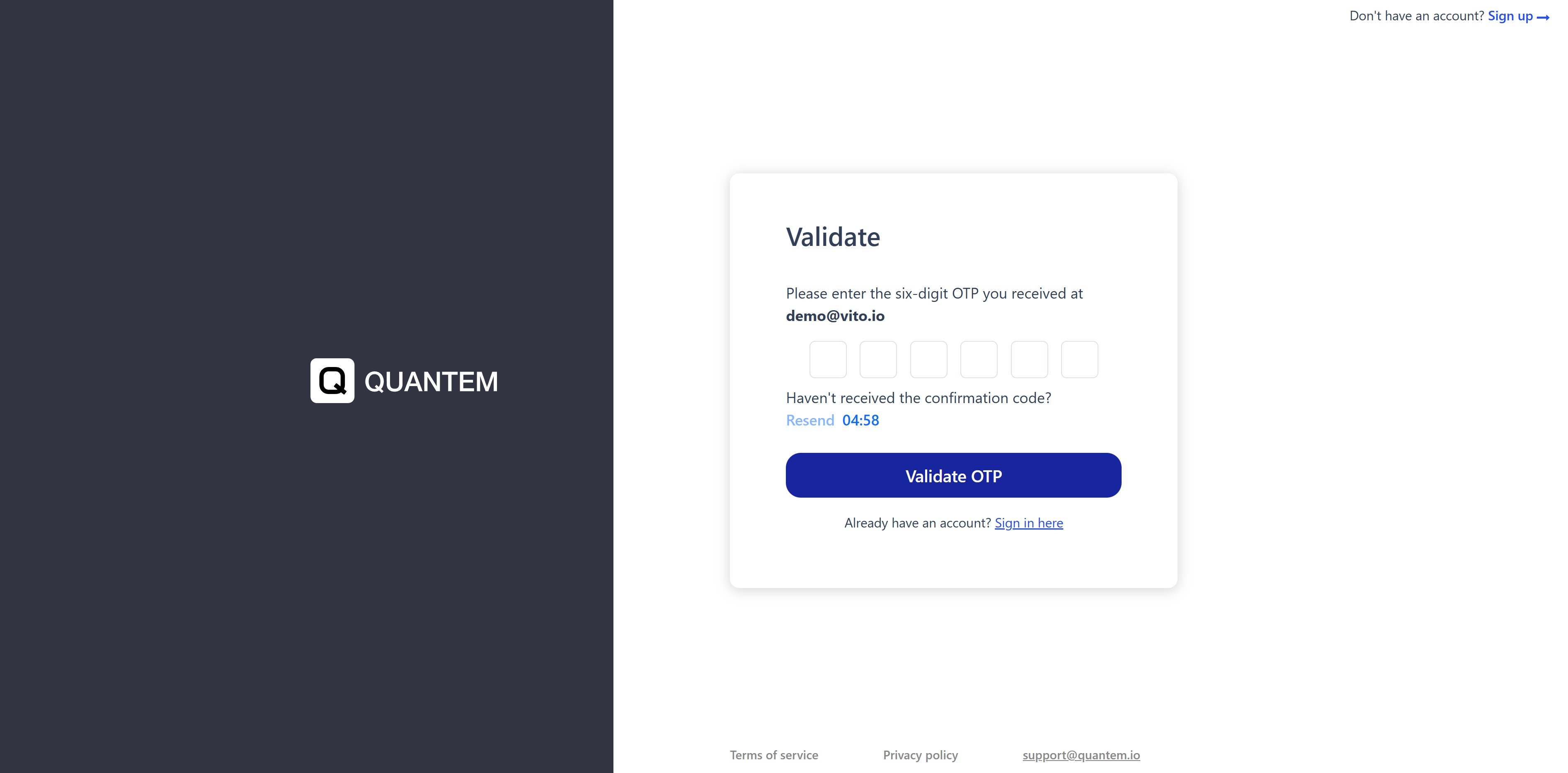
In the top-right corner of the console, click the user profile icon and open the dropdown menu.
Click Change password.
A Change password pop-up window appears.
Enter the new password, re-enter it in the verify/confirm password field, and click Save.
After the password is changed, you are redirected to the login screen, where you can sign in with the updated password.
Was this article helpful?
That’s Great!
Thank you for your feedback
Sorry! We couldn't be helpful
Thank you for your feedback
Feedback sent
We appreciate your effort and will try to fix the article