This article explains how an IT administrator can register the organization with Android Enterprise so that Android devices and apps can be managed through Quantem. Registration must be completed before enrolling devices or adding applications from Google Play.
Overview
To use Android Enterprise, the organization must first be registered with Android using a Google account (for example, a Gmail ID). Once the Android Enterprise Registration module is configured, devices running Android 6.0 and above can be managed through Quantem.
Accessing Android Enterprise Registration
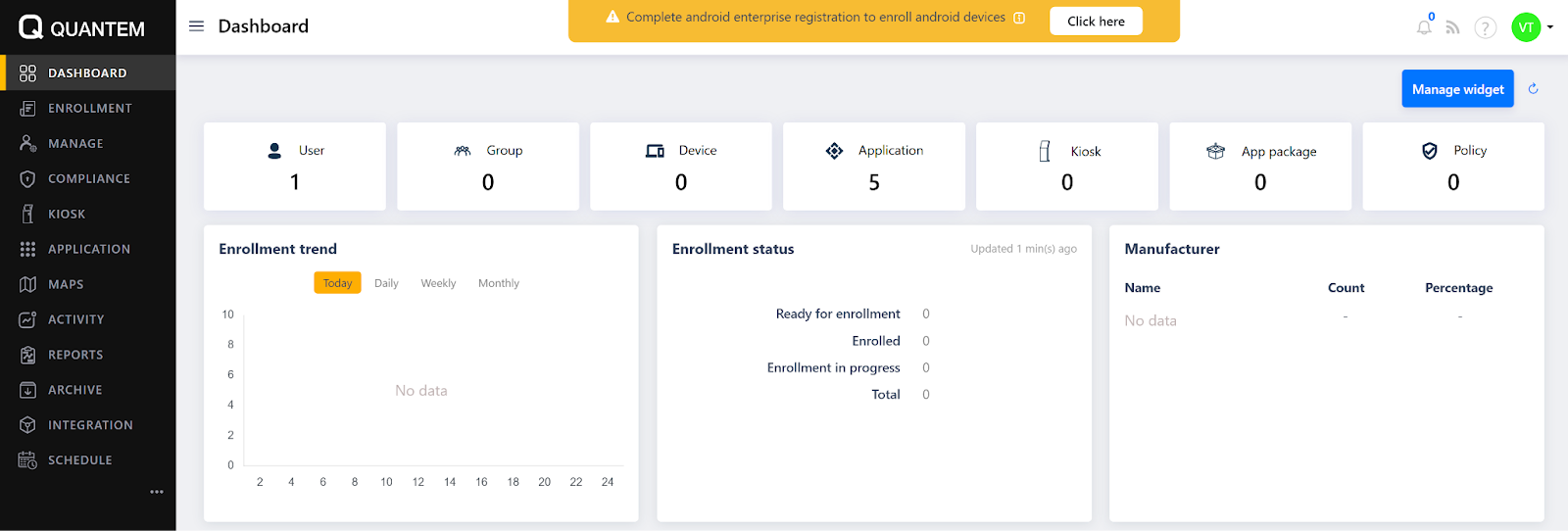
In the Quantem console, click the Integration icon in the left navigation menu.
Under the Platform section, locate Android and click Add and configure.
Step 1: Sign in with Google
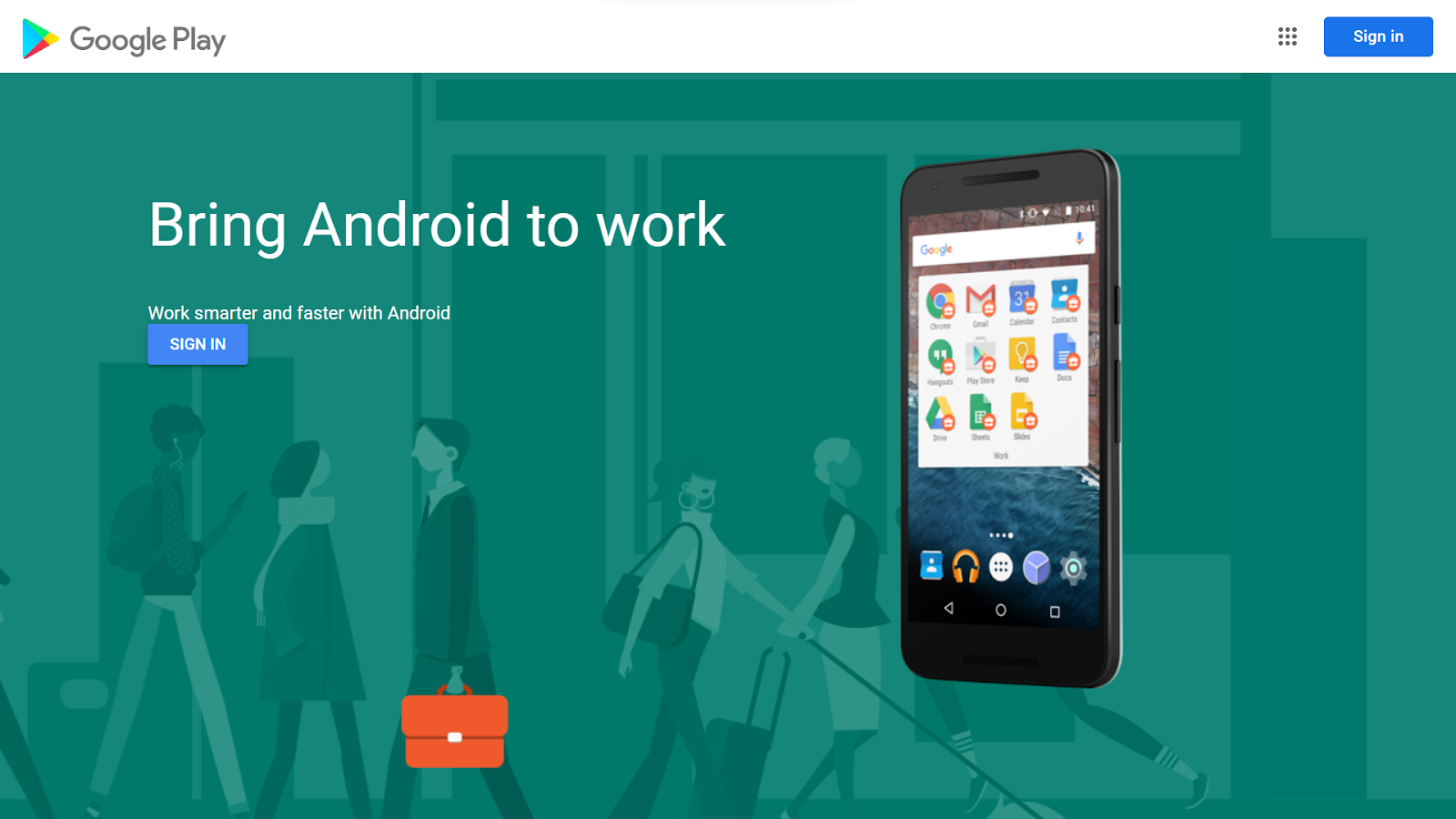
A Google Play sign-in page appears with the Android Enterprise message. Click Sign in.
Enter the Google account credentials and submit the form.
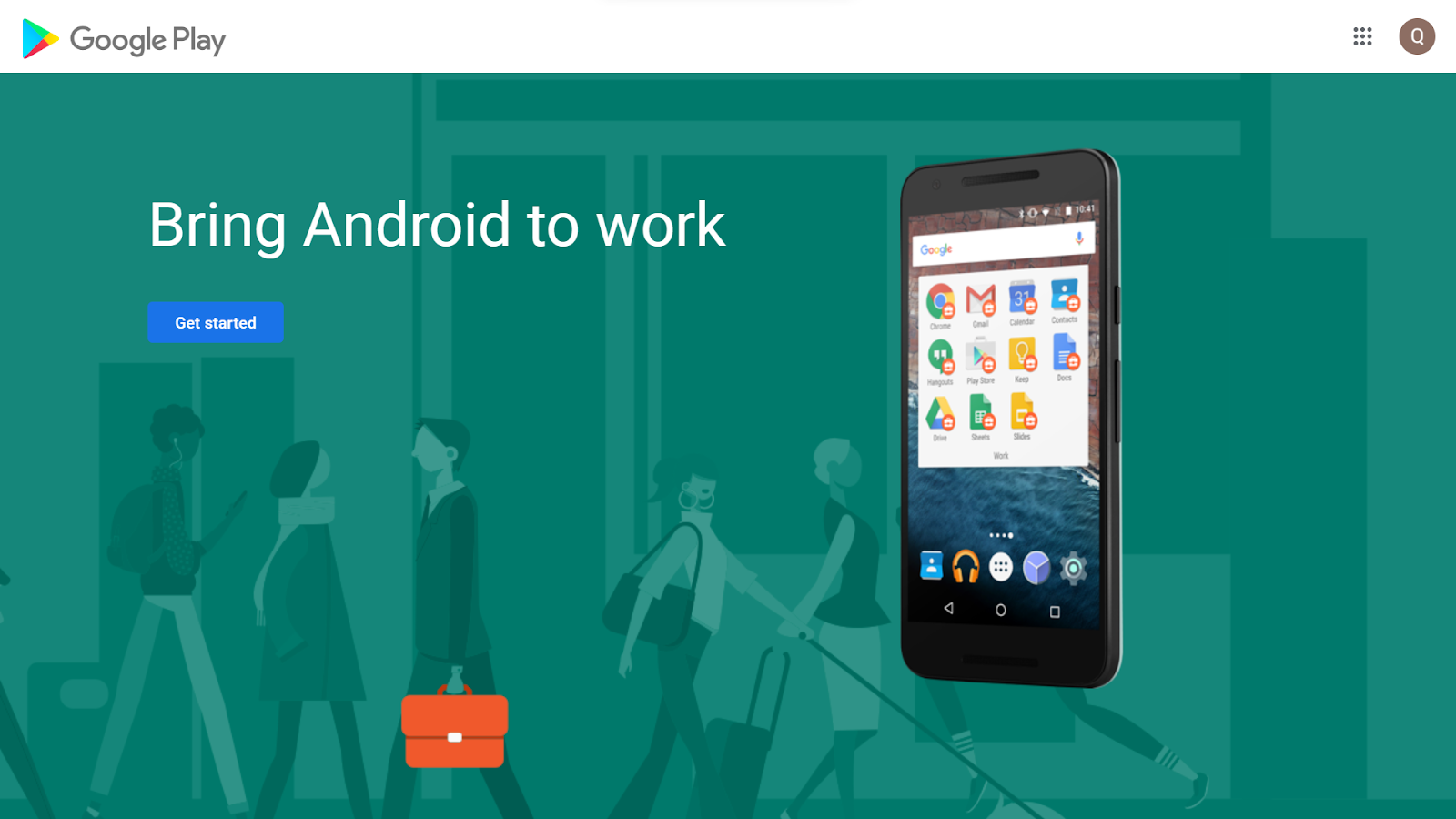
After successful verification, a screen with a Get started button is displayed.
Step 2: Provide business details
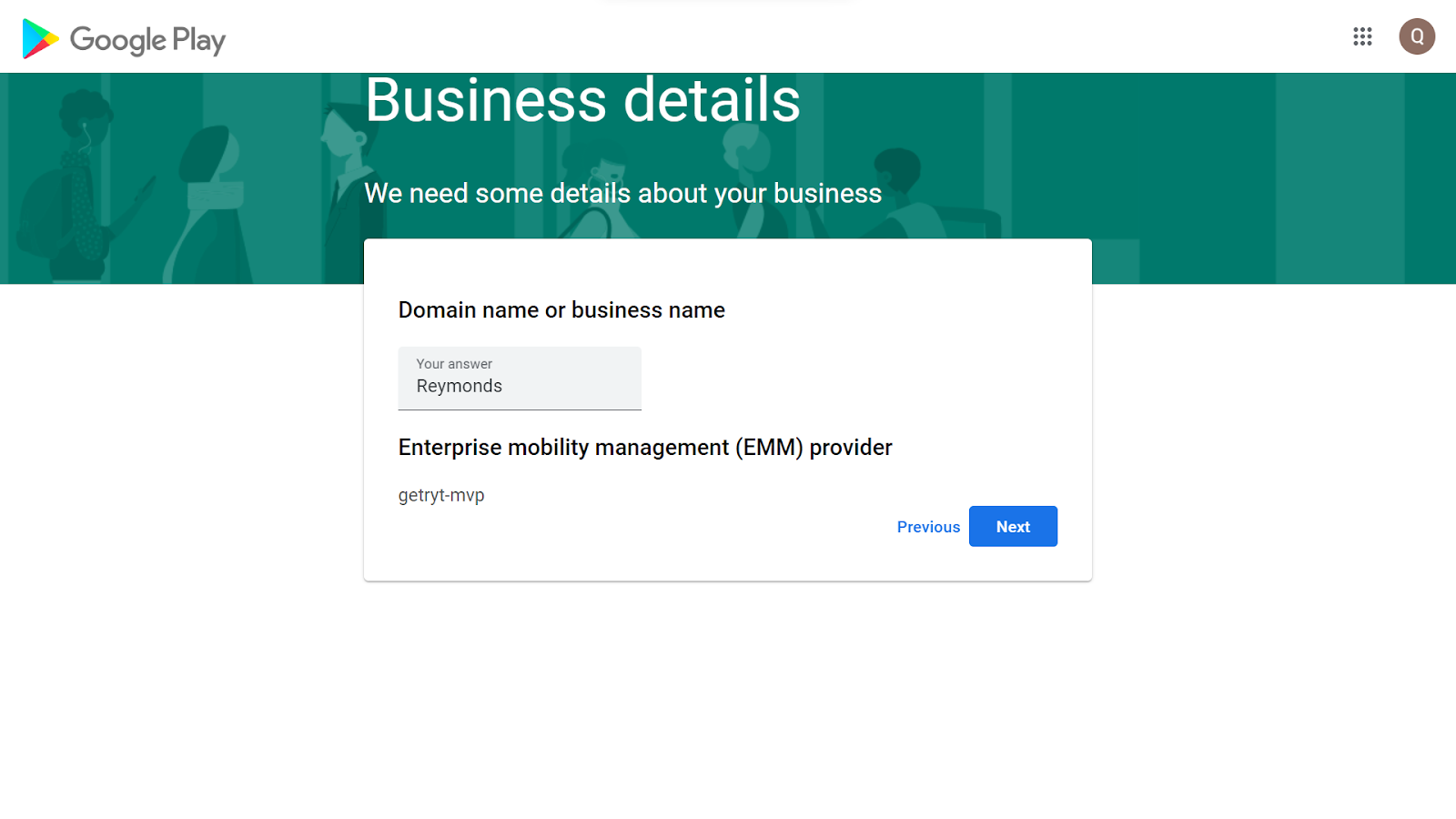
Click Get started to open the Business details screen.
Enter the Domain name or business name for the organization and click Next.
Step 3: Provide contact details
On the Contact details screen, fill in the Data Protection Officer and EU Representative information (name, email, and phone) as required.
Select the checkbox to confirm that you have read and agree to the Managed Google Play agreement, then click Confirm.
Step 4: Complete registration
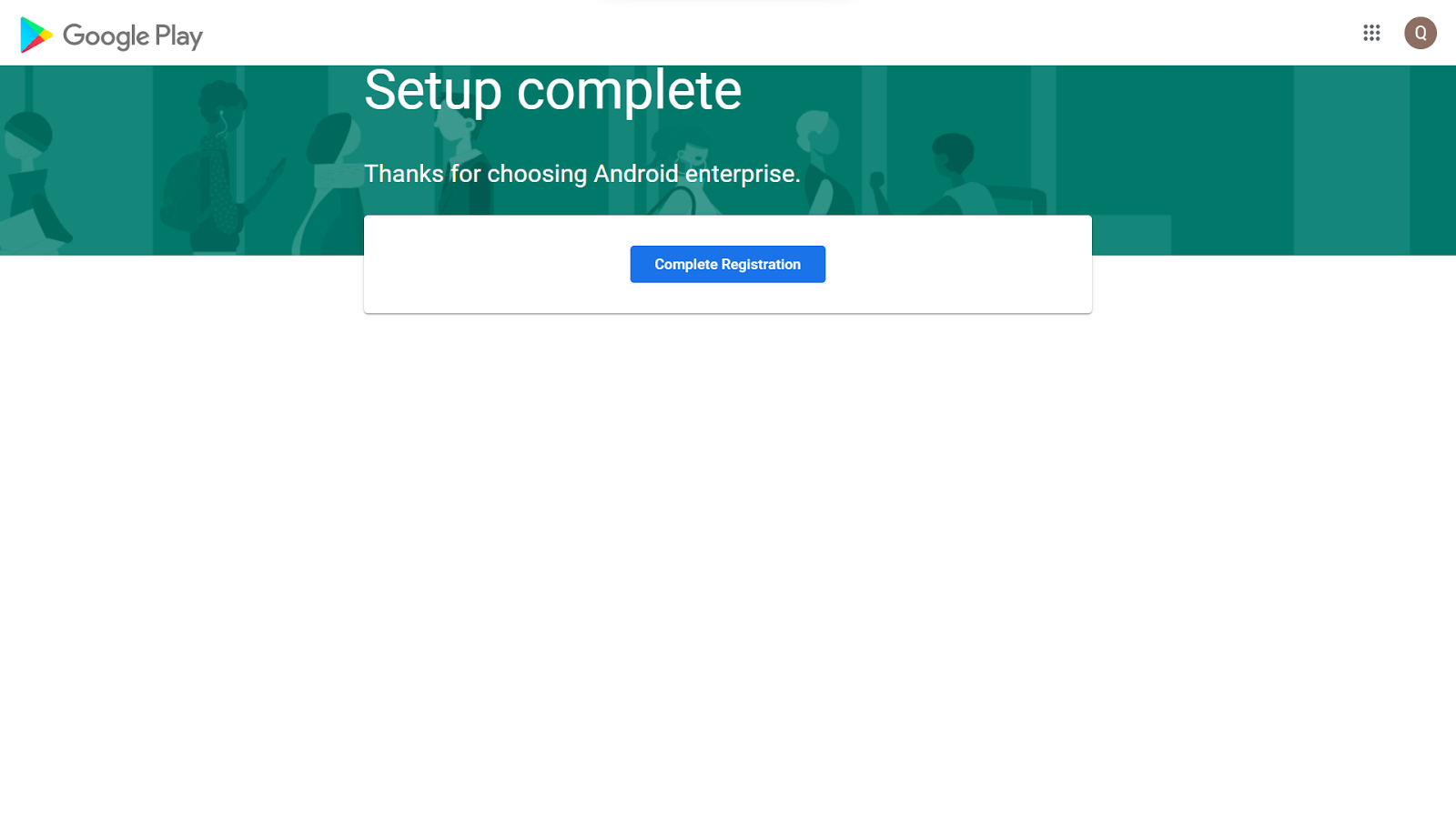
A Setup complete screen is shown, confirming that Android Enterprise has been configured. Click Complete registration.
A success message appears, and you are redirected back to the Enterprise Registration screen in Quantem.
Verifying registration status
To verify that registration is successful:
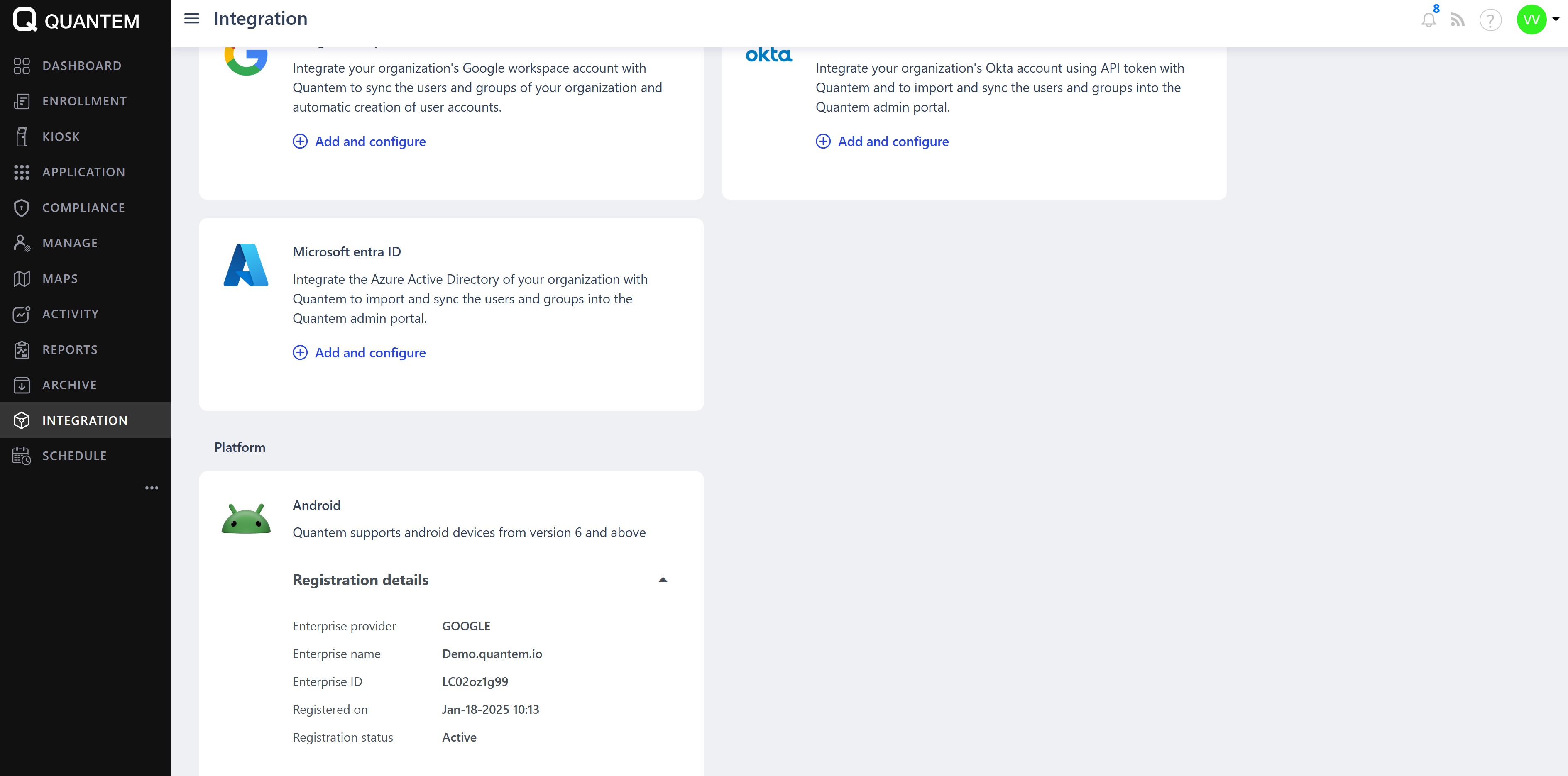
Go to Integration > Platform > Android in the Quantem console.
In the Registration details section, check that the following fields are populated and the status is Active:
Enterprise provider (Google)
Enterprise name
Enterprise ID
Registered on
Registration status
Was this article helpful?
That’s Great!
Thank you for your feedback
Sorry! We couldn't be helpful
Thank you for your feedback
Feedback sent
We appreciate your effort and will try to fix the article