The Alerts module in the admin console lets you create and manage automated alerts based on device conditions. You can set up alerts for battery levels, device offline status, SIM card changes, and scheduled reminders, with notifications sent to the console, email, or both.
Viewing available alerts
In the admin console, go to Compliance > Alerts from the left navigation menu.
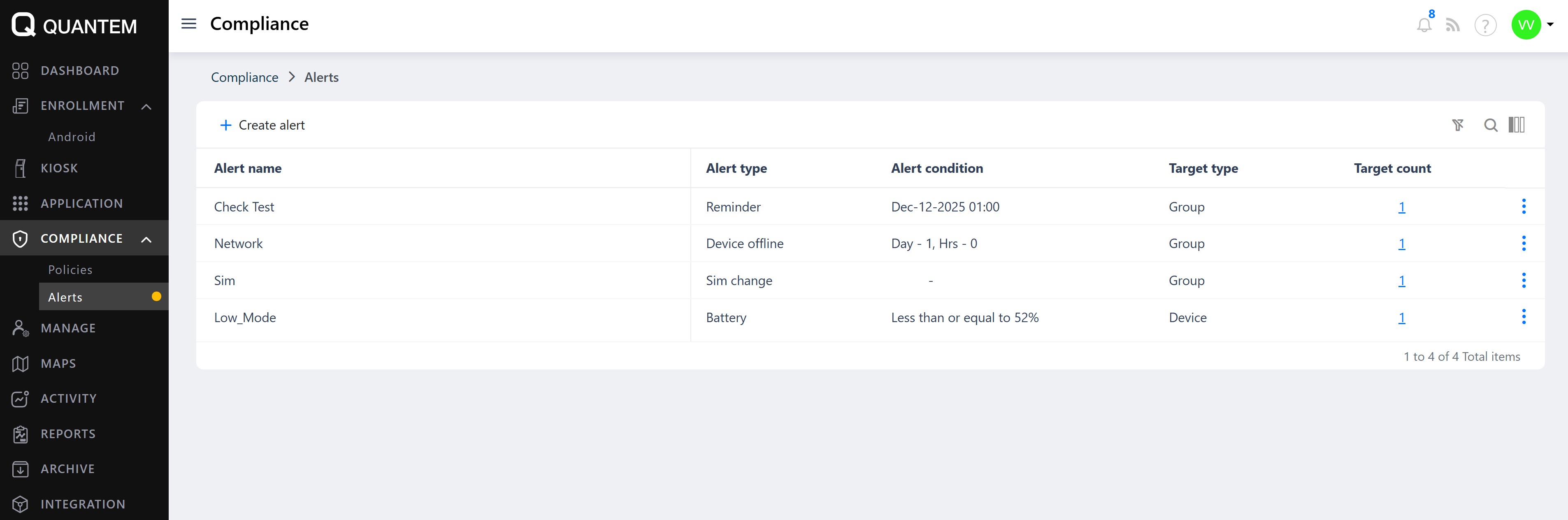
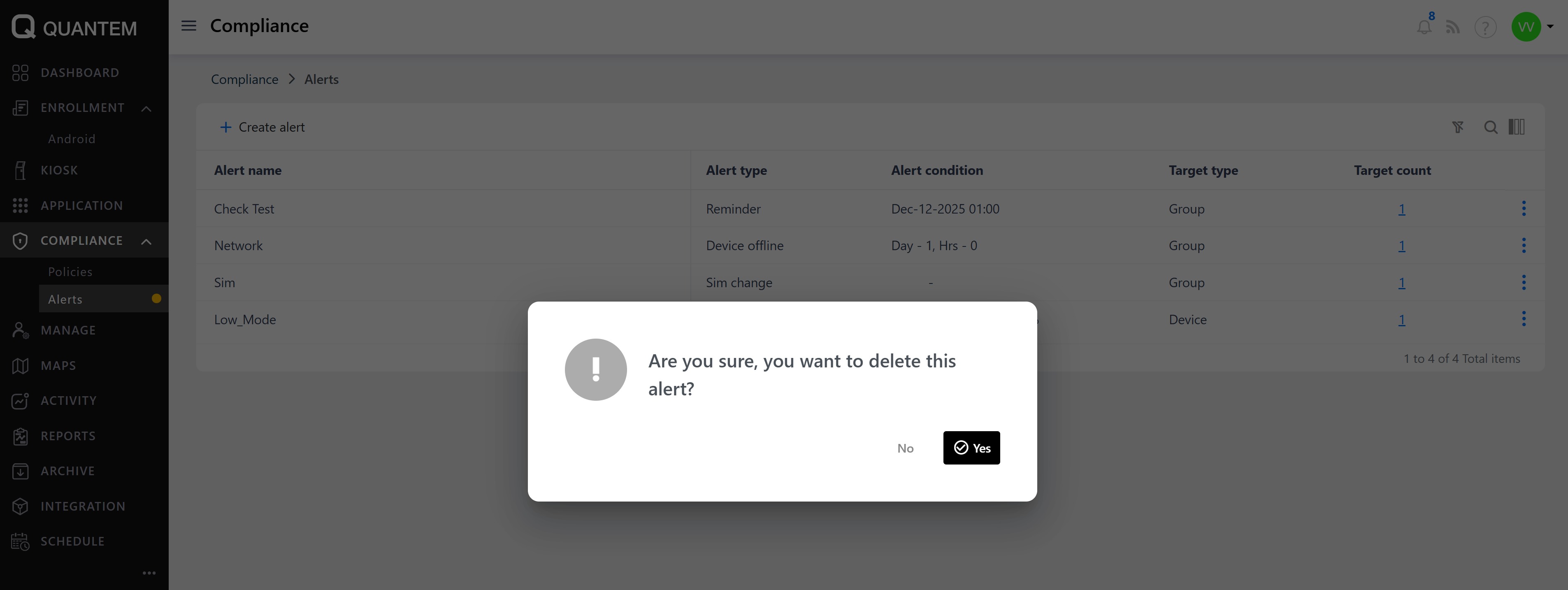
A list of available alerts is displayed in table format with columns showing alert name, alert type, alert condition, target type, and target count.
The Alert list includes the following features:
Create alert – Add a new alert
Context Menu – Right-click options to view, edit, or delete alerts
Column Chooser – Show or hide table columns
Pagination – Navigate through alert lists when there are many alerts
Items Per Page – Set the number of alerts displayed per page (default is 10)
Creating a new alert
Click the Create alert button at the top of the Alert list. The Create alert screen displays different fields based on the alert type you select.
Battery alert
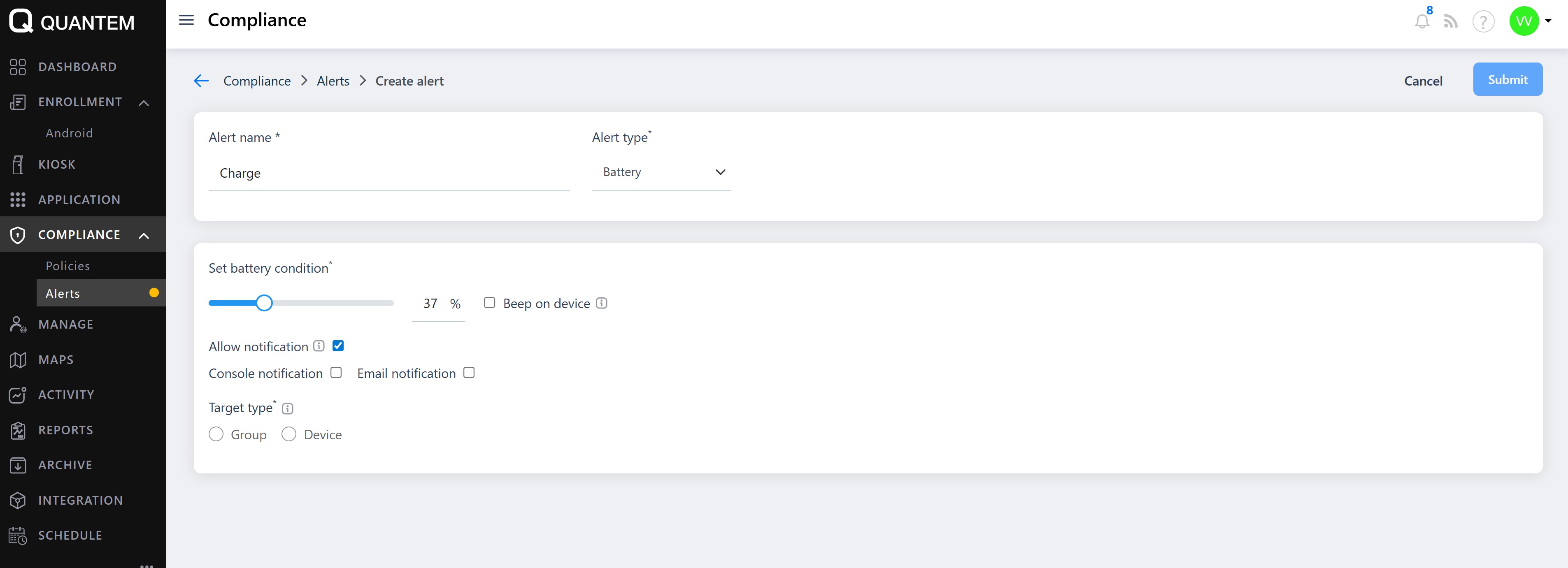
Configure a battery threshold alert using these fields:
Alert name (required) – Name of the battery alert
Alert type – Select Battery
Set battery condition (required) – Battery percentage at which the alert triggers (e.g., "less than or equal to 37%")
Beep on device (optional) – Device beeps when the alert condition is met
Allow notification (optional) – Send notifications to console, email, or both
Email IDs (required if email notification selected) – Up to 5 email addresses to receive alert notifications
Target type (required) – Select Group or Device to apply the alerts
Device offline alert
Configure a device offline alert using these fields:
Alert name (required) – Name of the device offline alert
Alert type – Select Device offline
Device offline (required) – Specify the time duration in days and hours before the alert triggers (e.g., "Day-1, Hours-0")
Allow notification (optional) – Send notifications to console, email, or both
Email IDs (required if email notification selected) – Up to 5 email addresses
Target type (required) – Select Group or Device
Reminder alert
Configure a scheduled reminder alert using these fields:
Alert name (required) – Name of the reminder alert
Alert type – Select Reminder
Reminder description (required) – Brief description of the reminder
Date (required) – Specify the date, day, and hour when the reminder should trigger
Allow notification (optional) – Send notifications to console, email, or both
Email IDs (required if email notification selected) – Up to 5 email addresses
Target type (required) – Select Group, Device, or User
SIM change alert
Configure a SIM change detection alert using these fields:
Alert name (required) – Name of the SIM change alert
Alert type – Select Sim change
Allow notification (optional) – Send notifications to console, email, or both
Email IDs (required if email notification selected) – Up to 5 email addresses
Target type (required) – Select Group or Device
After entering the required information for your chosen alert type, click Submit to create the alert.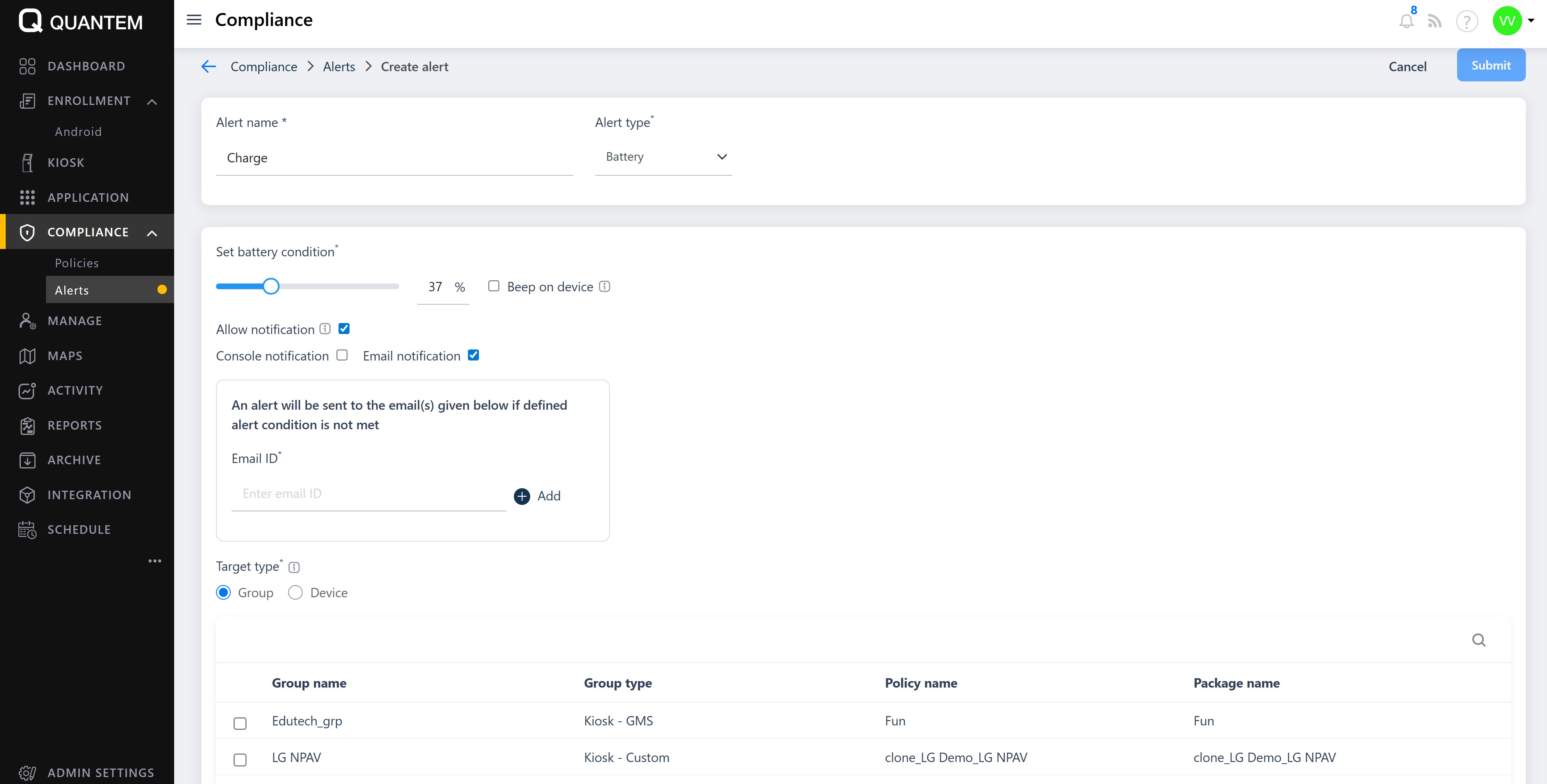
Editing an alert
From the Alert list, click the three vertical dots (⋮) at the end of the alert row.
Select Edit from the context menu.
The existing alert details are displayed.
Modify the alert name, alert type, condition, notification settings, email IDs, or target type as needed.
Click Submit to save the changes.
Viewing alert details
From the Alert list, click the three vertical dots (⋮) at the end of the alert row.
Select View details from the context menu.
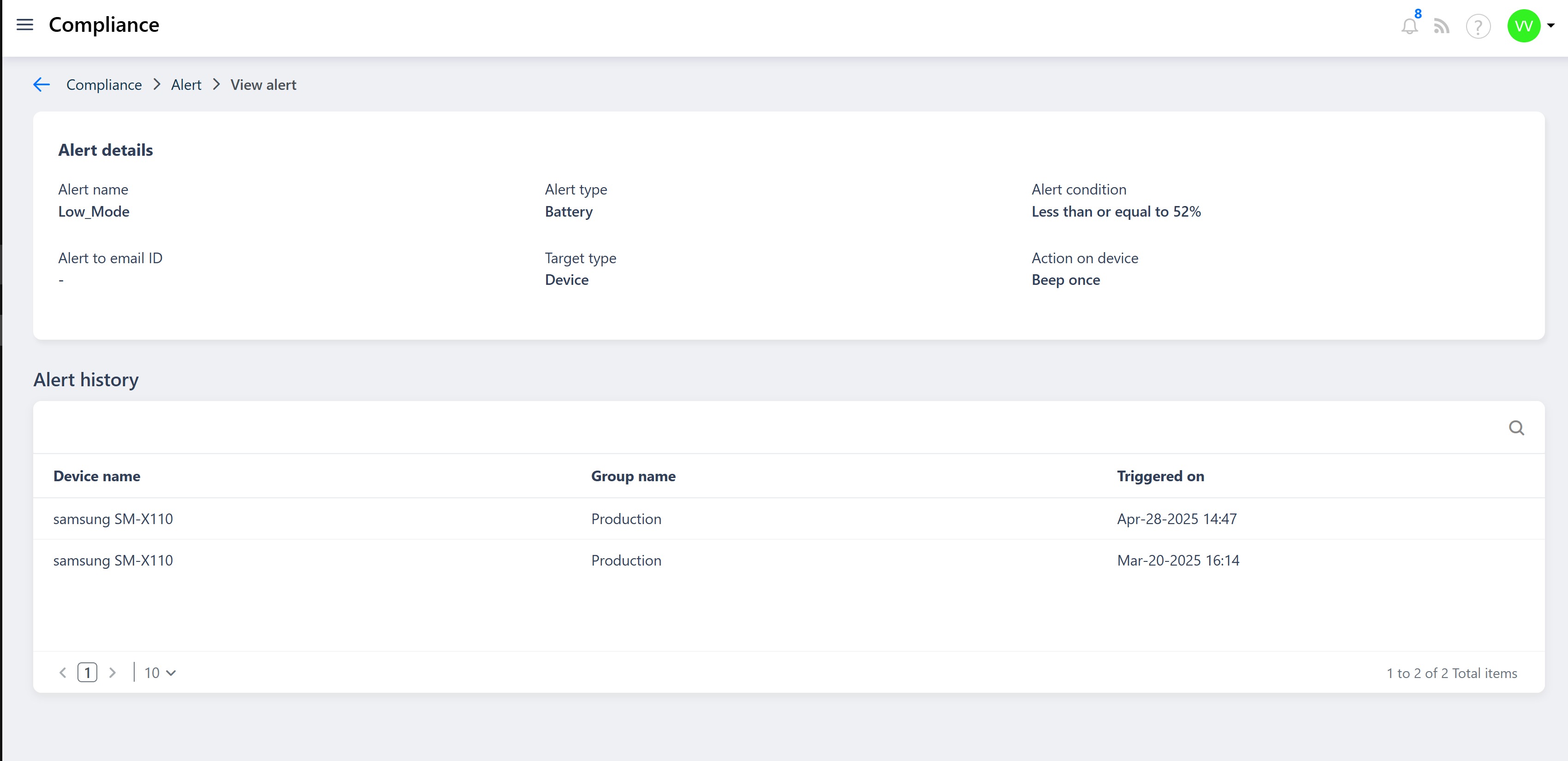
The alert details screen displays:
Alert name, type, condition, target type, and action on device
Alert history – A table showing all previous instances when the alert was triggered, including the device name and timestamp.
Deleting an alert
From the Alert list, click the three vertical dots (⋮) at the end of the alert row.
Select Delete from the context menu.
A confirmation dialog appears asking "Are you sure you want to delete this alert?"
Click Yes to confirm the deletion.
Was this article helpful?
That’s Great!
Thank you for your feedback
Sorry! We couldn't be helpful
Thank you for your feedback
Feedback sent
We appreciate your effort and will try to fix the article