The Geofence module in the admin console allows you to define virtual geographic boundaries and monitor when devices enter or leave these zones. You can create geofences, configure automatic actions when devices breach boundaries, and track breach history.
Viewing geofences in different formats
In the admin console, click the Maps icon from the left navigation menu.
Click the Geofence tab.
Geofences are displayed by default in Card view. You can switch to other formats:
List view – Click the List view button to see geofences in a table format
Map view – Click the Map view button to see geofences on an interactive map. Select a specific geofence from the dropdown to display it on the map.
Creating a new geofence
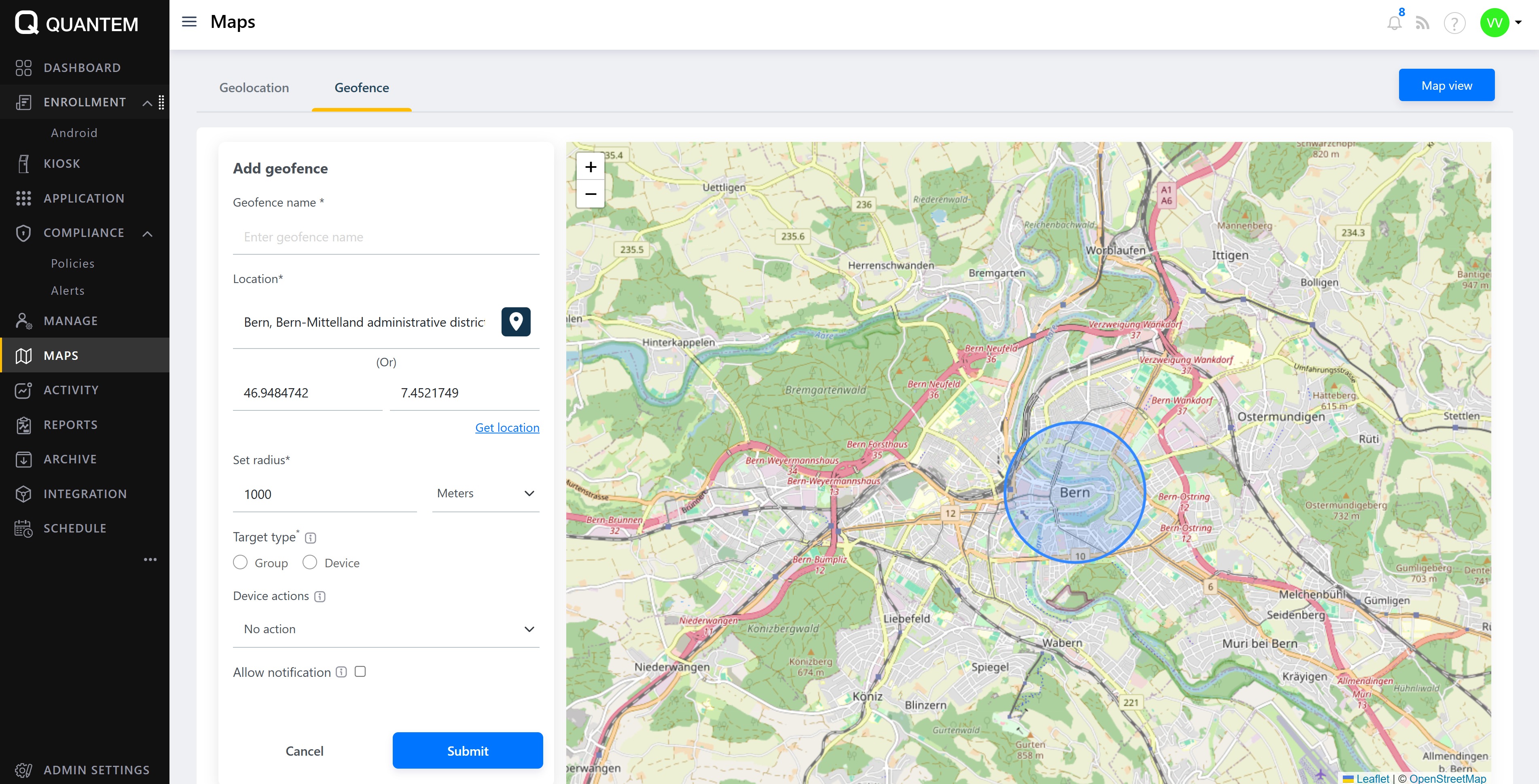
Click the Add new geofence button at the top of the Geofence screen.
The Add geofence form displays with the following fields:
Geofence name (required) – Name of the geofence
Location (required) – Address or place name
Latitude & Longitude (optional) – Exact coordinates as an alternative to location search
Set radius (required) – Radius of the geofence in meters
Target type (required) – Select Group or Device to apply the geofence
Device actions (optional) – Actions to perform when devices breach the boundary (see Device Actions section below)
Allow notification (optional) – Send breach notifications to console, email, or both
Email IDs (required if email notification selected) – Up to 5 email addresses
Click Submit to create the geofence.
Editing a geofence
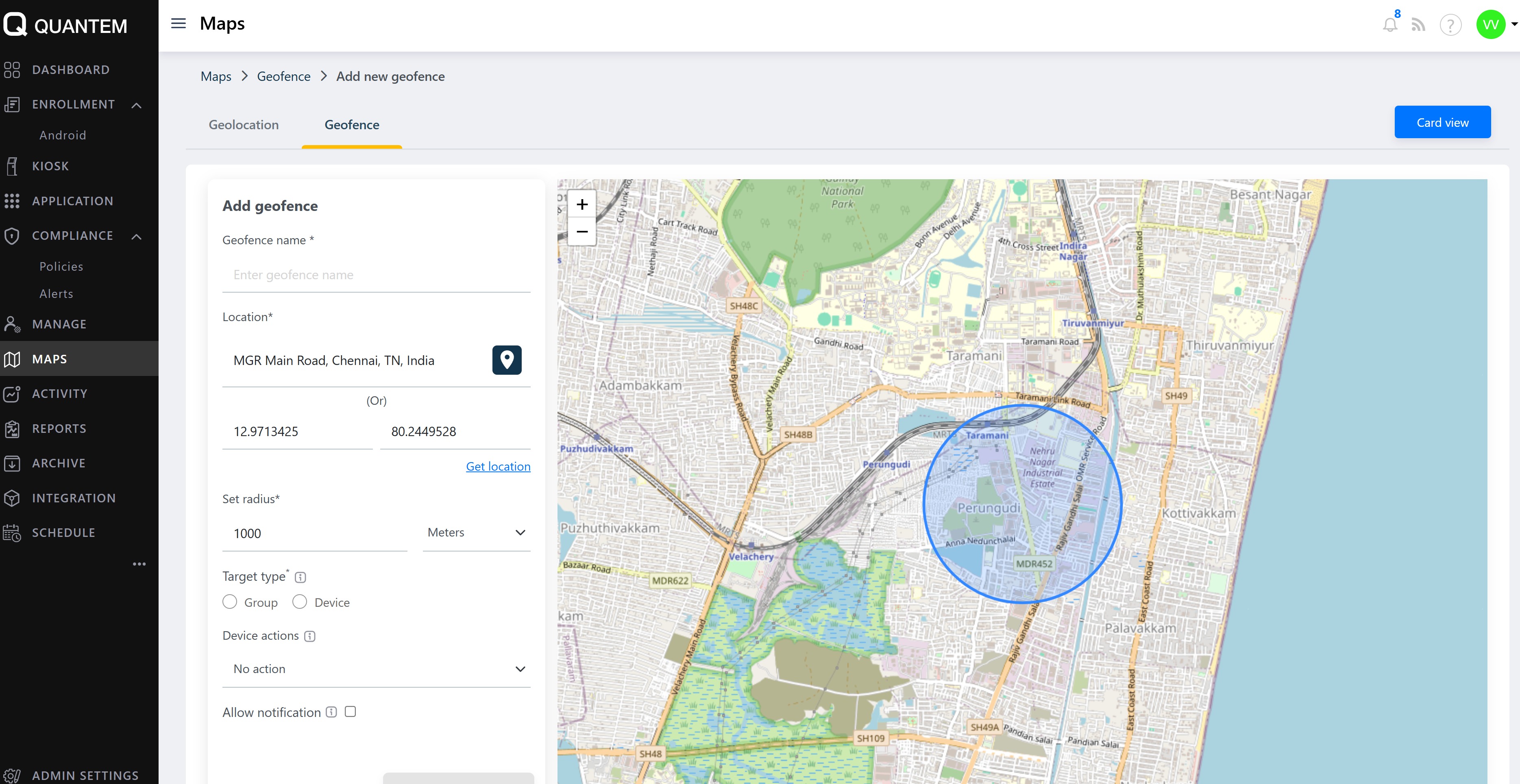
From the List view or Card view, click the three vertical dots (⋮) at the end of the geofence.
Select Edit from the context menu.
The existing geofence details are displayed.
Modify the geofence name, location, latitude/longitude, radius, target type, notifications, or device actions as needed.
Click Submit to save the changes.
Viewing geofence details
From the List view or Card view, click the three vertical dots (⋮).
Select View details from the context menu.
The geofence details screen displays:
Left portion – Geofence name, location, latitude and longitude, radius, target type, notifications, and device actions in read-only format
Right portion – Interactive map showing the geofence boundary with location and radius marked.
Deleting a geofence
From the List view or Card view, click the three vertical dots (⋮) at the end of the geofence row.
Select Delete from the context menu.
A confirmation message appears. Click Continue to confirm the deletion.
Viewing geofence breach history
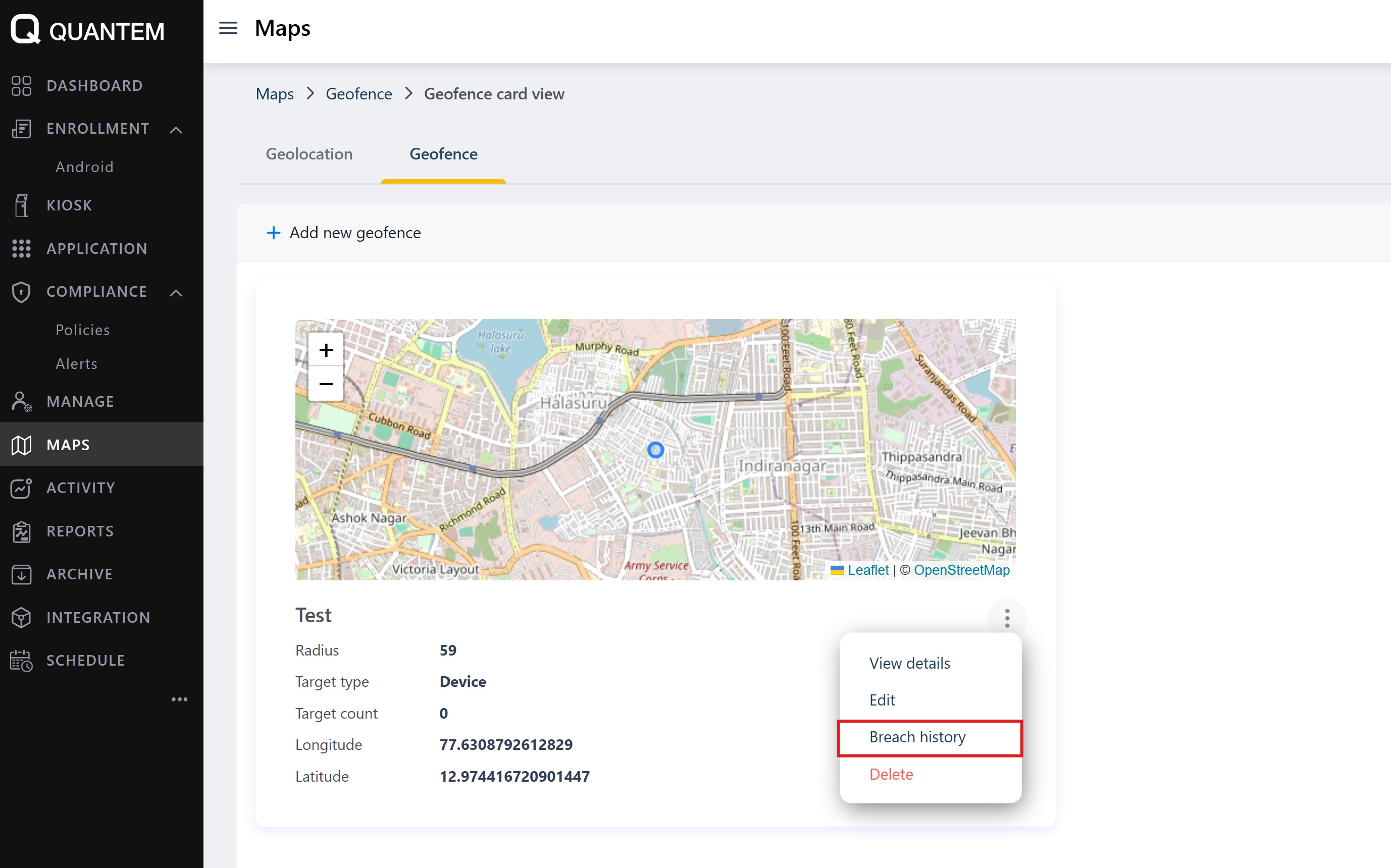
From the List view or Card view, click the three vertical dots (⋮) at the end of the geofence row.
Select Breach history from the context menu.
The Breach history screen displays:
Top portion – Geofence name, radius, latitude, and longitude
Bottom portion – List of all breaches triggered on the target device or group, with timestamps
Device actions on geofence breach
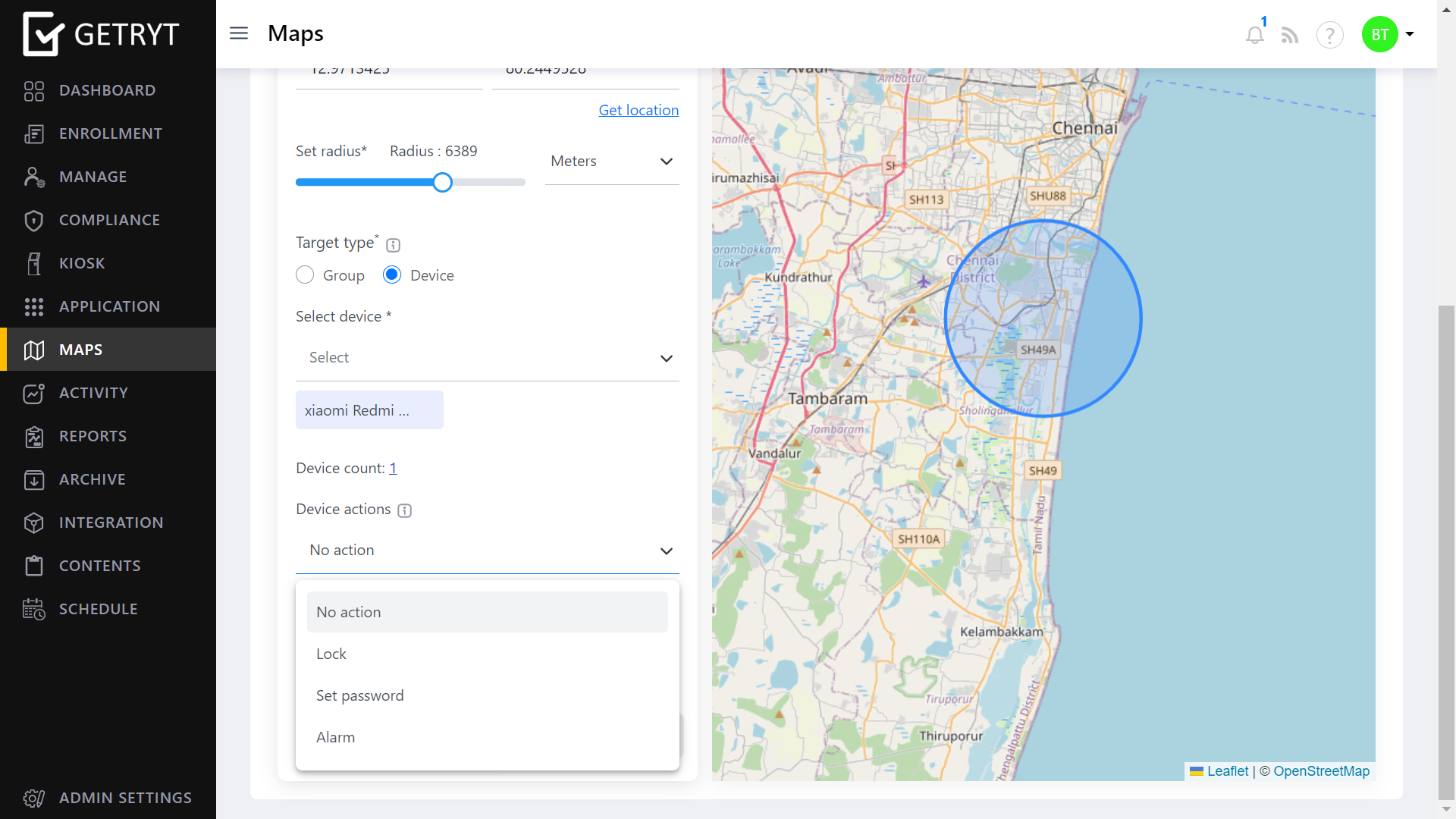
When a device breaches a geofence, the following actions can be automatically performed:
No action – Only records the breach in history; no action taken on device
Lock – Automatically locks devices that breach the geofence; breach recorded in history
Alarm – Triggers an alarm sound on devices that breach the geofence; breach recorded in history
Set password – Sets a password on devices that breach the geofence, requiring password entry to unlock. Breach is recorded in history
Was this article helpful?
That’s Great!
Thank you for your feedback
Sorry! We couldn't be helpful
Thank you for your feedback
Feedback sent
We appreciate your effort and will try to fix the article