The Scheduled Reports feature in the Quantem Console allows admins to automate the generation and email delivery of device reports on a recurring basis. Instead of manually pulling reports each time, admins can configure a schedule — Daily, Weekly, or Monthly — and have the report automatically generated and delivered to one or more email recipients at a specified time.
A key feature of Scheduled Reports is the ability to control what data is included in the report:
If you need a complete picture of all device data — select All Column, and every available data field will be included in the report.
If you need to filter, bifurcate, or extract specific data points — select Selected Column and hand-pick only the columns relevant to the report's purpose. This is particularly useful when sharing reports with specific teams who only need certain device information (e.g., the operations team only needing device status and group, or the finance team needing ownership and carrier data).
How to Access
Log in to the Quantem Console
From the left-hand navigation menu, click on Reports
Scroll down to the Schedule Scan Report section at the bottom of the Reports page
Click Create to set up a new scheduled report
Steps to Create a Scheduled Report
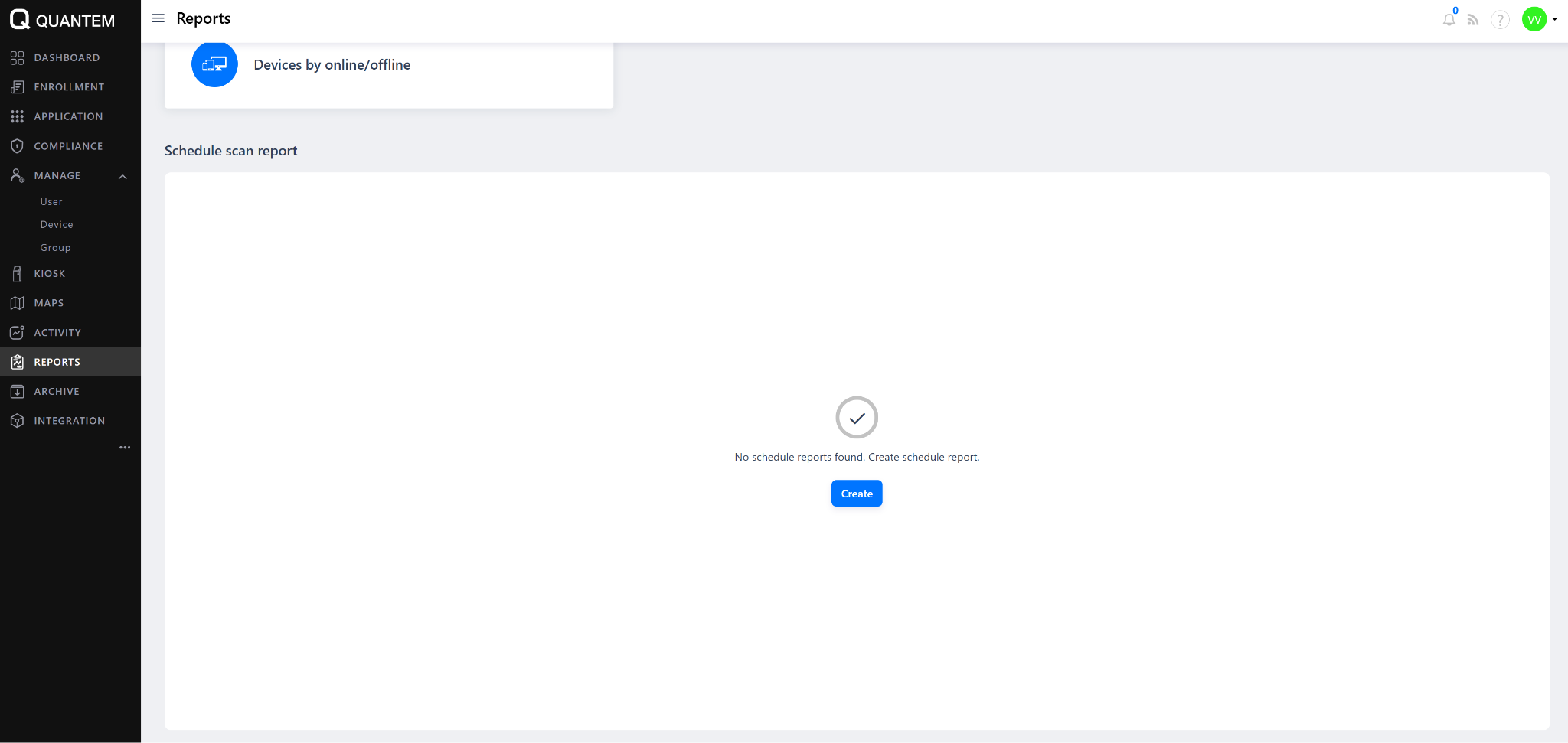
Step 1: Navigate to Schedule Scan Report
On the Reports page, scroll down to the Schedule Scan Report section. If no scheduled reports have been created yet, the message "No schedule reports found. Create schedule report." will be displayed. Click Create.
Step 2: Enter Report Name
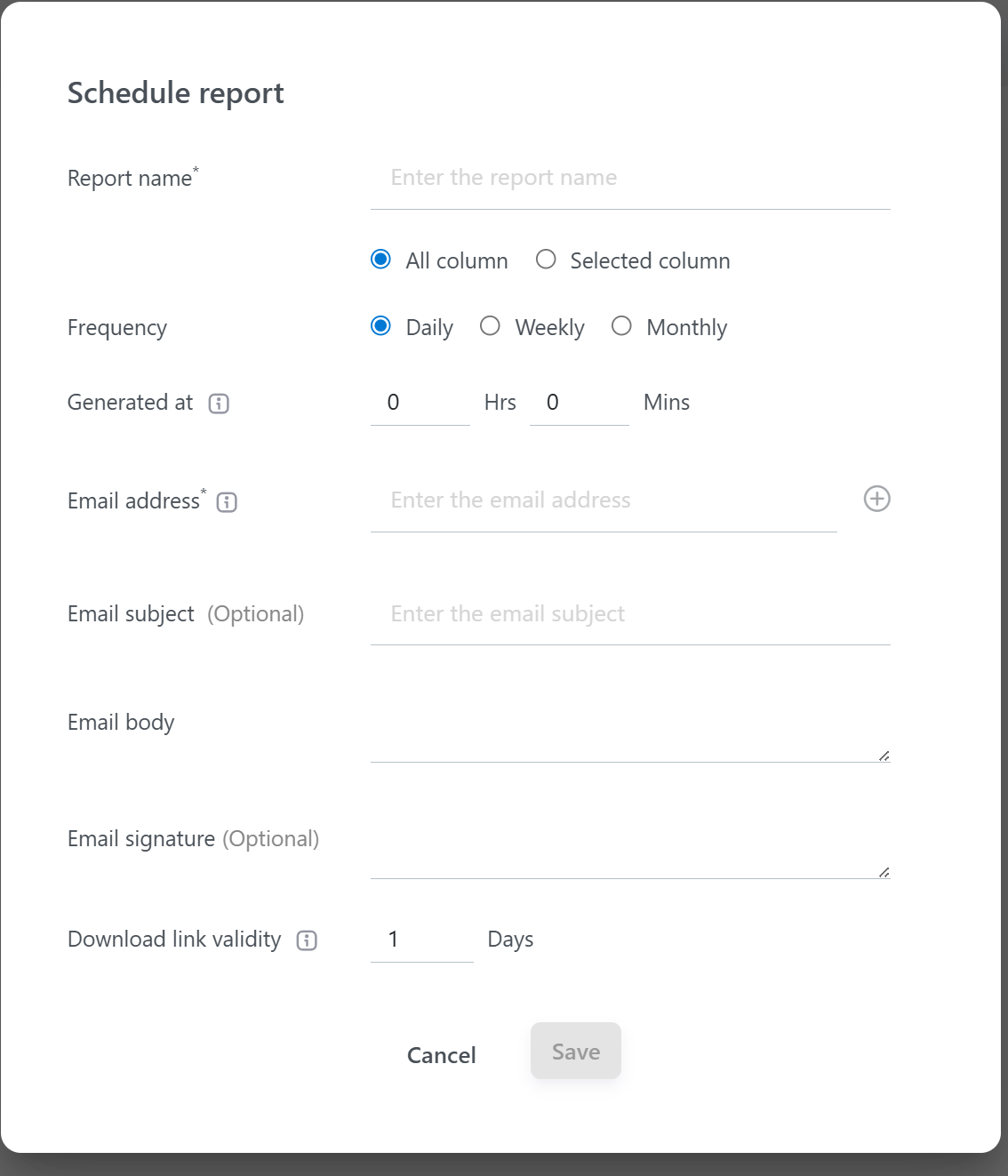
In the Schedule Report pop-up, enter a meaningful and identifiable name in the Report Name field (Mandatory).
Example: Daily-Full-Fleet-Report, Weekly-Ops-Status-Report, Monthly-Compliance-Audit
Use a naming convention that clearly identifies the purpose, frequency, and audience of the report — especially when multiple scheduled reports are configured in the console.
Step 3: Select Column Type – All Column or Selected Column
This is one of the most important configuration steps. Choose which data columns to include in the report based on your reporting requirement:
Option A — All Column
Select All Column when you need a complete and comprehensive report containing every available device data field.
This option is ideal for:
Full fleet audits
IT compliance reporting
Management reviews requiring complete device visibility
Archival and documentation purposes
When All Column is selected, the report will automatically include all the following fields without any manual selection needed:
Option B — Selected Column
Select Selected Column when you need to pull specific data fields only — bifurcating or filtering the report to include only the information relevant to a particular team, use case, or reporting requirement.
This option is ideal for:
Sharing targeted reports with specific departments (e.g., operations, HR, finance, compliance)
Extracting only the fields needed for a specific audit or review
Reducing report size and complexity for faster review
Creating role-specific reports where certain data should not be shared
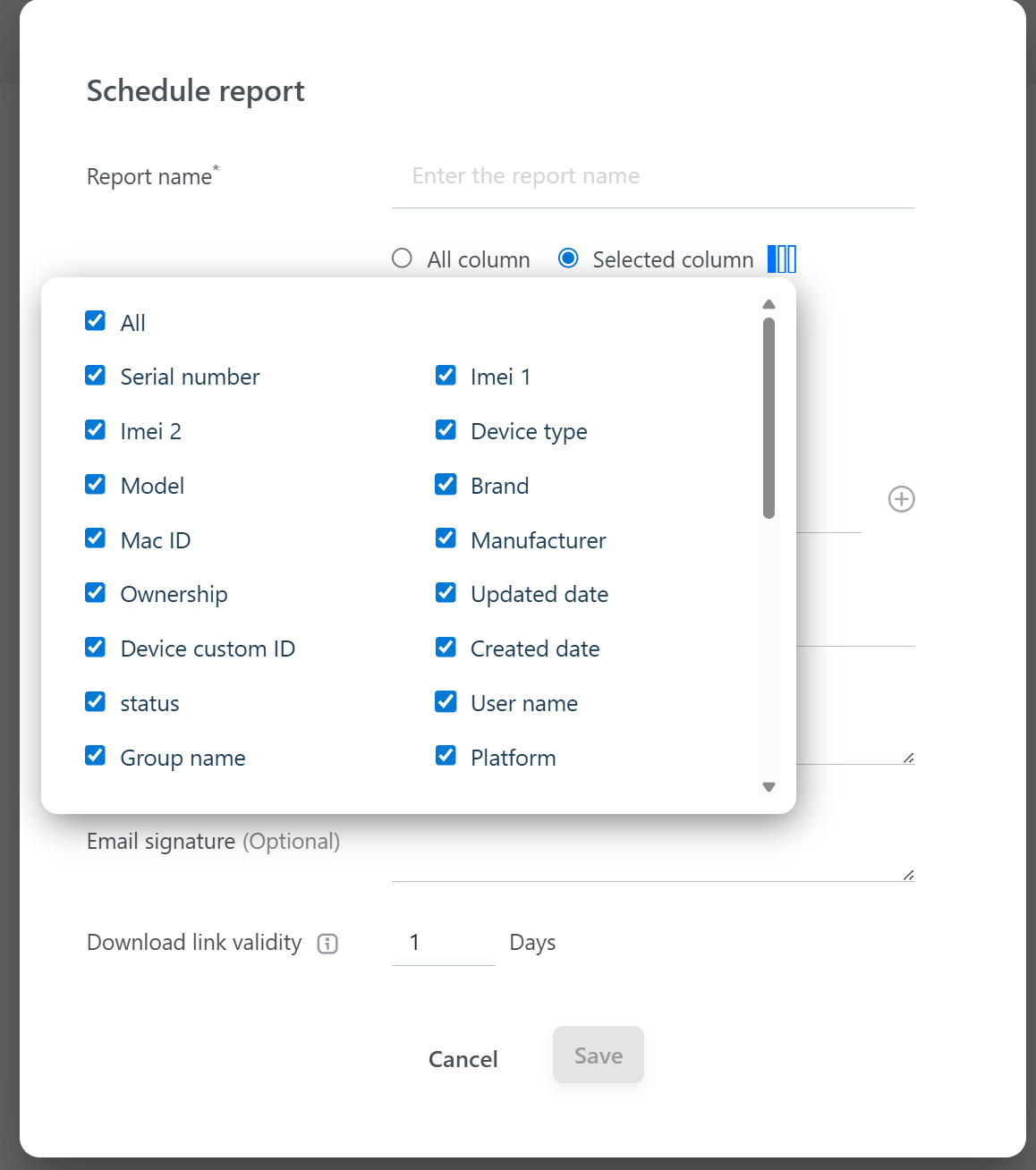
When Selected Column is chosen, a column picker dropdown will appear showing all available columns with checkboxes. You can:
Check All at the top to select all columns (same as All Column mode)
Individually check or uncheck specific columns to include only the data you need
Mix and match any combination of columns based on the reporting requirement
Step 4: Set Report Frequency
Under Frequency, select how often the report should be generated and automatically delivered:
Step 5: Set Report Generation Time
Under Generated At, set the exact time the report should be automatically created and sent:
Enter the Hours (Hrs) and Minutes (Mins) in 24-hour format
Example: 9 Hrs 0 Mins = 9:00 AM | 18 Hrs 30 Mins = 6:30 PM | 0 Hrs 0 Mins = 12:00 AM (midnight)
Step 6: Enter Email Address(es)
In the Email Address field (Mandatory), enter the email address where the report should be delivered:
Enter the primary recipient's email address
Click the + (Plus) icon on the right to add additional email recipients
Multiple recipients can be added to ensure the report reaches all relevant stakeholders simultaneously
Example recipients: IT Admin, Department Manager, Compliance Officer, Operations Lead
Step 7: Enter Email Subject (Optional)
Enter a custom subject line for the report email in the Email Subject field.
Example: Weekly Device Fleet Report – Quantem Console | [Date]
A clear and descriptive subject line helps recipients quickly identify and prioritize the report in their inbox — especially important when multiple reports are being sent to the same recipients.
Step 8: Enter Email Body (Optional)
Enter a custom message in the Email Body field to provide context, instructions, or notes for the report recipients.
Example: "Please find attached the weekly device fleet report for the period ending [Date]. This report includes device status, group assignments, and ownership details for all enrolled devices. For any queries, please contact the IT team."
Step 9: Enter Email Signature (Optional)
Add a custom email signature in the Email Signature field. This will appear at the bottom of the report email and can include:
Admin name and designation
Organization name
Contact information
Standard organizational disclaimer
Step 10: Set Download Link Validity
Under Download Link Validity, enter the number of days the download link embedded in the report email will remain active and accessible:
Note: Once the download link validity period expires, the recipient will no longer be able to download the report from the email link. Ensure the validity period is set appropriately based on the report frequency and recipient availability.
Step 11: Save the Scheduled Report
Click Save to activate the scheduled report.
Once saved:
The scheduled report will appear in the Schedule Scan Report section of the Reports page
It will be automatically generated at the configured time and frequency
The report will be emailed to all configured recipients with a download link valid for the configured number of days

Was this article helpful?
That’s Great!
Thank you for your feedback
Sorry! We couldn't be helpful
Thank you for your feedback
Feedback sent
We appreciate your effort and will try to fix the article