This article explains how to configure the Time Zone setting in the Quantem Console. Setting the correct time zone ensures that all timestamps, device information, commands, and activity logs displayed on the web console are aligned to your selected time zone — regardless of the local machine time of the device or browser being used to access the console.
Steps
1. Log in to the Quantem Console
Navigate to the Quantem Console URL and sign in using your administrator credentials.
2. Go to Admin Settings
On the bottom-left side of the console, click Admin Settings.
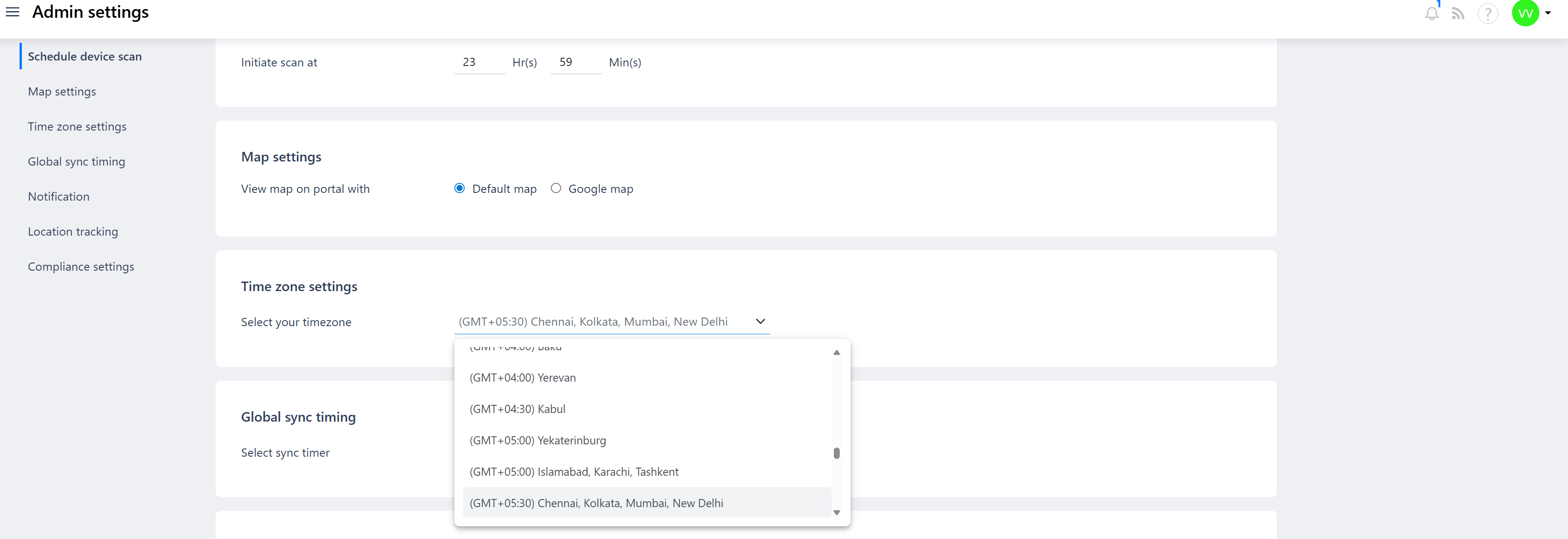
3. Open Time Zone Management
Under Admin Settings, locate and click on Time Zone Management.
4. Select Your Desired Time Zone
A list or dropdown of available time zones will be displayed. Select the time zone that matches your operational or regional requirement.
Example: If your organization operates in India Standard Time, select IST (UTC +5:30).
5. Save the Configuration
Click Save to apply the selected time zone. The console will now reflect all timestamps and device activity information according to the configured time zone.
Once the time zone is saved:
All timestamps displayed on the Quantem Console (device activity, logs, sync times, alerts, etc.) will reflect the selected time zone.
Commands and scheduled actions sent from the console will be executed based on the configured time zone.
The console time zone will remain consistent regardless of the local machine time or browser time zone of the admin logging in.
Was this article helpful?
That’s Great!
Thank you for your feedback
Sorry! We couldn't be helpful
Thank you for your feedback
Feedback sent
We appreciate your effort and will try to fix the article