The App Catalog module in the admin console lets you manage applications that can be deployed to devices. You can add apps from Google Play Store, upload enterprise apps, view app details, assign apps to devices or groups, manage app versions, and delete apps.
Viewing available apps
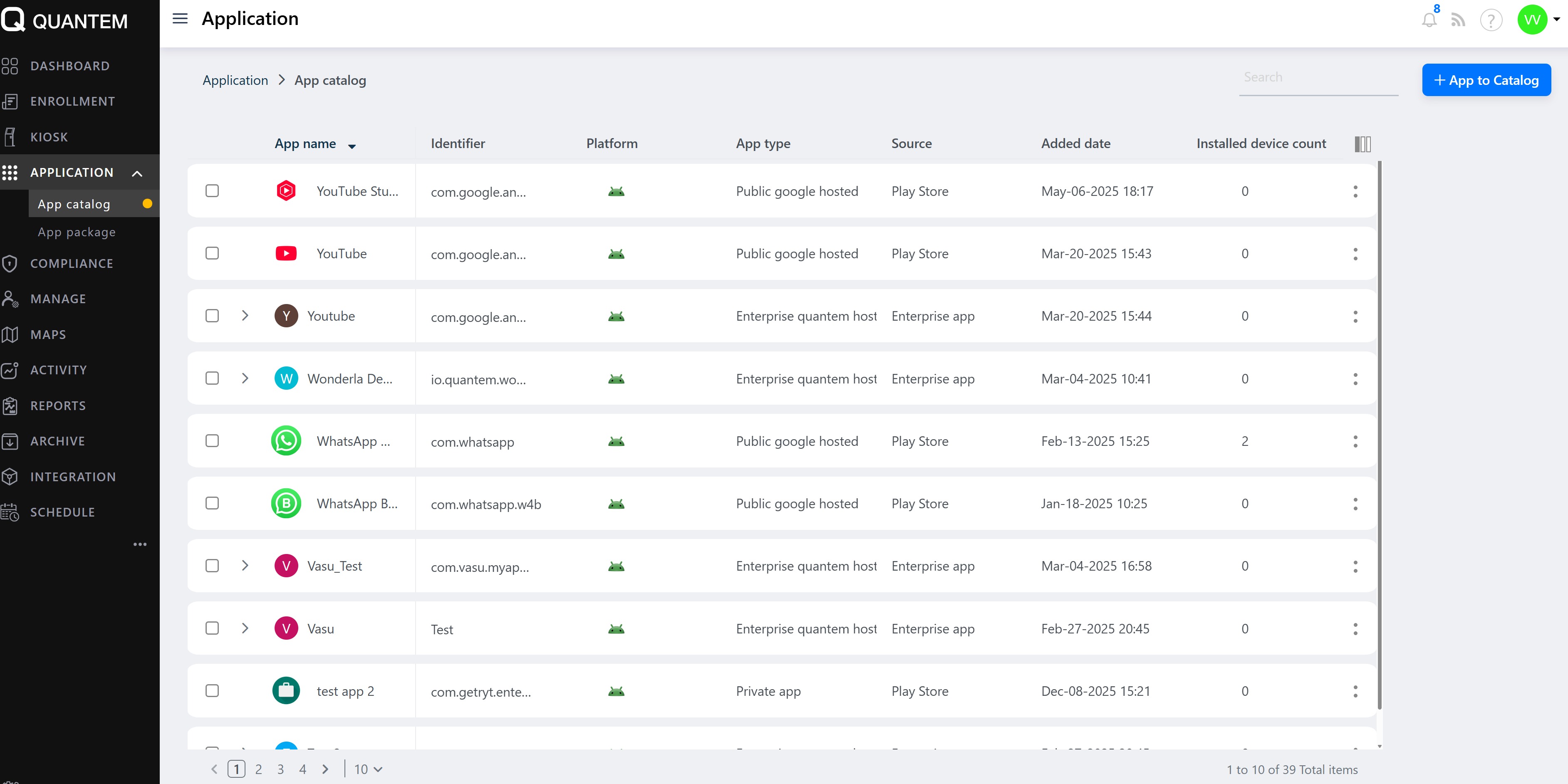
In the admin console, go to Application > App Catalog from the left navigation menu.
A list of available apps is displayed in table format with columns showing app name, identifier, platform, app type, source, added date, and installed device count.
The App Catalog list includes the following functions:
Add app – Add new enterprise or Play Store apps
Context Menu – Right-click options to view, edit, delete, or assign apps
Column Chooser – Show or hide table columns as needed
Pagination – Navigate through app lists when there are more than 10 apps per page
Items Per Page – Change the number of apps displayed per page (default is 10)
Adding an enterprise app
Click the Add app button at the top of the app list.
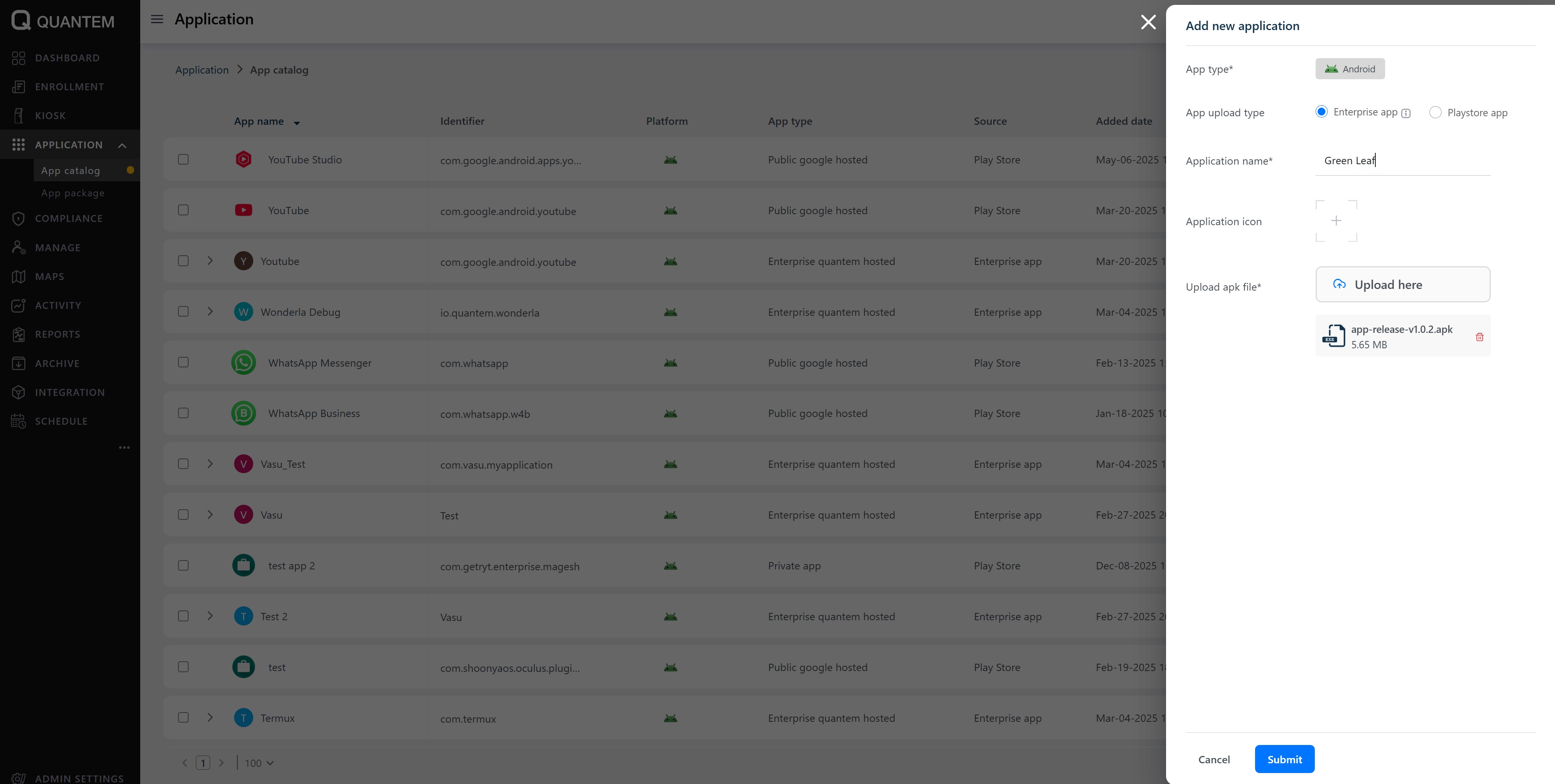
A dialog with Enterprise app and Playstore app options is shown. Select Enterprise app.
Fill in the following required fields:
App type – Android (default)
Application name – Name of the app
Service name – The app's service identifier
Version – Version number of the app
Upload APK file – The APK file for the app
Optionally, upload an Application icon.
Click Submit to create the app and add it to the catalog
Adding a Play Store app
Click the Add app button at the top of the app list.
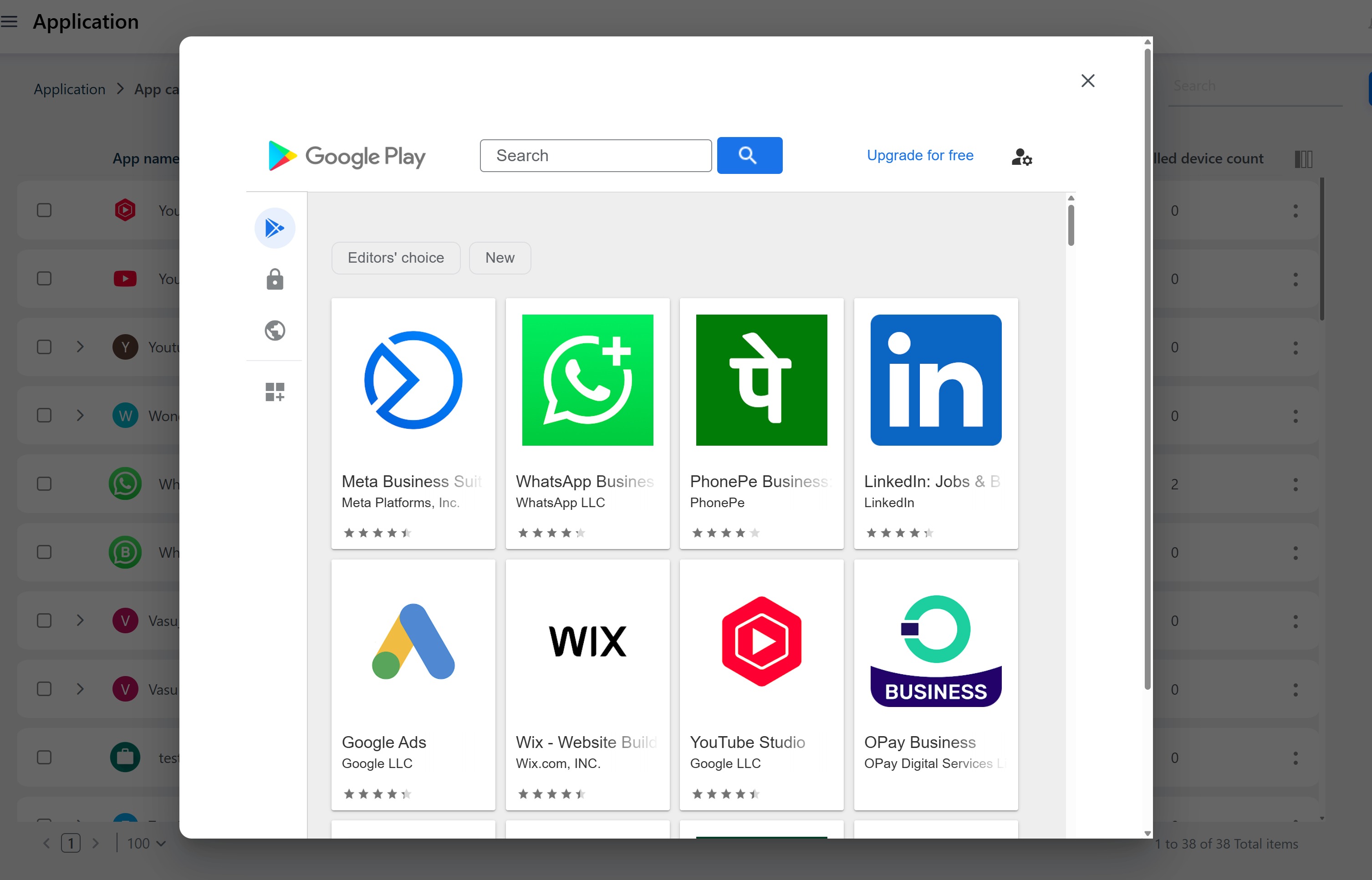
Select Playstore app from the dialog.
A Google Play Store search window opens. Search for and select the desired app from the list.
Click on the app name to proceed.
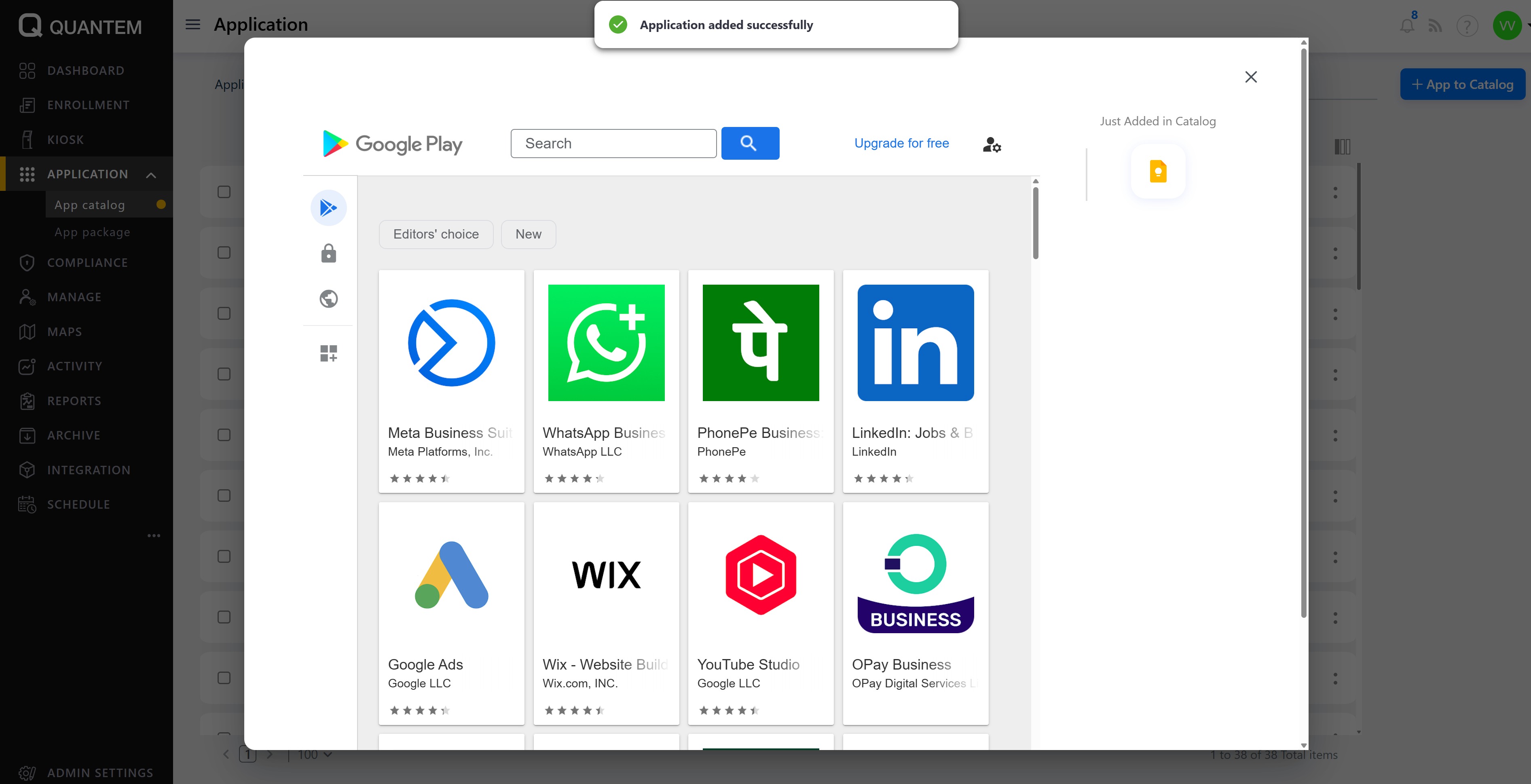
A permission approval screen is displayed. Click Select.
The app is added to the catalog with a success confirmation message
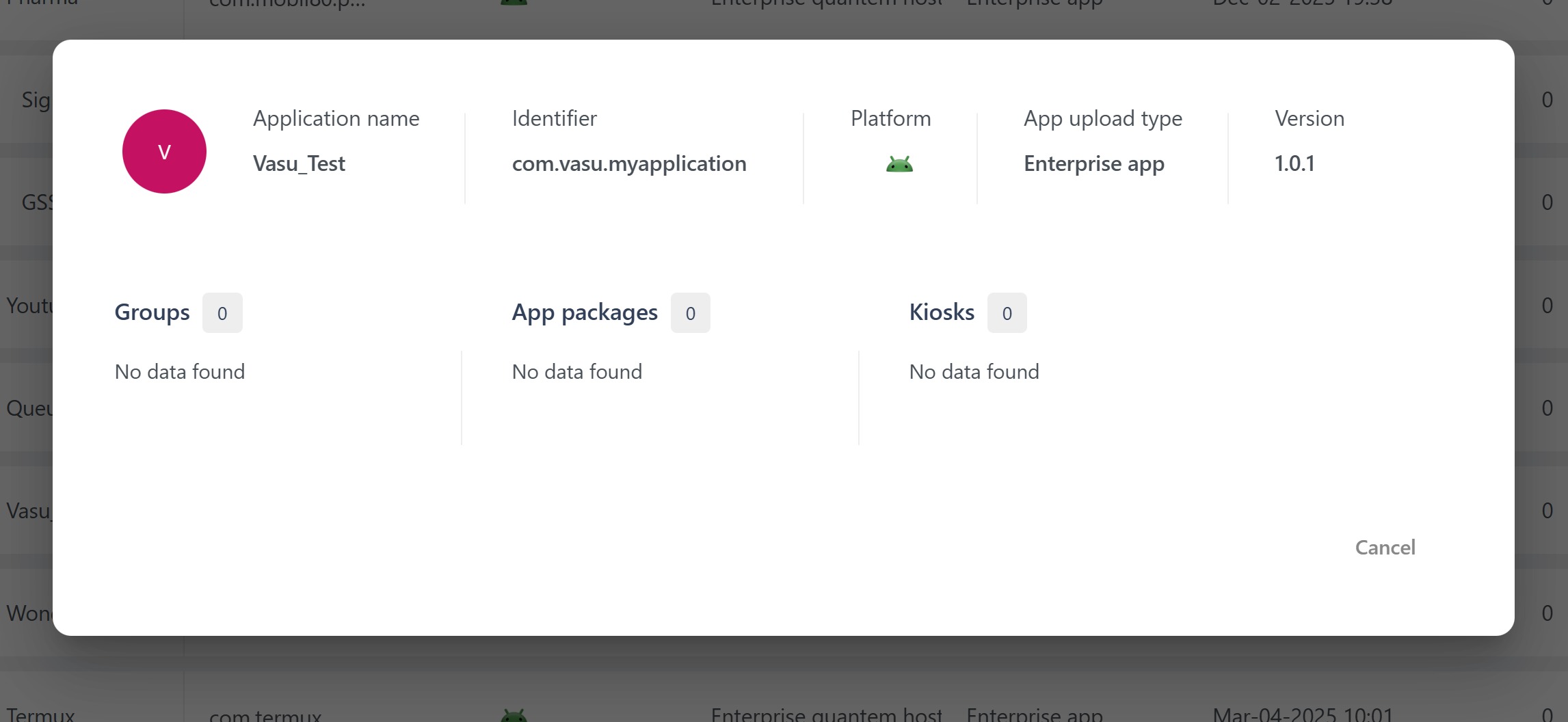
Viewing enterprise app details
From the app list, click the three vertical dots (⋮) at the end of the enterprise app row.
Select View details from the context menu.
A details popup shows:
App name, identifier, platform, app type, and available versions
Groups, packages, and kiosks to which the app is assigned
You can switch between versions using the dropdown to see version-specific assignments.
Viewing Play Store app details
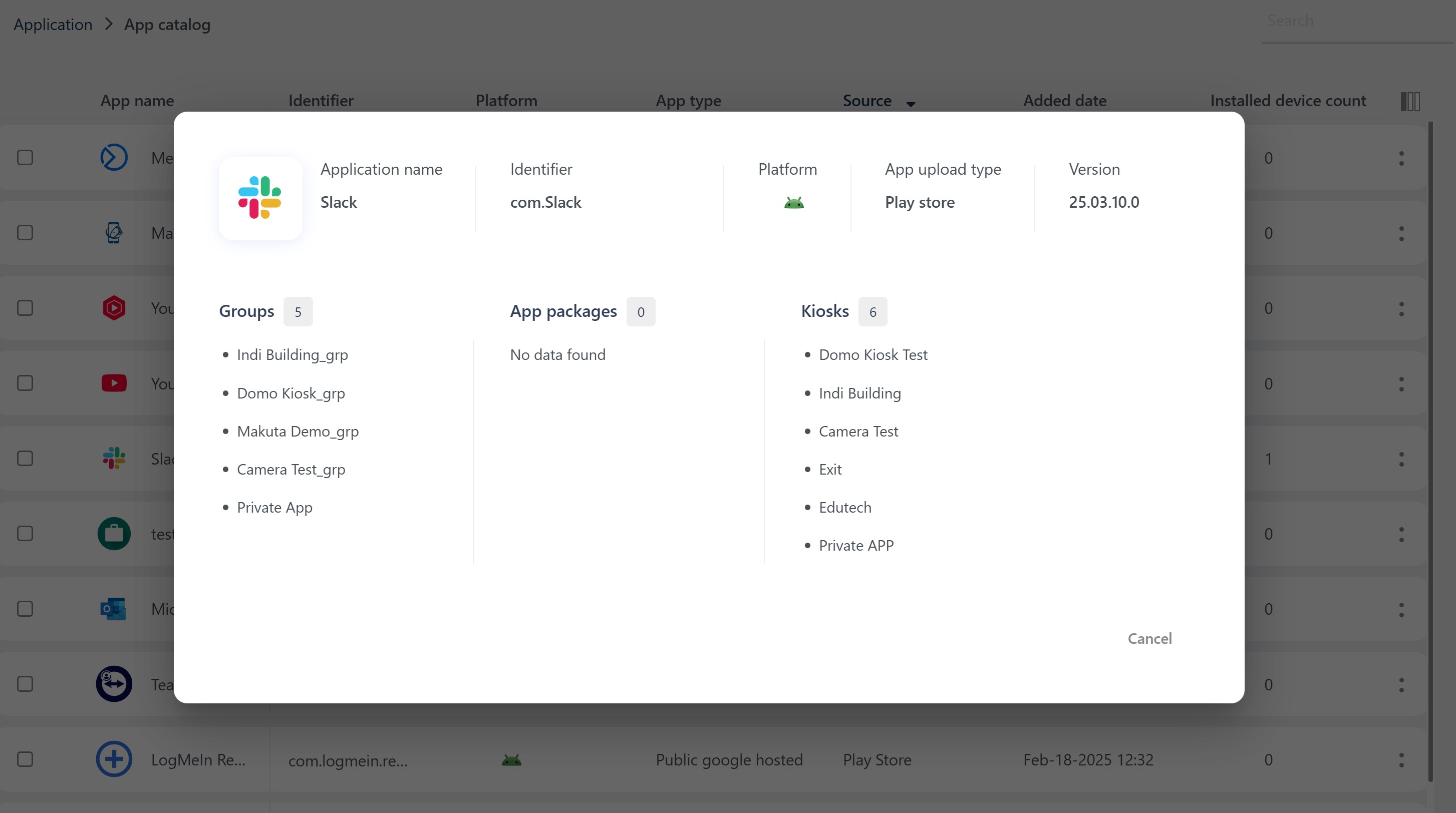
From the app list, click the three vertical dots (⋮) at the end of the Play Store app row.
Select View details from the context menu.
A details popup shows:
App name, identifier, platform, app type, version, and source
Count and list of groups, packages, and kiosks to which the app is assigned.
Deleting an app
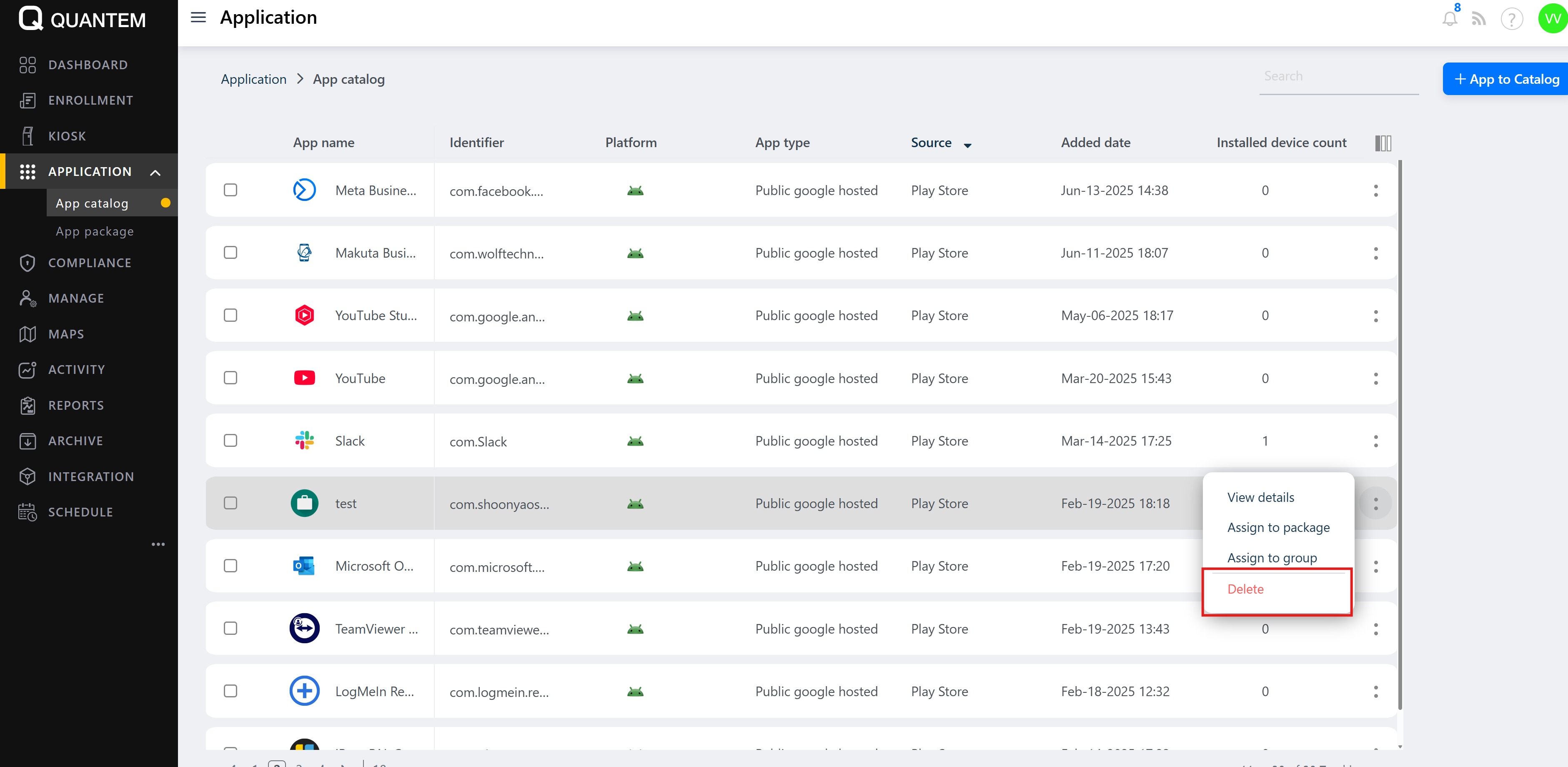
From the app list, click the three vertical dots (:) at the end of the app row.
Select Delete from the context menu.
A confirmation dialog appears with a warning about the impact of deletion.
Click Continue to confirm the deletion.
Adding a new app version
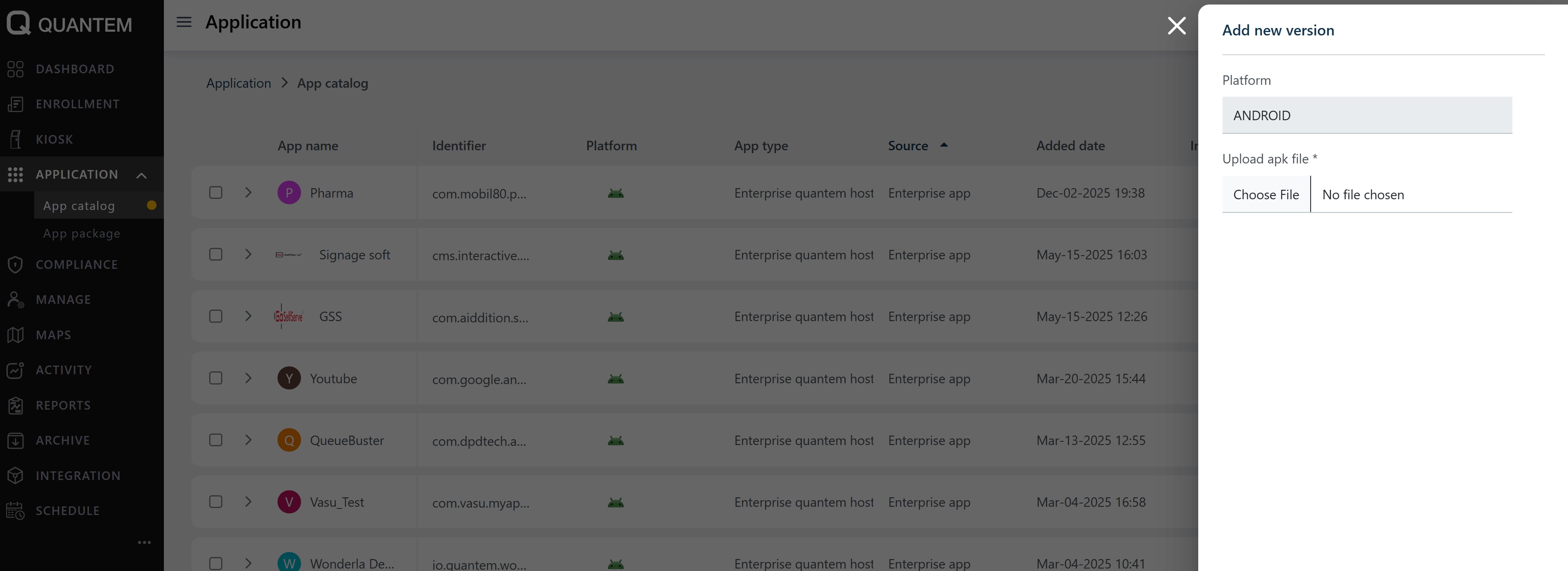
From the app list, click the three vertical dots (⋮) at the end of the enterprise app row.
Select Add new version from the context menu.
An Add new version popup is displayed.
The Platform field is set to Android by default. Enter the new version number and upload the corresponding APK file.
Click Submit to add the new version to the app.
Was this article helpful?
That’s Great!
Thank you for your feedback
Sorry! We couldn't be helpful
Thank you for your feedback
Feedback sent
We appreciate your effort and will try to fix the article