Zero Touch Enrollment allows you to automatically enroll Android devices into the management platform with zero manual intervention. When devices are powered on for the first time, they are automatically configured and enrolled based on your pre-defined settings.
Overview
Zero Touch Enrollment streamlines device deployment by linking your zero-touch account with the admin console. Once configured, devices ordered through authorized resellers are automatically set up with your organization's policies and apps when powered on.
Prerequisites
A valid Google account with zero-touch enrollment enabled
Access to the zero-touch partner dashboard
Admin access to the Quantem console
Linking your zero-touch account
In the admin console, go to Enrollment > Android > Zero touch.
Click the link Link zero-touch account to EMM provider at the top of the screen.
Click Next to proceed.
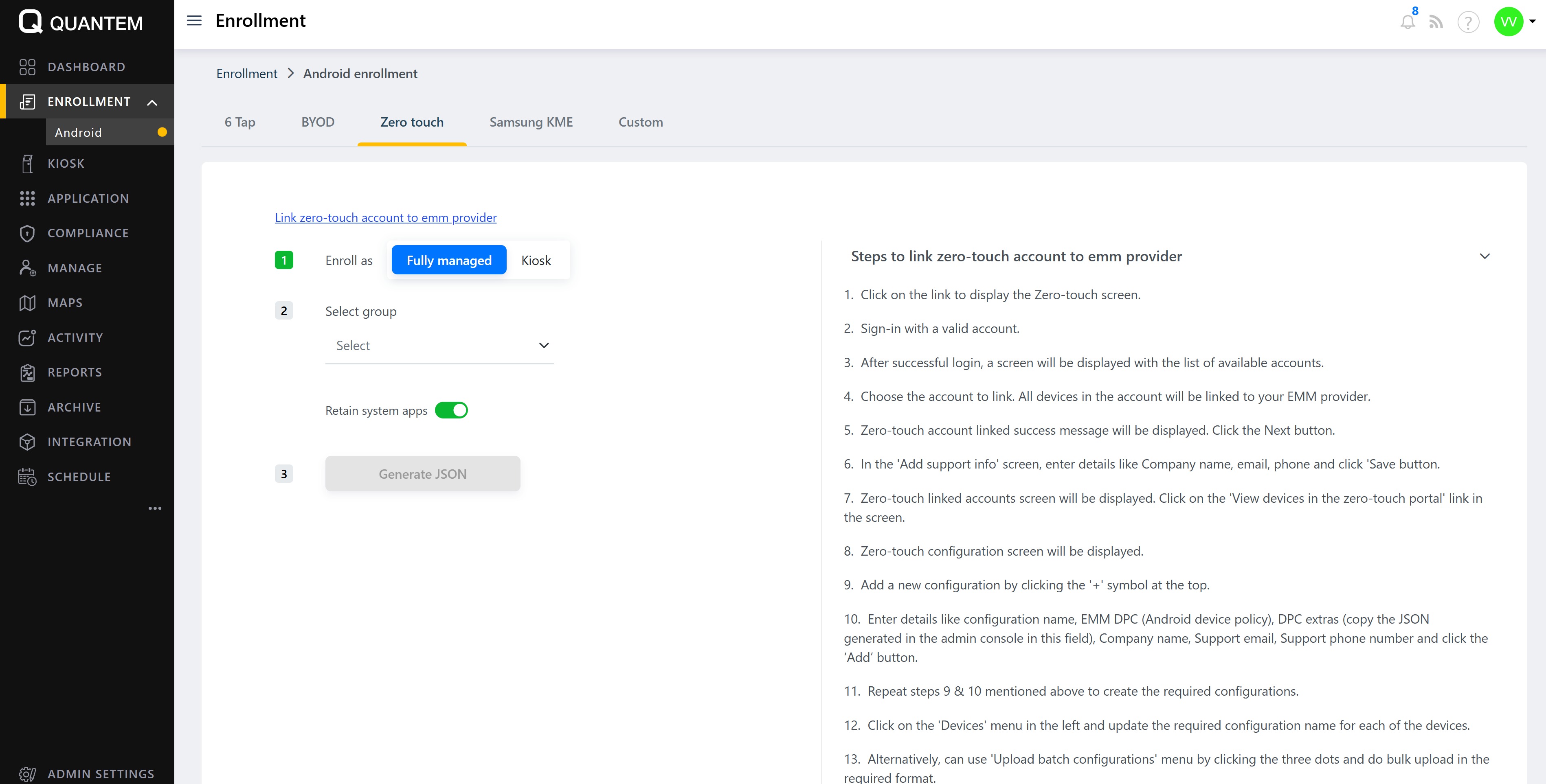
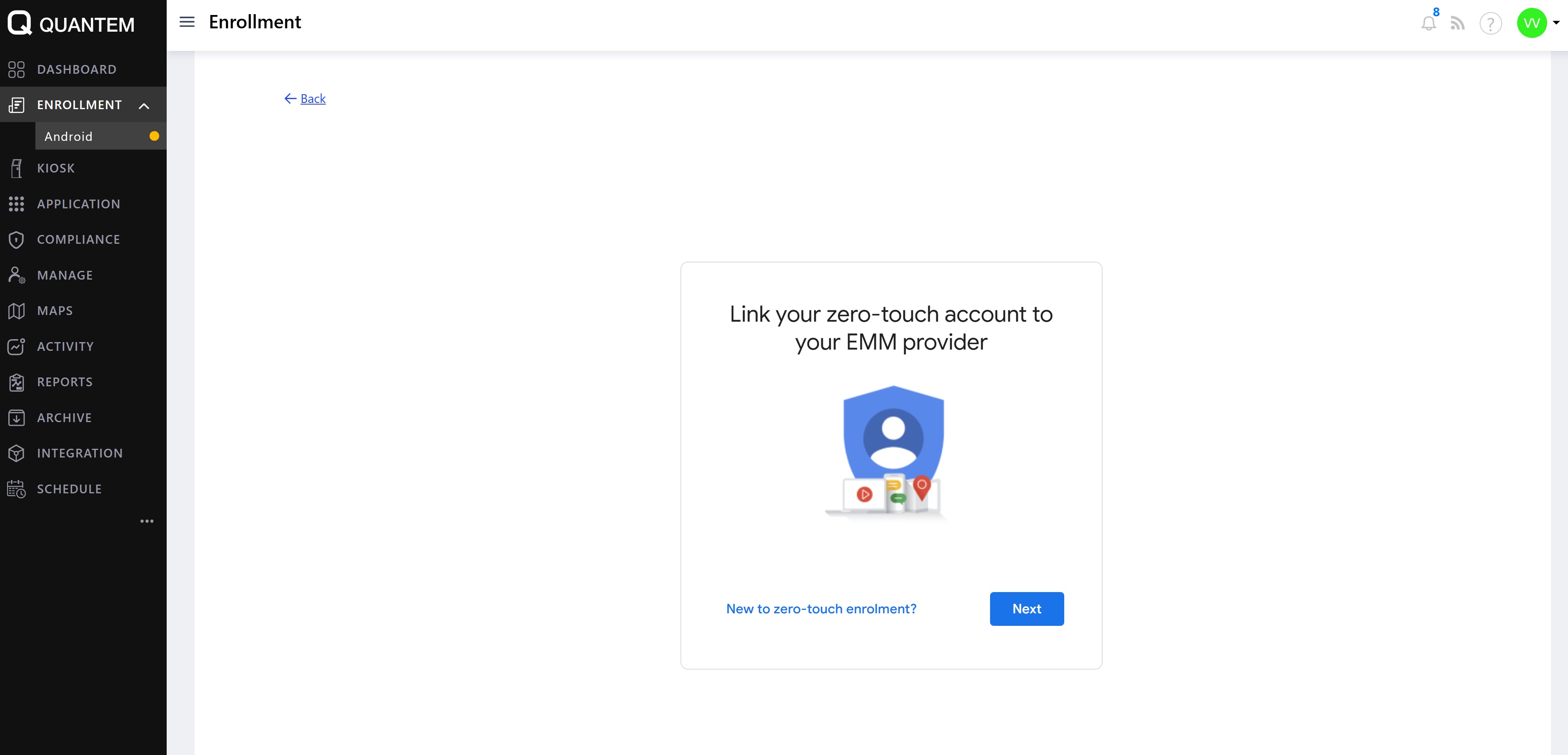
Sign in with your Google account credentials (the account associated with your zero-touch enrollment).
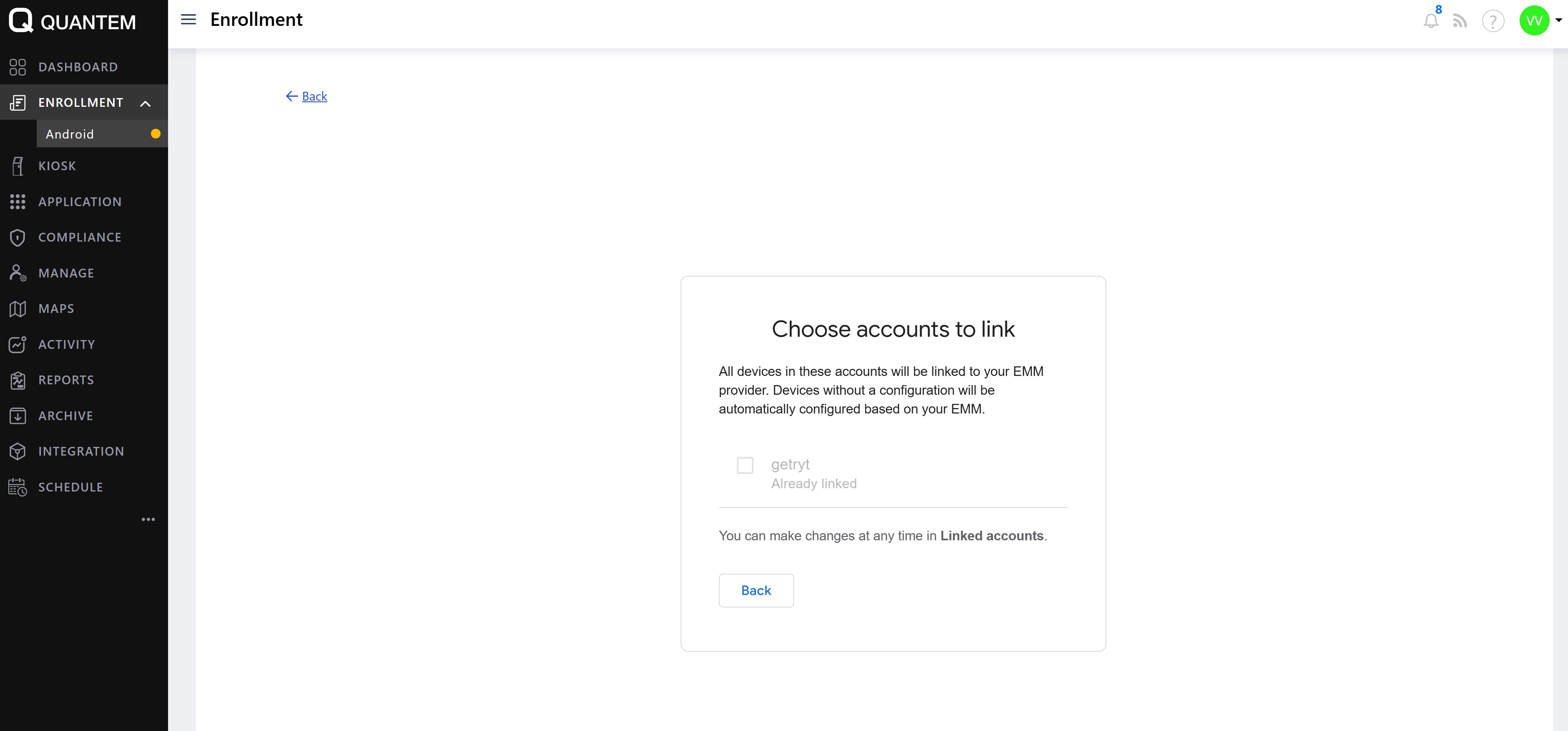
After successful login, a list of available accounts is displayed. Select the account you wish to link. All devices in this account will be connected to your EMM provider.
Click Link to link the account.
A success confirmation message appears. Click Next.
On the Add support info screen, enter the following details:
Company name
Email address
Click Save to confirm.
Click View devices in the zero-touch portal to access the zero-touch configuration dashboard.
Creating configurations in the zero-touch portal
On the zero-touch portal, click the Configurations tab to view existing configurations.
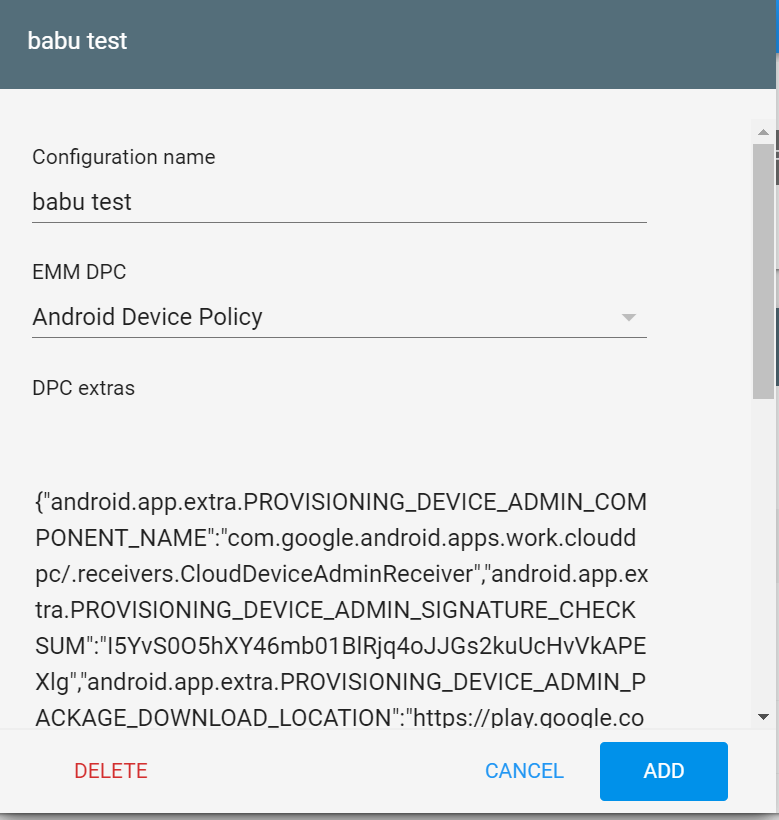
Click the + (plus) button to add a new configuration.
Fill in the following required fields:
Configuration name – Identifier for the configuration
EMM DPC – Select the Android Device Policy Controller (usually pre-filled)
DPC extras – Paste the JSON generated from the admin console (contains enrollment token and policy details)
Company name – Your organization's name
Support email address – Contact email for device support
Support phone number – Contact phone for device support
Customised message (optional) – Custom message to display during enrollment
Click Add to create the configuration.
Repeat steps 2-4 for each additional configuration you need to create.
Assigning configurations to devices
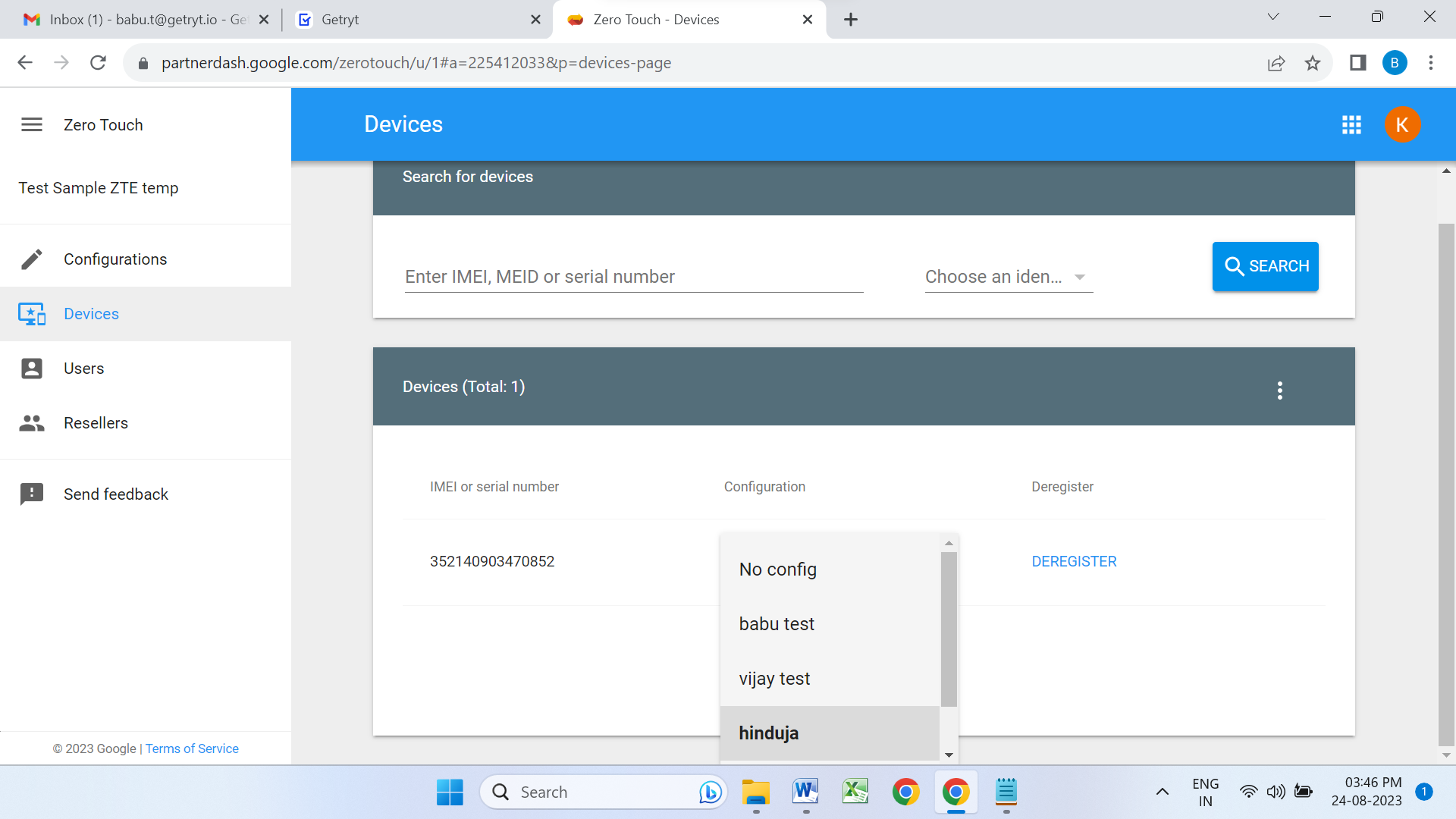
In the zero-touch portal, click the Devices tab.
Search for devices by entering their IMEI, MEID, or serial number.
For each device, select the configuration you wish to apply from the dropdown menu:
Or other custom configurations you created
Click Save to assign the configuration to the device.
Alternatively, use the Upload batch configurations option (three dots menu) to bulk upload configurations for multiple devices in the required format.
Completion
Once configurations are assigned to devices:
During the first boot, devices automatically enroll with the configured policies and apps.
No manual intervention is required on the devices.
All organizational policies and applications are applied automatically during the setup process.
Steps summary for zero-touch setup
| Step | Action |
|---|---|
| 1 | Navigate to Enrollment > Android > Zero touch in admin console |
| 2 | Click Link zero-touch account to EMM provider |
| 3 | Sign in with your Google account and select account to link |
| 4 | Save support contact information |
| 5 | Access zero-touch portal and create configurations |
| 6 | Copy JSON from admin console and paste in DPC extras field |
| 7 | Assign configurations to devices by IMEI/serial number |
| 8 | Upload batch configurations for multiple devices (optional) |
| 9 | Devices auto-enroll on first boot with all policies and apps |
Was this article helpful?
That’s Great!
Thank you for your feedback
Sorry! We couldn't be helpful
Thank you for your feedback
Feedback sent
We appreciate your effort and will try to fix the article