Kiosk Enrollment – 6 Tap Method
1. About Enrollment and Kiosk mode
The Enrollment module in the admin console is used to onboard devices using multiple Android Enterprise methods such as 6 Tap, BYOD, Zero Touch, and Samsung KME.
Under the 6 Tap method, devices can be enrolled as Fully Managed or Kiosk devices.
The BYOD method is intended for enrolling employee-owned personal devices.
Kiosk enrollment is designed for company-owned devices that serve a dedicated purpose, such as:
In kiosk mode, IT admins can:
Restrict the device to a single app or a limited set of apps.
Prevent users from launching other apps or changing system settings.
Ensure the device always remains in a controlled, business-specific state.
2. Prerequisites
Before starting kiosk enrollment using the 6 Tap method, ensure the following:
The device is company-owned and supports Android Enterprise (typically Android 7.0+)
The device is fresh out of the box or has been factory reset.
You have access to the admin console and at least one kiosk group already created.
The device has a working camera and network connectivity (Wi‑Fi or mobile data) for downloading the agent and policies.
3. Configure kiosk enrollment in the console
In the admin console, go to Enrollment > Android from the left menu.
The Enrollment screen opens with multiple tabs for different methods.
Click the 6 Tap tab and select the Kiosk option. The kiosk enrollment configuration page is displayed.
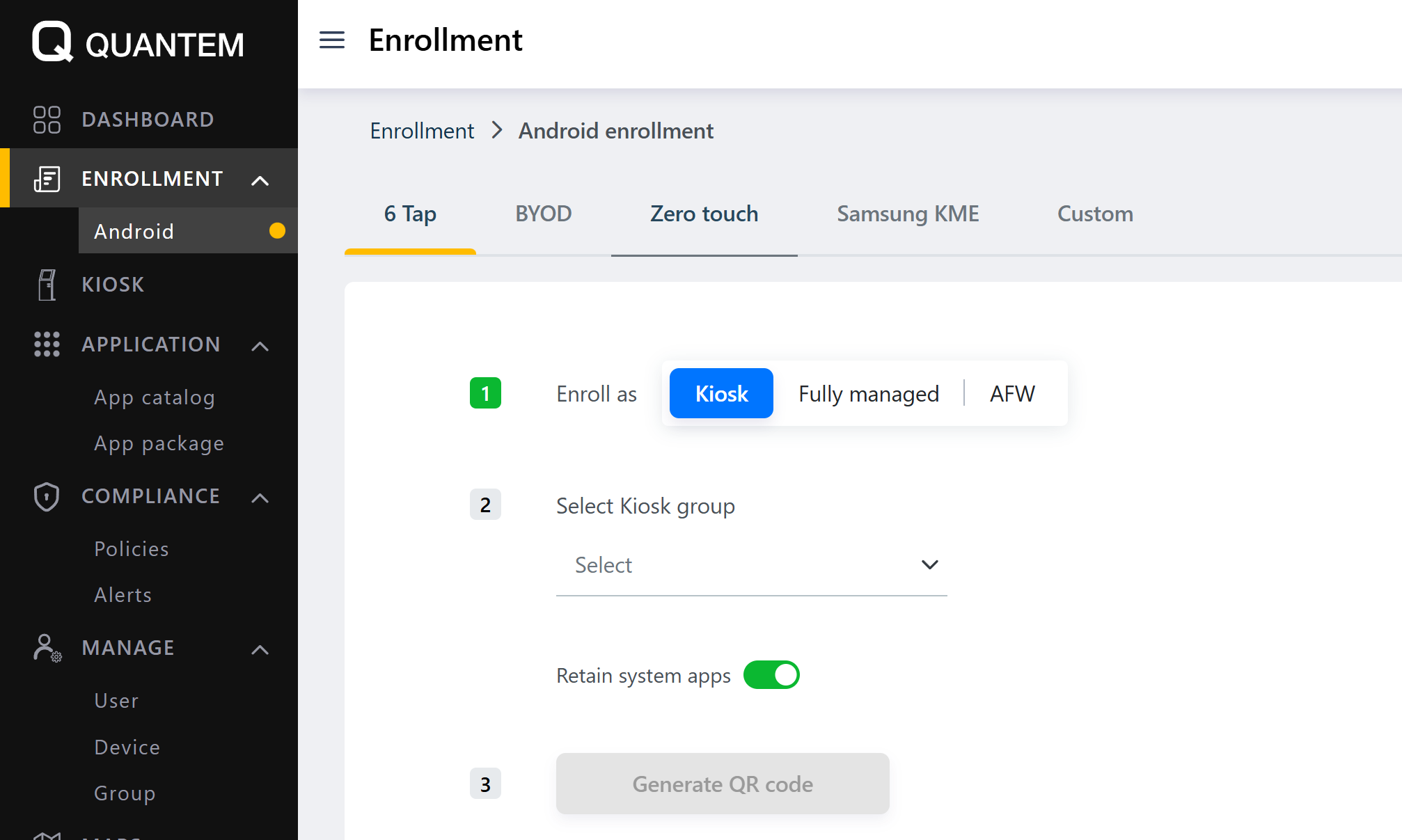
A Kiosk group dropdown is shown with all available kiosk groups.
Select the kiosk group for which the device should be enrolled.
Click Generate QR code.
A QR code is generated and displayed on the screen.
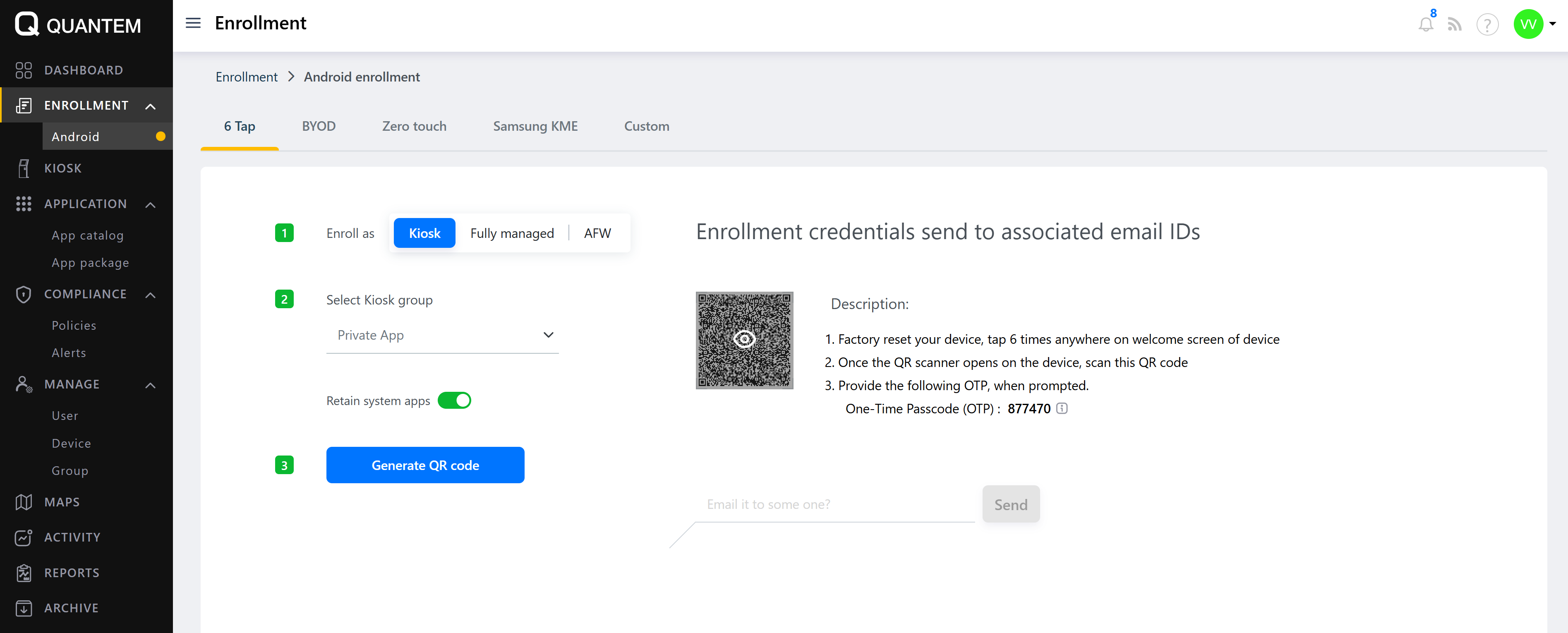
You can now proceed to enroll devices using this QR code.
4. Start enrollment on the device (6 Tap)
Factory reset the Android device if it is not already in a fresh state.
Power on the device and wait for the first welcome screen (language selection or OEM welcome screen, depending on the model).
On this first screen, tap 6 times in the same spot on the display.
The device opens the QR code scanner for Android Enterprise provisioning.
If the device prompts to install a QR reader (on older Android versions), follow the on-screen instructions to install it and then return to the QR scanning step.
Use the device camera to scan the kiosk QR code displayed in the admin console.
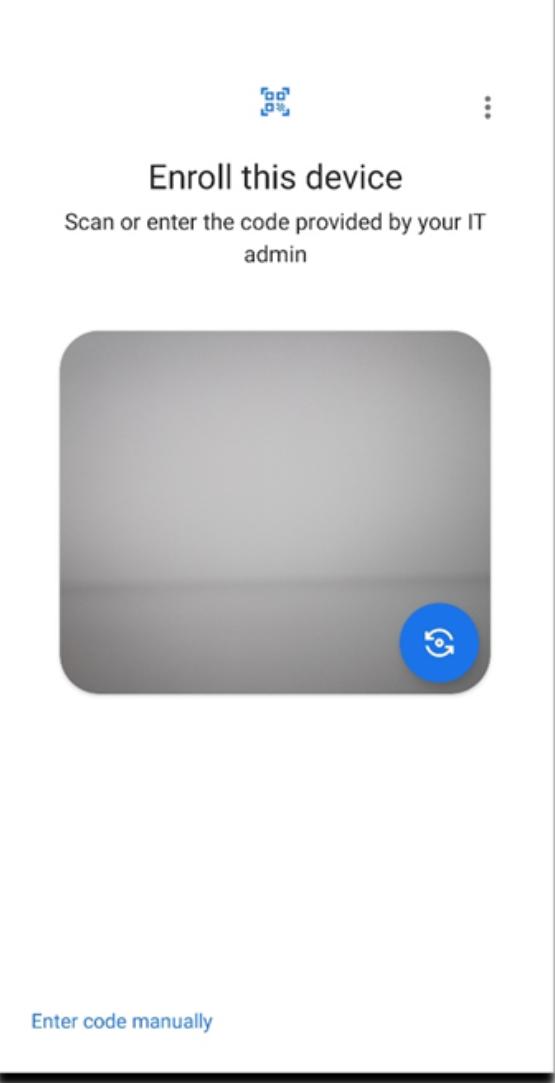
6. On-device provisioning flow
After scanning the QR code, the device begins the Android Enterprise provisioning flow for kiosk:
Downloads and installs the EMM / agent application.
Applies the policies and apps configured for the selected kiosk group.
The user will see a series of setup and permission screens, for example:
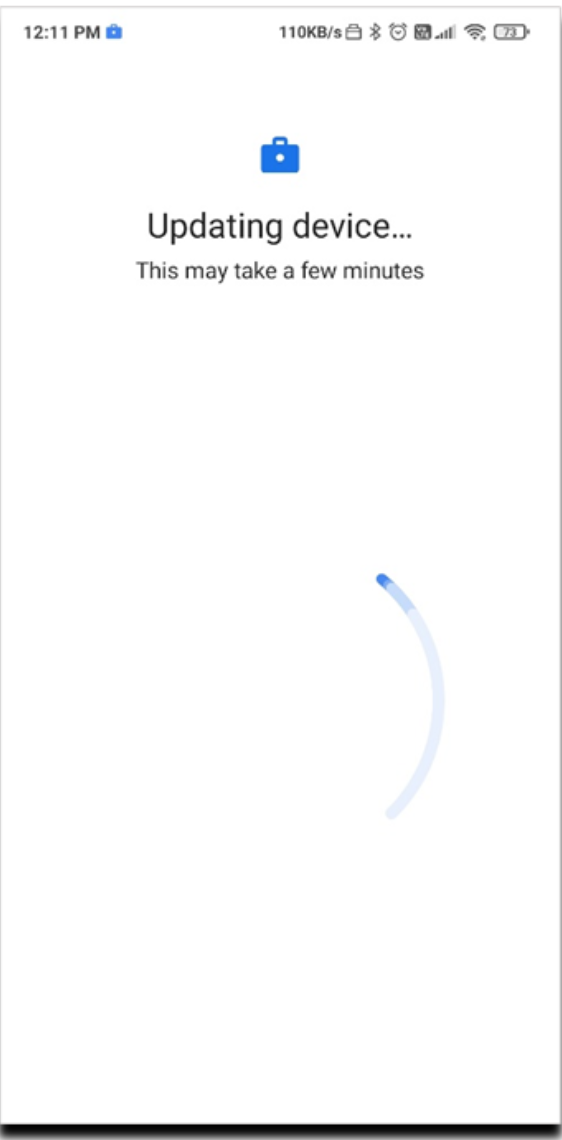
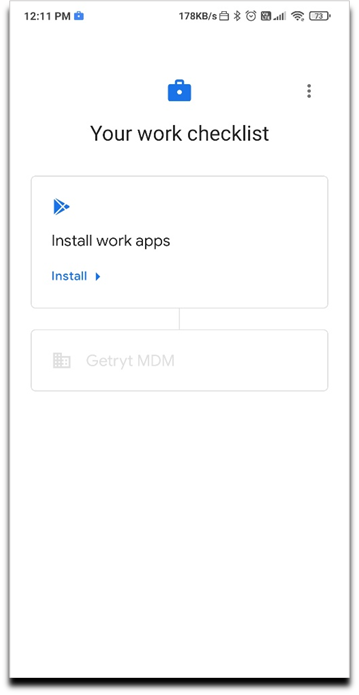
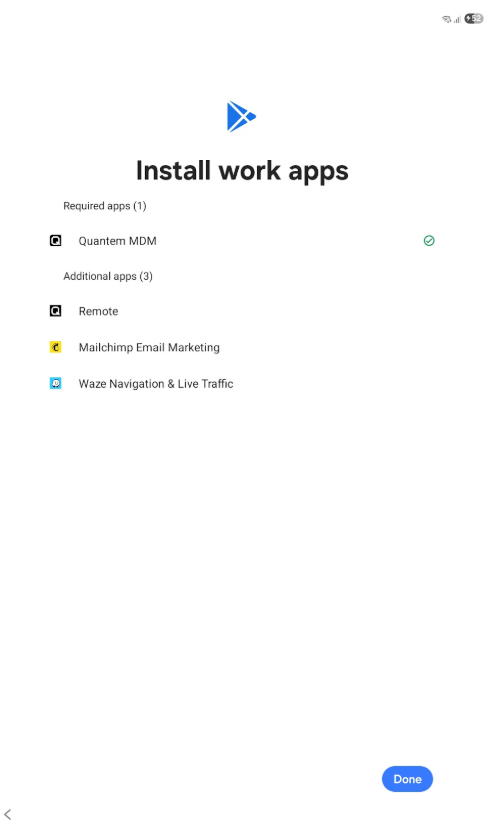
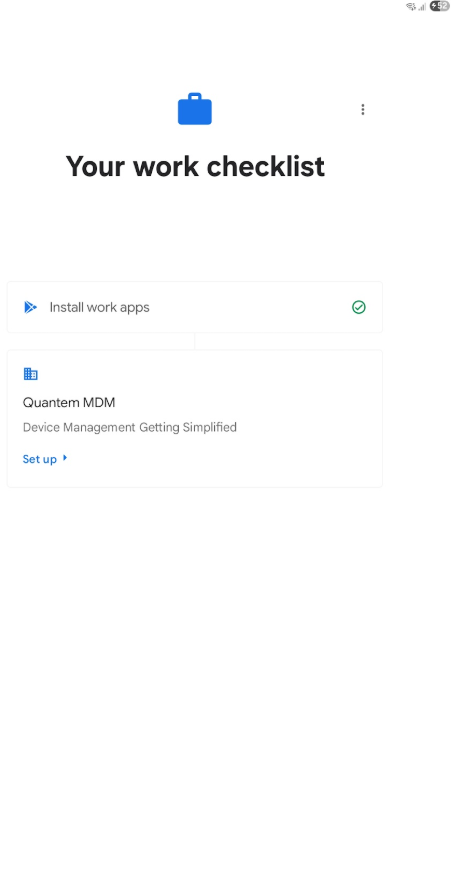
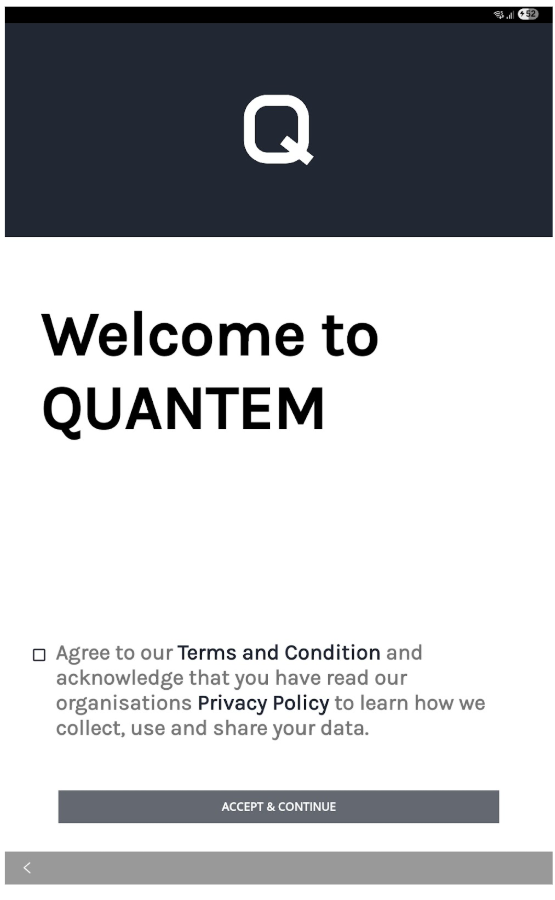
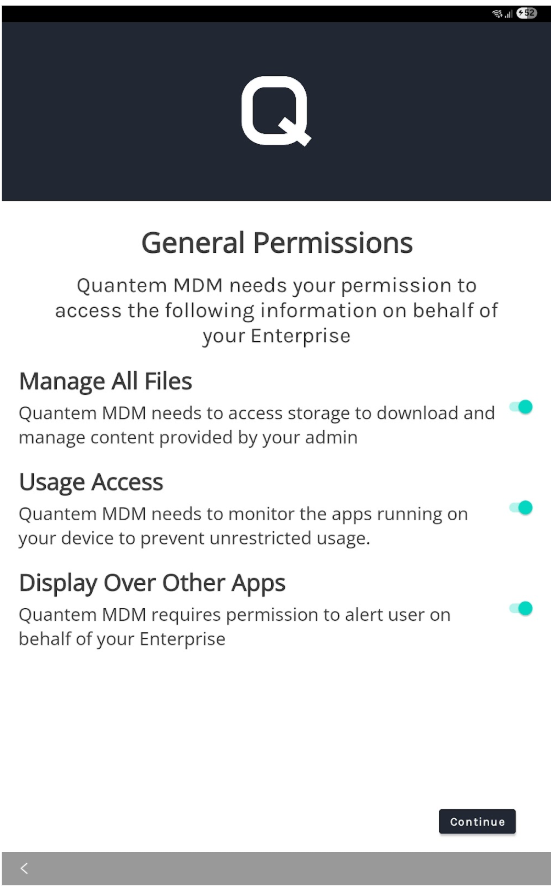
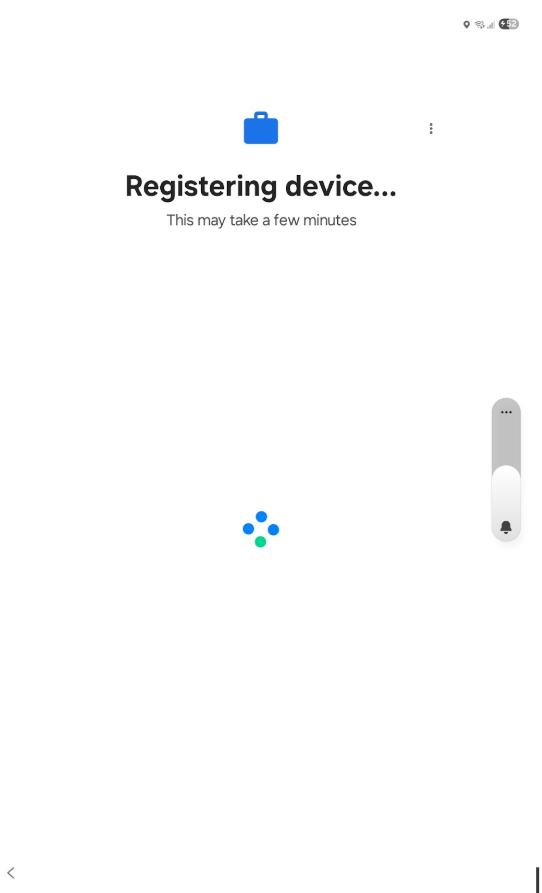
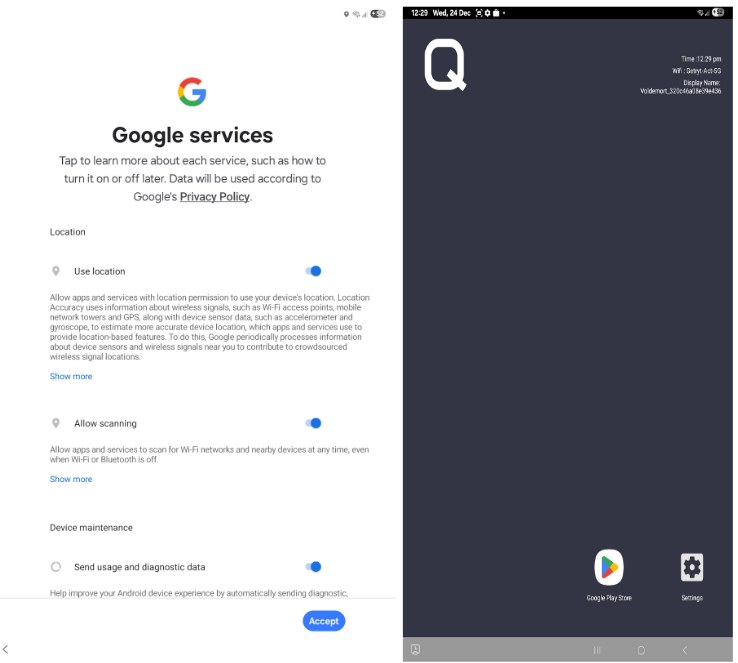
Key steps typically include:
Accepting Google’s device setup terms.
Granting device admin / management permissions.
Confirming network connectivity.
Allowing installation of work apps.
7. Post-enrollment validation
Once all permissions are granted and the provisioning is complete:
The device automatically switches to kiosk mode, showing only the allowed app(s).
System UI and other apps are restricted as per the kiosk configuration.
The device periodically syncs with the console to receive updated apps and policies.
In the admin console:
Navigate to Manage > Device.
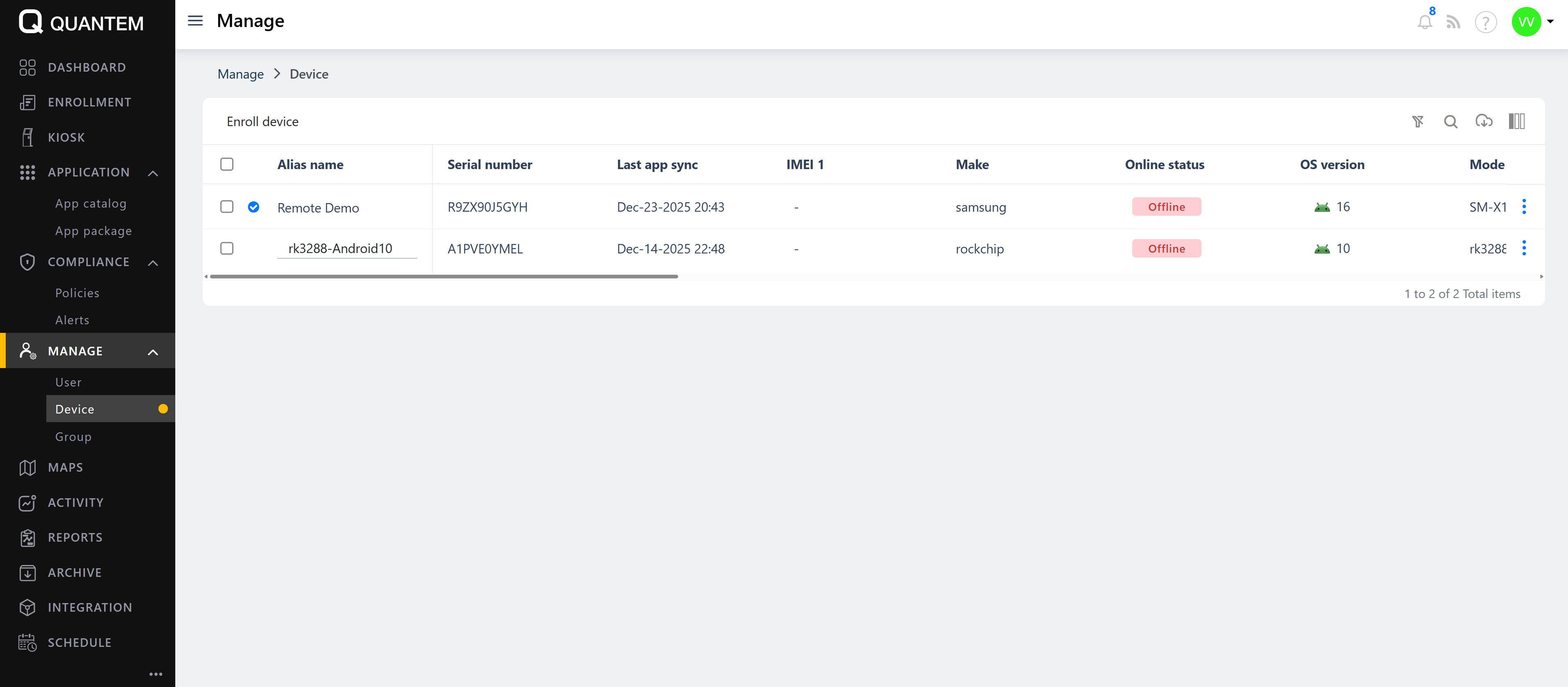
The enrolled device appears in the list with status Enrolled and associated with the selected kiosk group
Was this article helpful?
That’s Great!
Thank you for your feedback
Sorry! We couldn't be helpful
Thank you for your feedback
Feedback sent
We appreciate your effort and will try to fix the article