The Admin Settings module provides system-wide configuration options for managing device scanning, maps, time zones, notifications, location tracking, and compliance rules. These settings control how the platform operates and how administrators receive important updates.
Schedule device scan
Device scans retrieve critical information from enrolled devices such as online/offline status, battery percentage, storage, RAM, location, app data, and network usage.
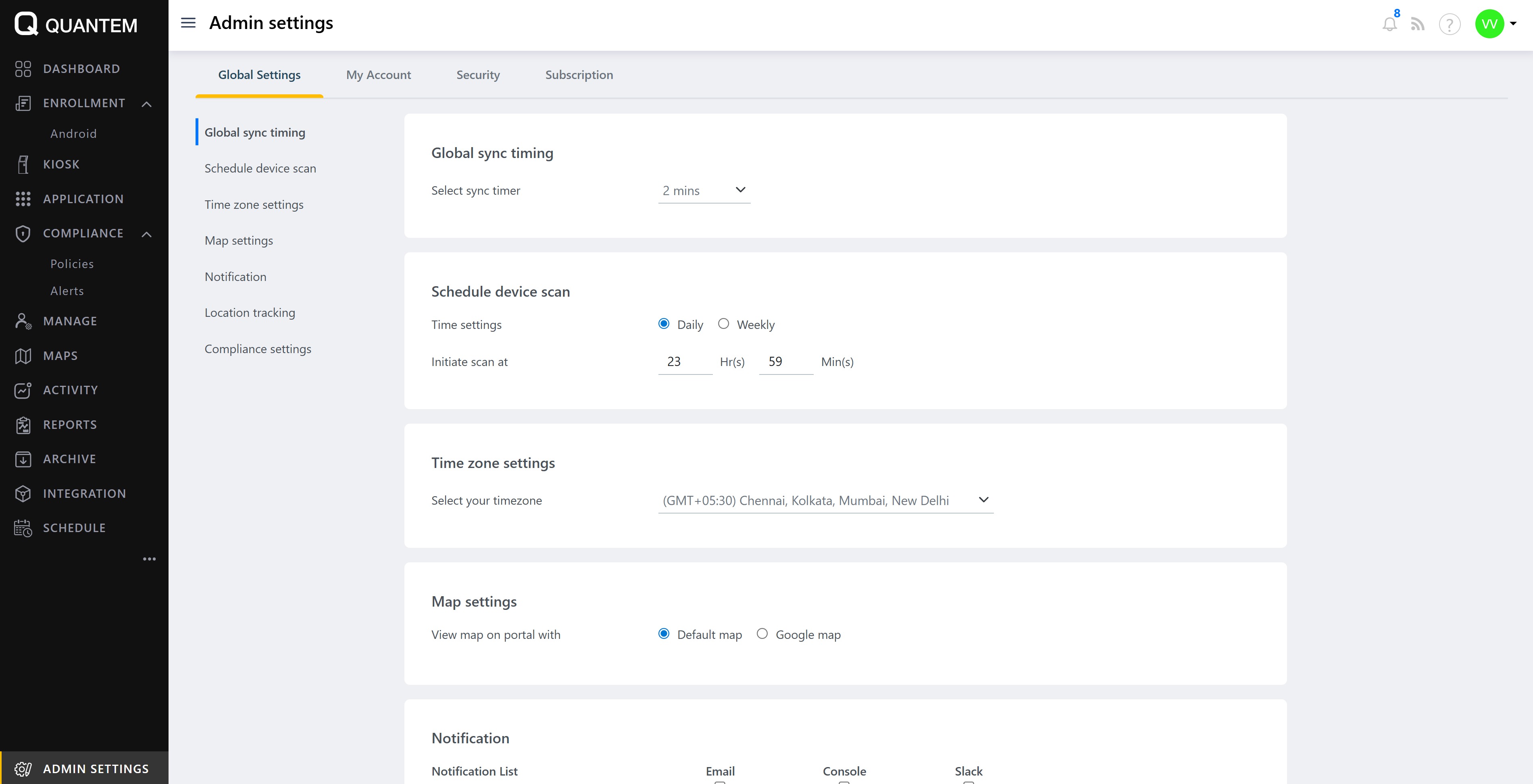
Daily scan option:
Select Daily as the scan frequency.
Set the specific hour and minute when the scan should occur (e.g., 23:59).
Weekly scan option:
Select Weekly as the scan frequency.
Choose one or more days (Monday, Tuesday, Wednesday, Thursday, Friday, Saturday, Sunday) on which the scan should run.
Set the specific time when the scan should occur on those days.
Map settings
The platform supports two map options for displaying device locations in the Dashboard, Geolocation, and Geofence sections.
Default map (Leaflet):
Getryt uses Leaflet, a popular open-source mapping library, as the default map option.
Select Default map to display Leaflet maps in all map sections.
Google Maps:
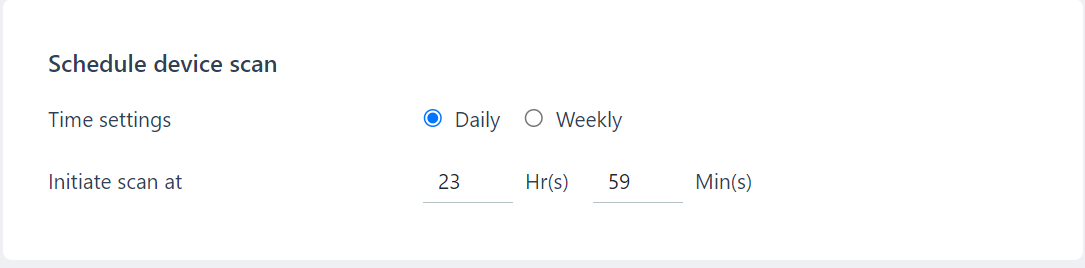
Select Google map as your preferred map option.
Enter your Google Map JavaScript API key in the provided field.
Google Maps will be displayed in all map sections across the portal.
Time zone settings
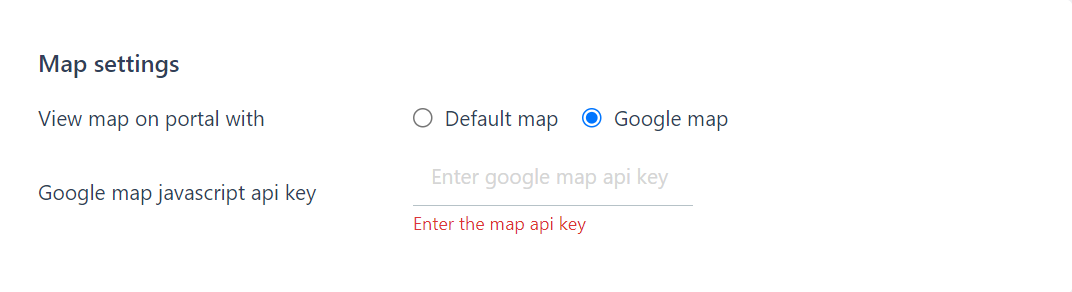
Configure the time zone for your organization. This setting applies to all date/time fields in the admin console and enrolled devices.
Select your desired time zone from the dropdown (e.g., GMT+05:30 Chennai, Kolkata, Mumbai, New Delhi).
All timestamps in the console and devices will reflect this time zone.

Global sync timing
Configure how frequently enrolled devices sync with the platform to update their status.
Select a sync interval from 2 minutes to 1 hour.
The system will continuously sync device data including geolocation, battery level, RAM, storage, and online status based on the selected interval.

Notifications
The Notification section allows admins to configure how they receive important updates about portal activities.
Notification delivery channels:
Email – Super Admin receives email notifications for selected actions
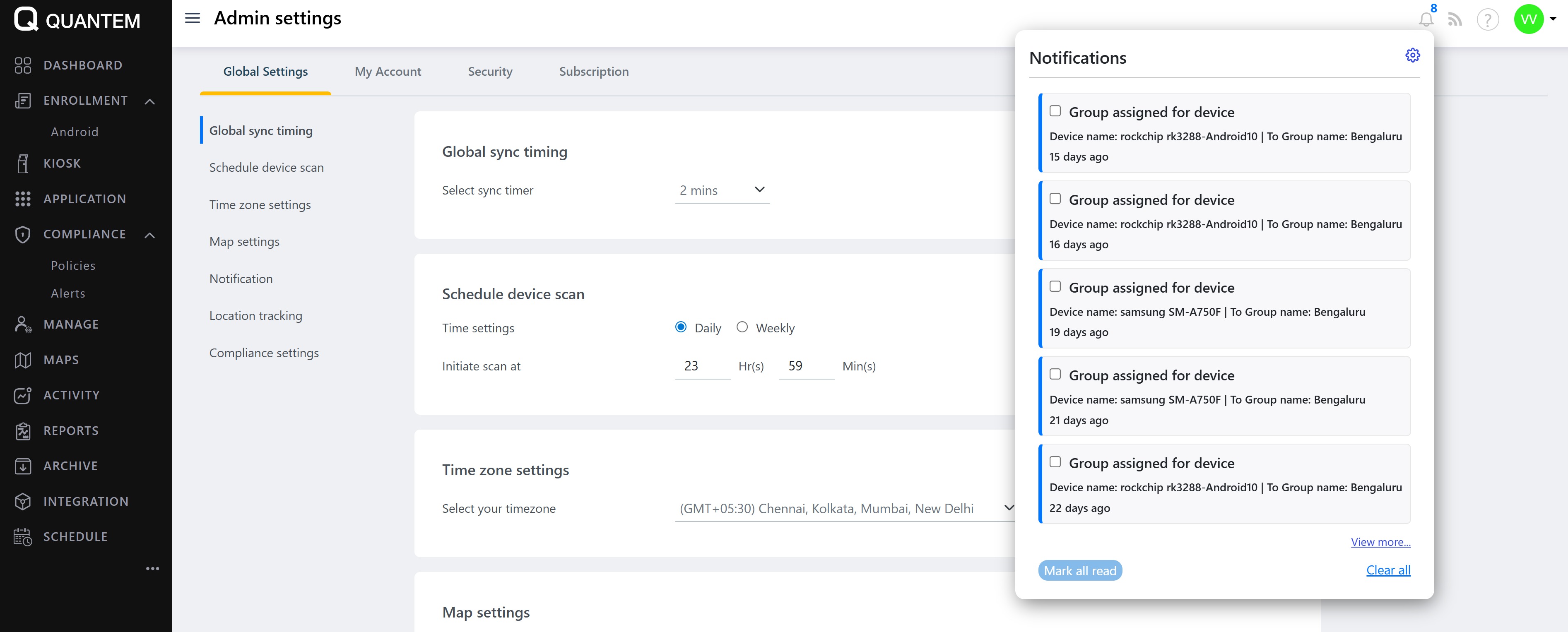
Console – Super Admin and Admin receive in-console notifications (accessible via the bell icon in the top-right corner)
Slack – Super Admin and Admin receive Slack notifications
Notification events include:
User create / delete
Group create / delete
Policy create / update / delete
Device enrolled / unenrolled
Device wipe action
Group assigned for device
Administrators can select one or more notification channels and one or more events to monitor.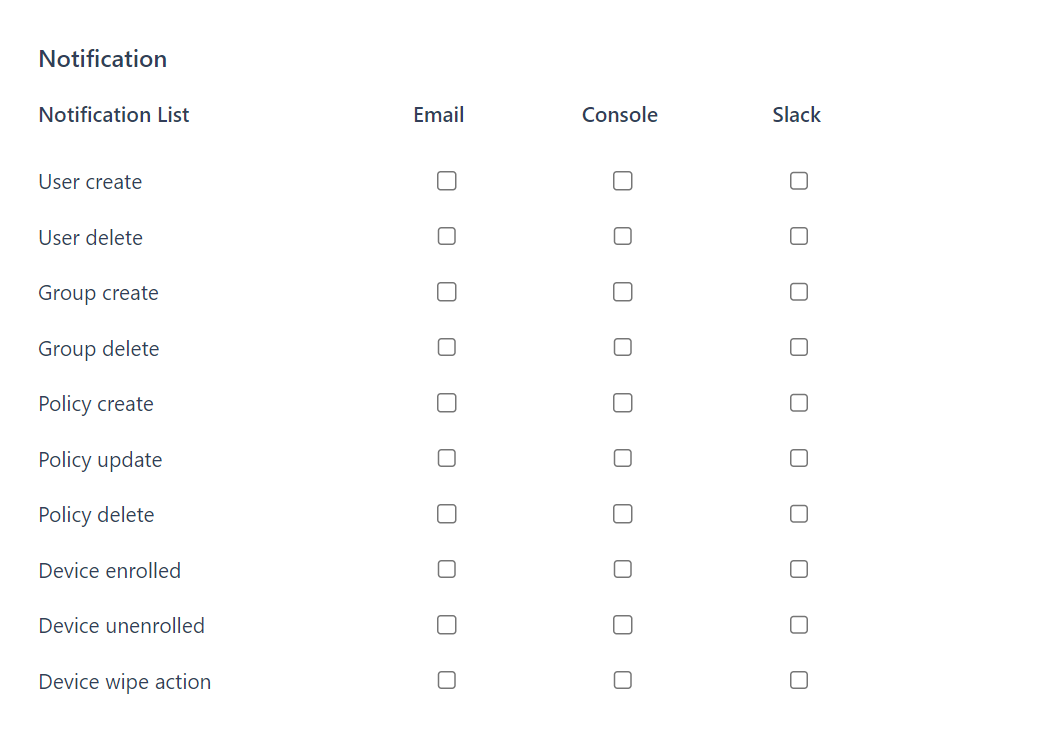
Location tracking for BYOD devices
Control whether users enrolling BYOD (Bring Your Own Device) devices are prompted to enable location services.
Check the box – Users will be prompted to enable location access during BYOD enrollment
Uncheck the box – Users will not be prompted for location permissions

Compliance settings (Android)
Define organization-level compliance rules applied to all Android devices. The available compliance criteria are:
Basic integrity (mandatory) – Ensures devices meet basic Android security standards
Geofence violation – Detects when devices leave defined geographic boundaries
Policy not up to date – Ensures devices have the latest organizational policies
Device encryption status – Verifies devices have encryption enabled
Password not compliant – Checks that devices meet password requirements
OS/Security patch update – Verifies devices have current OS and security patches
Device offline condition – Marks devices as inactive after a specified duration (in hours)
Administrators can select which compliance criteria to enforce. Compliance settings are applicable to Android devices only.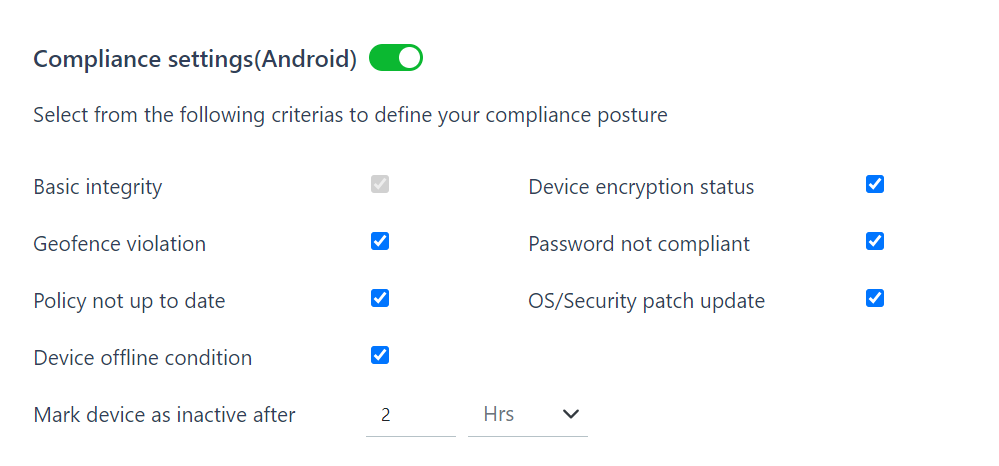
Was this article helpful?
That’s Great!
Thank you for your feedback
Sorry! We couldn't be helpful
Thank you for your feedback
Feedback sent
We appreciate your effort and will try to fix the article