This article walks through the step-by-step process of enrolling a personal Android device as a BYOD (Bring Your Own Device) in the Quantem Console. BYOD enrollment creates a separate Work Profile (Work Container) on the device, keeping personal and work data isolated while allowing the organization to manage only the work container.
Steps
Part A – Generate the QR Code from the Quantem Console
1. Log in to the Quantem Console
Navigate to the Quantem Console URL and sign in using your administrator credentials.
2. Go to the Enrollment Page
From the left-hand navigation menu, click on Enrollment.
3. Select Android
On the Enrollment page, click on Android to view the available Android enrollment methods.
4. Select BYOD
Under the Android enrollment options, you will see the following methods:
6-Step BYOD
Zero-Touch
KME
Custom
Click on BYOD to proceed.
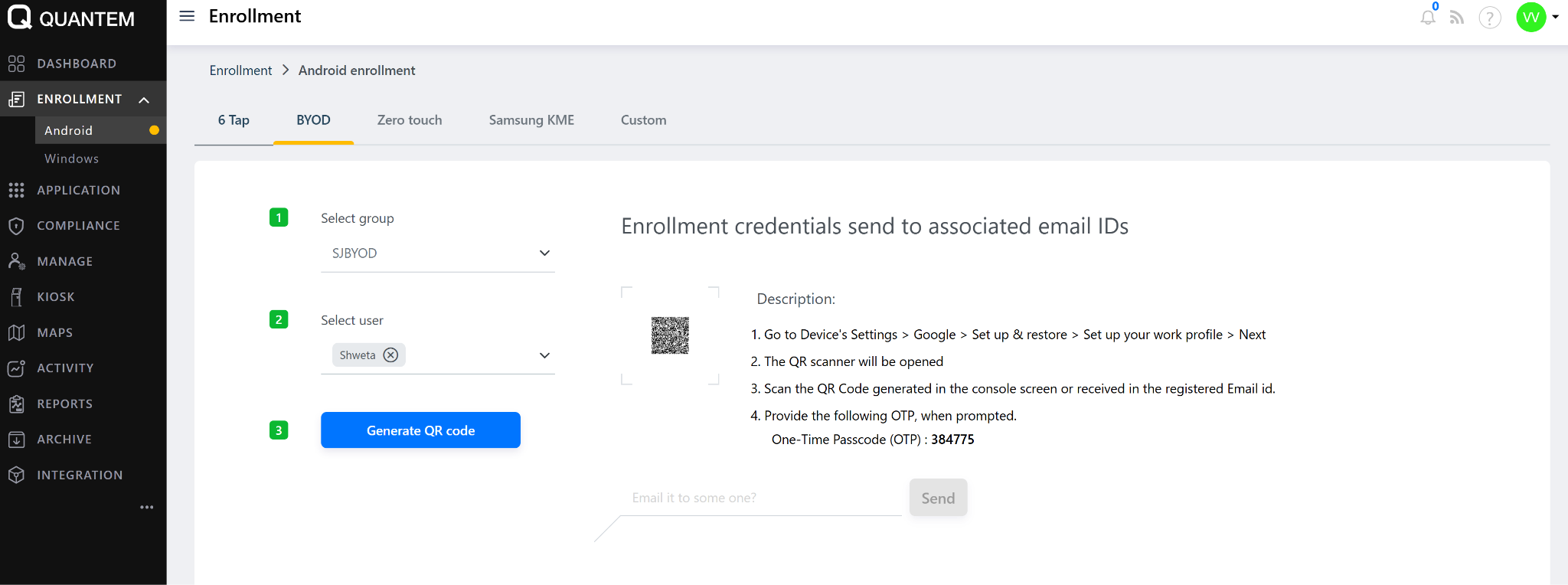
5. Select a Group
From the dropdown, select the Group to which you want to assign this BYOD device.
6. Select a User
From the user dropdown, select the User to whom this BYOD device will be assigned.
7. Generate QR Code
Click on Generate QR Code. A unique QR code will be generated. Keep this ready to scan from the device.
Part B – Set Up Work Profile on the Device
8. Open Device Settings
On the Android device, go to Settings.
9. Navigate to Google Settings
Scroll and tap on Google.
10. Open All Services
Inside Google settings, tap on All Services and scroll down through the list.
11. Select Set Up Work Profile
Locate and tap on Set Up Work Profile. This will launch the work profile setup wizard on the device.
12. Scan the QR Code
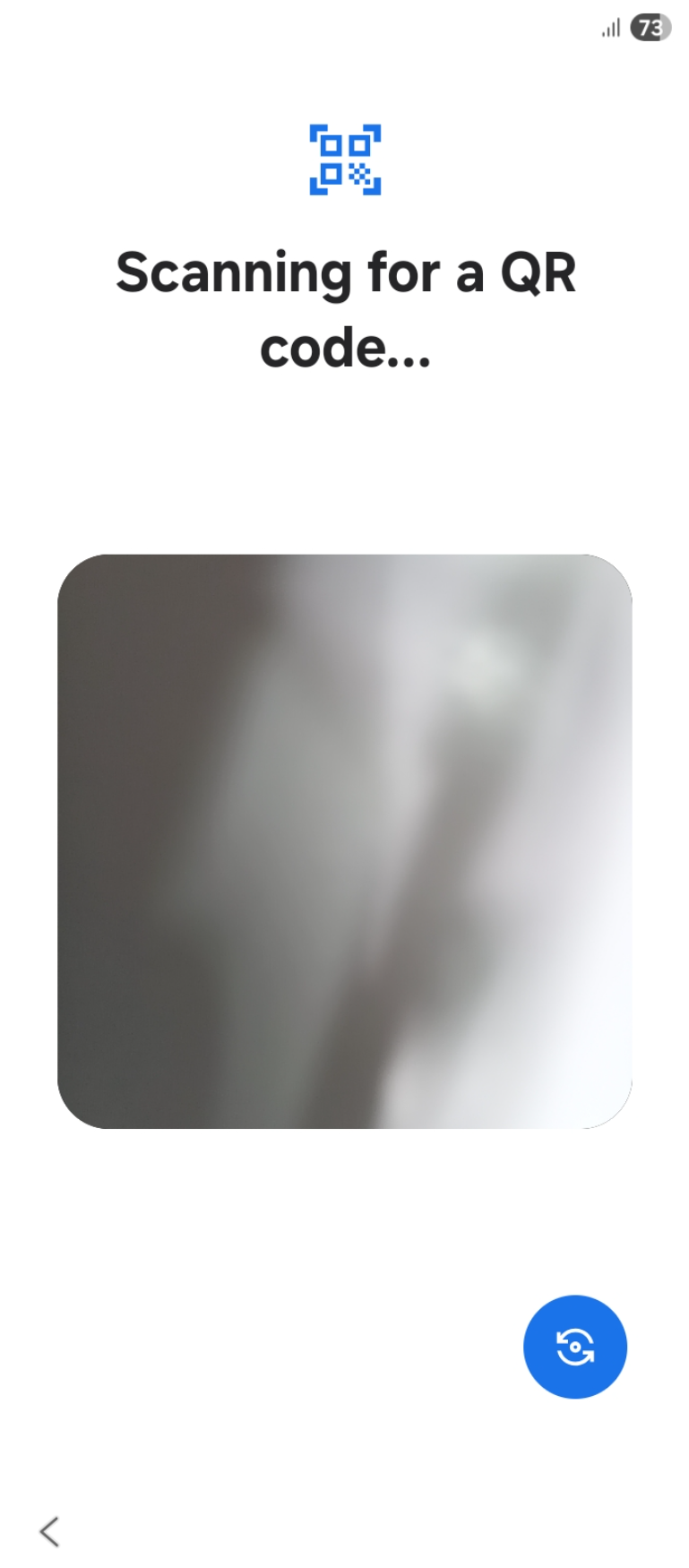
A QR code scanner will open automatically on the device. Point the camera at the QR code generated in the Quantem Console and scan it.

13. Follow On-Screen Instructions
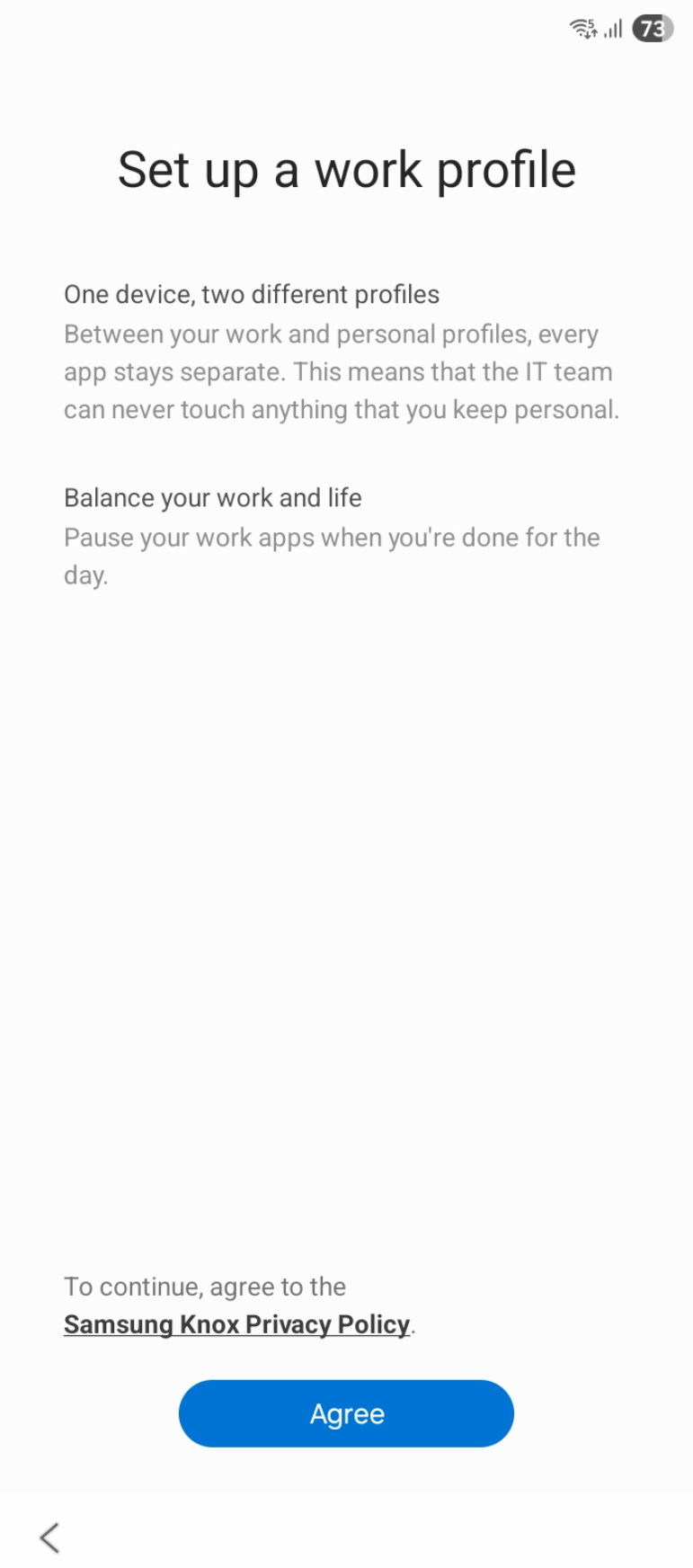
Complete the on-screen setup steps, including:
Granting required permissions for the Quantem MDM app
Accepting the Work Profile setup prompts
Allowing necessary device access for MDM management
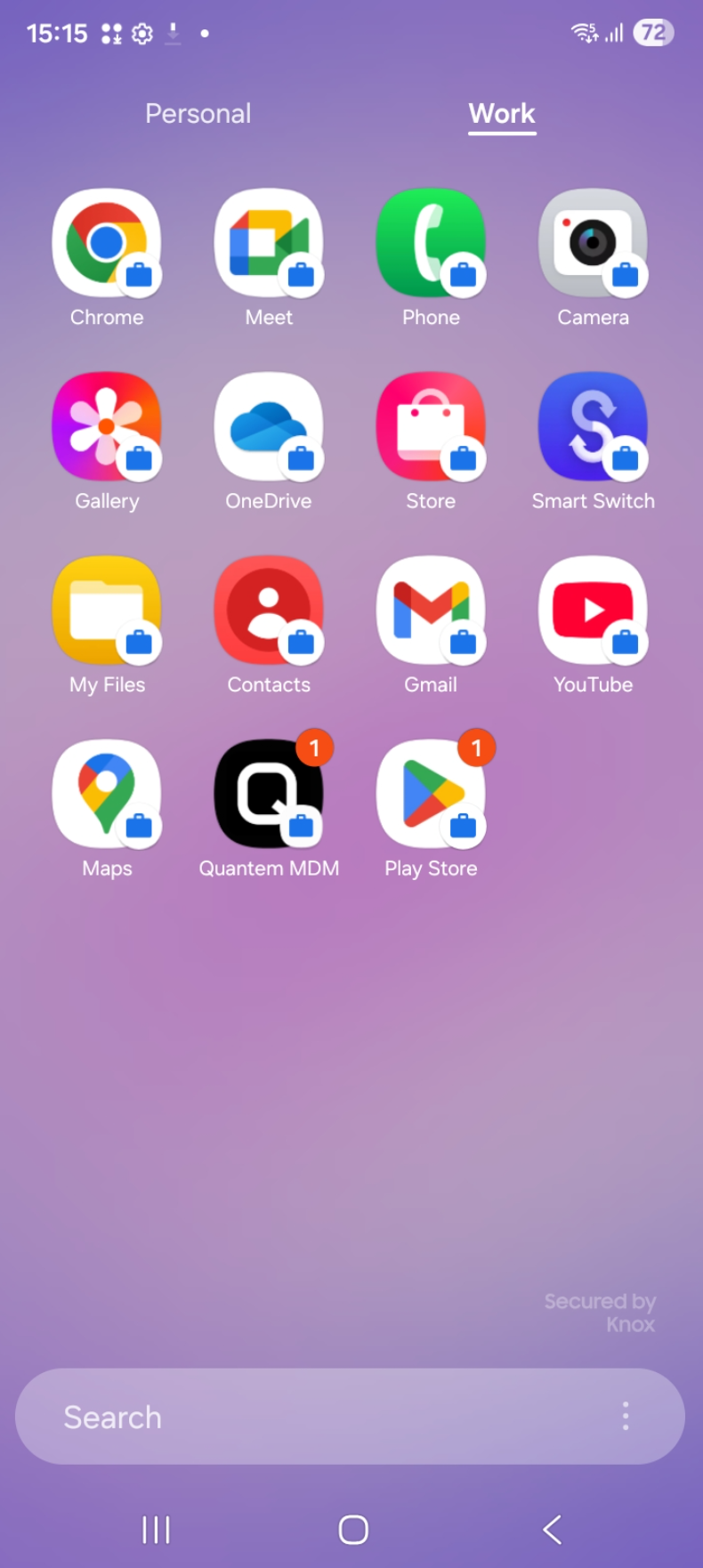
Upon successful enrollment:
The device will appear in the Quantem Console under Manage as a BYOD enrolled device
On the device, two separate containers will be visible:
Personal Container – Unmanaged, user's personal space
Work Container – Managed by the organization, with all assigned work apps visible
Was this article helpful?
That’s Great!
Thank you for your feedback
Sorry! We couldn't be helpful
Thank you for your feedback
Feedback sent
We appreciate your effort and will try to fix the article