This guide explains how to add enterprise apps (APKs) to your catalog for non-GMS/AOSP devices, view their details, and assign them to kiosks or groups. Enterprise apps are identifiable by their.
Adding an Enterprise App
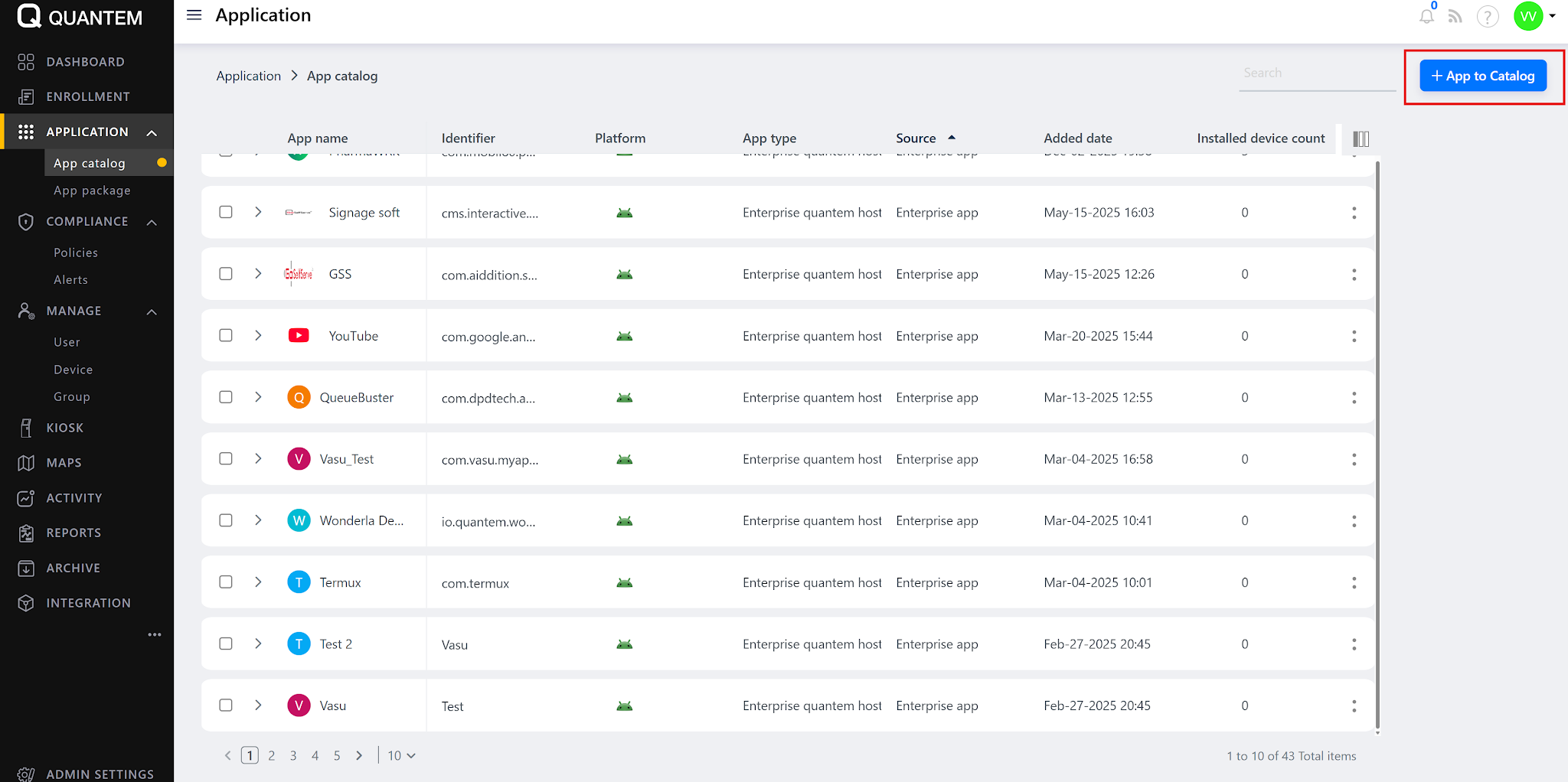
- Click the Add app button at the top of the app list.
- In the dialog, select Enterprise app (as opposed to Play Store app).
- Fill in the required fields:
- App type: Android (default)
- App upload type: Enterprise app
- Application name: Enter the app's name
- Upload APK file: Select and upload the APK file
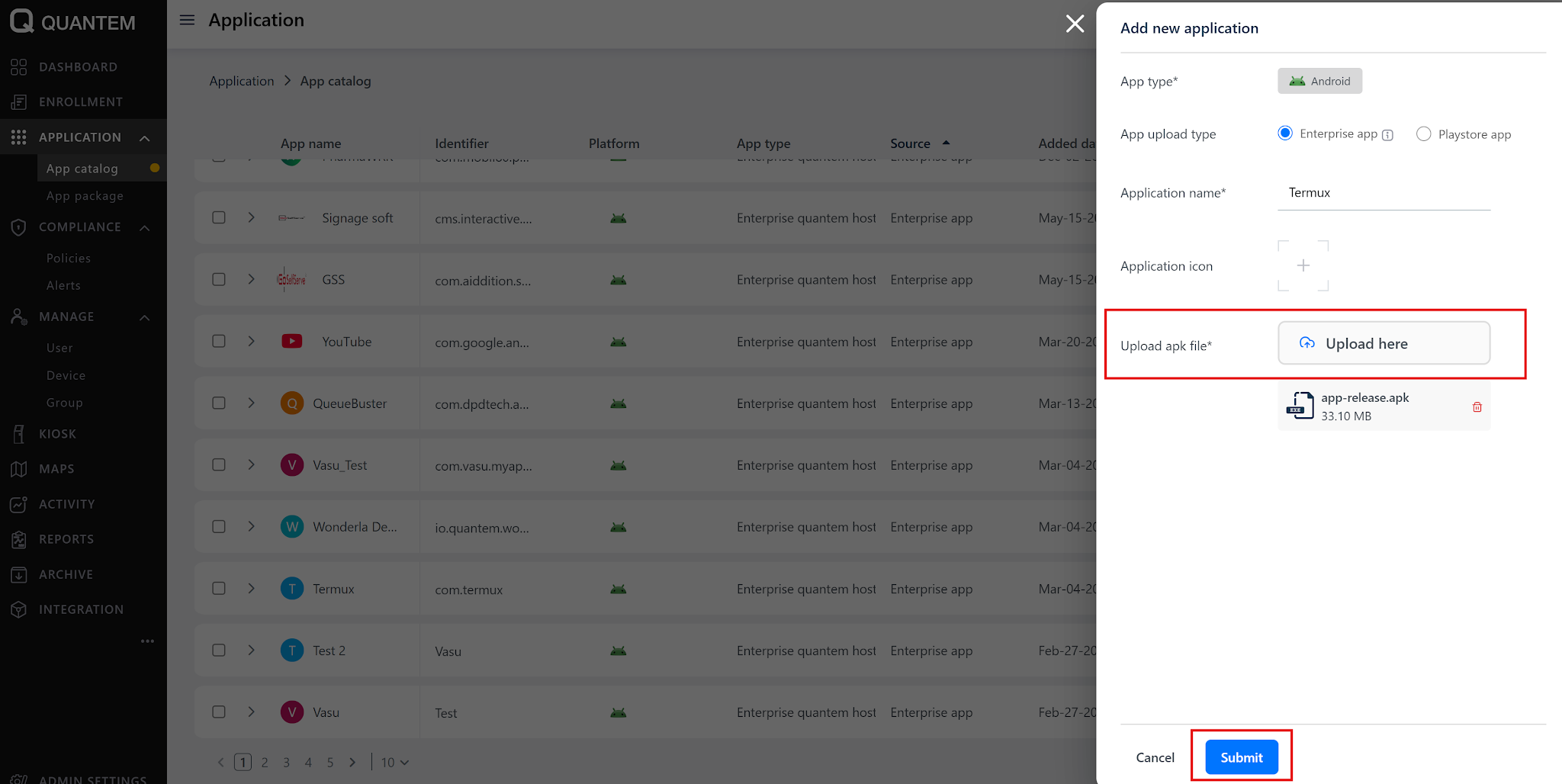
- Optionally, upload an Application icon.
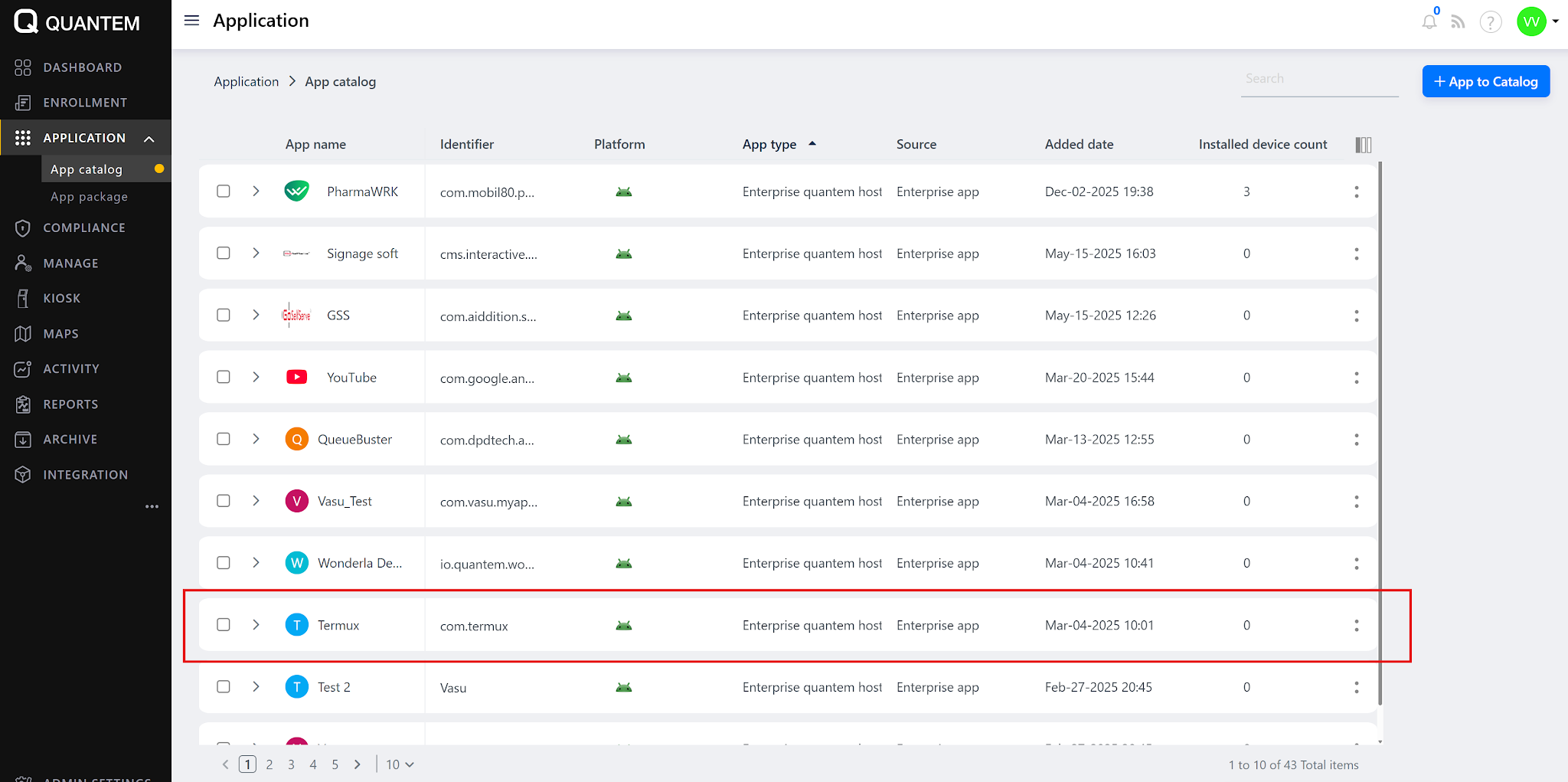
- Click Submit to create the app and add it to the catalog.
Viewing Enterprise App Details
- From the app list, click the three vertical dots (⋮) at the end of the enterprise app row.
- Select View details from the context menu.
- The details popup displays:
- App name, identifier, platform, app type, and available versions
- Assigned groups, packages, and kiosks
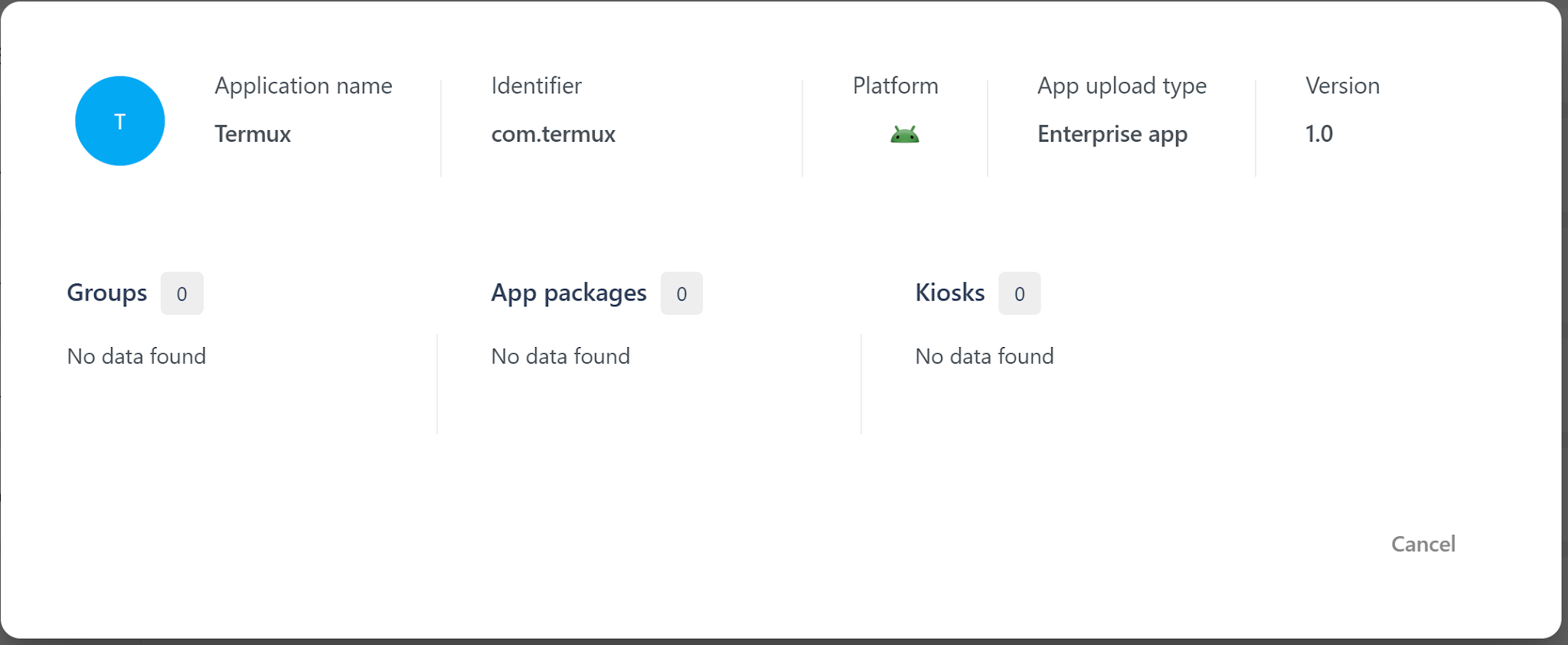
- Use the version dropdown to switch between versions and view version-specific assignments.
Assigning Enterprise Apps to Policies or Groups
Once added, navigate to your kiosk policy or group settings. You'll find an option to add the enterprise app, which can then be assigned to devices.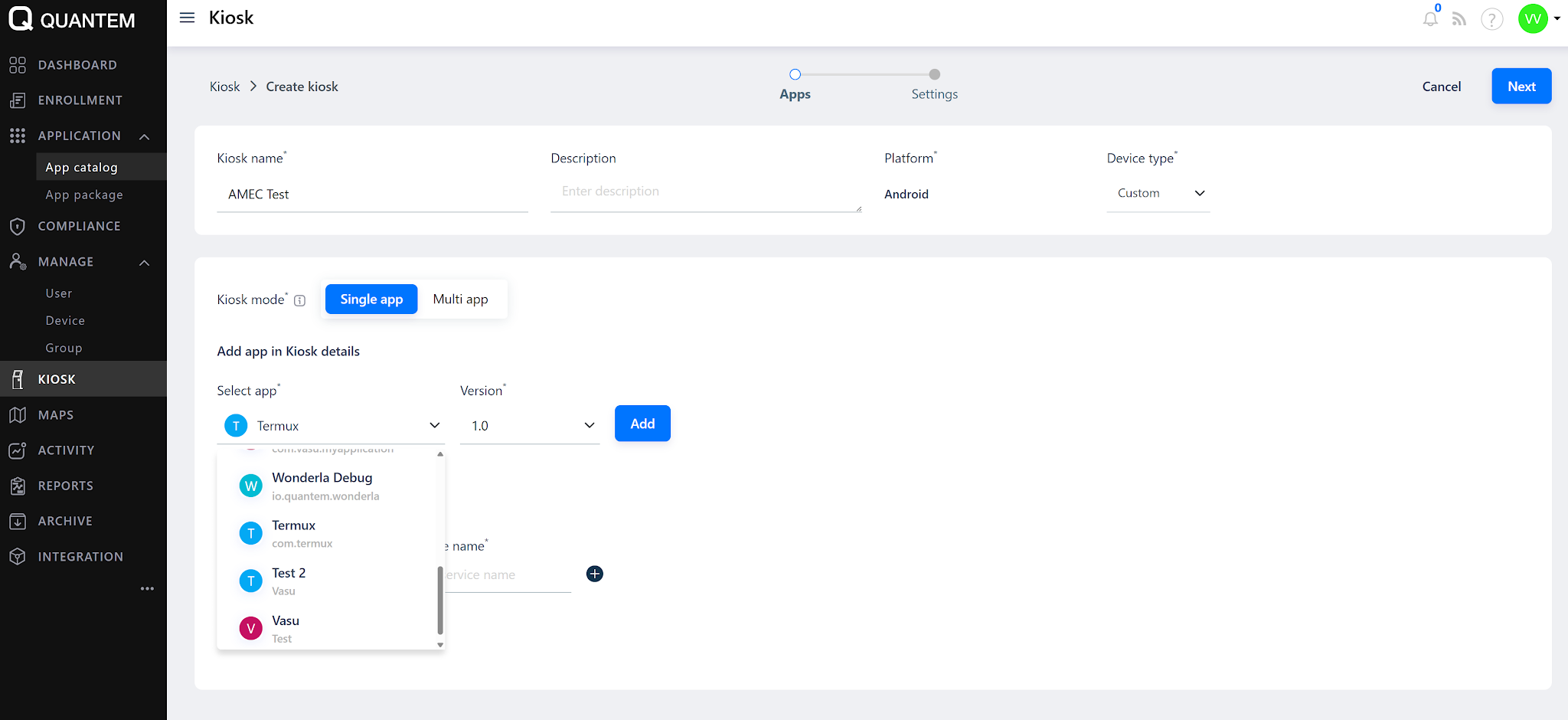
Tip: Enterprise apps are easily filtered by upload type (Enterprise app) in the app list.
Was this article helpful?
That’s Great!
Thank you for your feedback
Sorry! We couldn't be helpful
Thank you for your feedback
Feedback sent
We appreciate your effort and will try to fix the article