App Version Control in the Quantem Console allows admins to manage and update versions of Enterprise (in-house) applications that are privately hosted and not available on the Google Play Store. When a new version of an in-house app is available, admins can upload the updated APK directly to the App Catalog, add it as a new version under the existing app entry, and push the updated version to devices via policies, groups, or directly to individual devices.
Important: This feature applies only to Enterprise (APK) apps. Google Play Store apps are updated automatically by Google and do not require manual version management in the console.
How to Access
Log in to the Quantem Console
From the left navigation, click on Application
Click on App Catalog
Locate the Enterprise app you want to update
Steps to Add a New App Version
Step 1: Navigate to App Catalog
Go to Application > App Catalog from the left-hand navigation menu.
Step 2: Locate the App
Find the Enterprise application for which you want to add a new version. Use the search bar if needed.
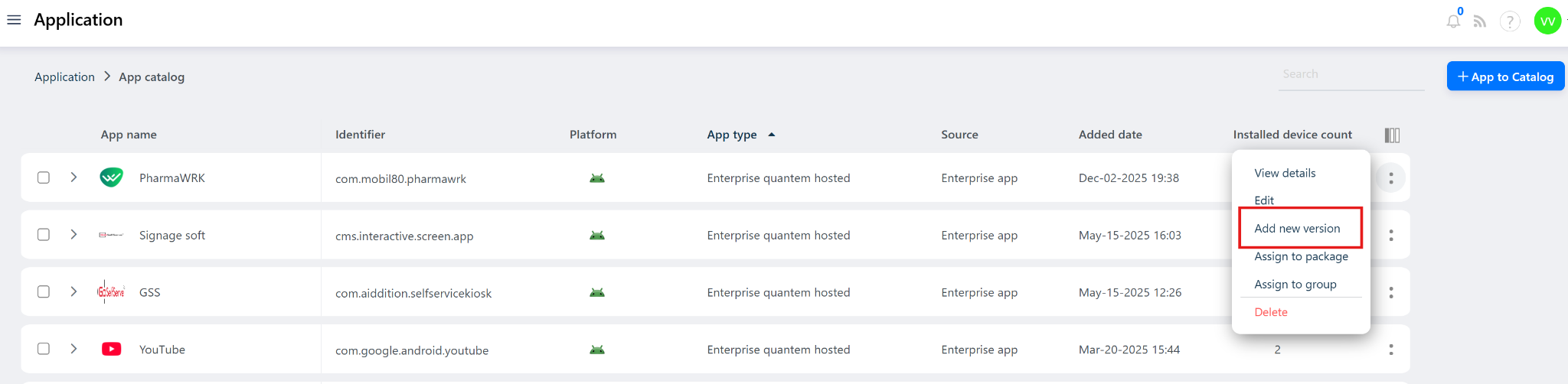
Step 3: Open the Context Menu
On the selected application, click the three-dot menu ( ⋮ ).
Step 4: Select Add New Version
A dropdown context menu will appear with the following options:
View Details – View current app details and existing version history
Add New Version – Upload a new APK version of the app
Assign to Policy/Device – Assign the app directly to a policy or device
Delete – Remove the app from the catalog
Click on Add New Version.
Step 5: Upload the New APK
Upload the new version APK file
Ensure the new APK has a higher version number than the current version
Add any relevant version notes or release information if required
Step 6: Save the New Version
Click Save. The new version will be added to the app's version history in the App Catalog.
Step 7: Push the Updated Version to Devices
Once saved, push the updated version to target devices using one of the following methods:
Via Policy – Navigate to the assigned policy and update the app version. All devices under that policy will receive the update silently.
Via Group – Assign the updated version to the target group. All devices in the group will receive the updated version.
Was this article helpful?
That’s Great!
Thank you for your feedback
Sorry! We couldn't be helpful
Thank you for your feedback
Feedback sent
We appreciate your effort and will try to fix the article