The Quantem Console allows admins to whitelist Google Play Store apps for their organization through the App Catalog. Once a Google Play app is whitelisted, it becomes available to be pushed and installed across multiple devices through Policies or Kiosk configurations — via a Google-managed iframe embedded within the Quantem Console.
How to Access
Log in to the Quantem Console
From the left navigation, click Application
Click on App Catalog
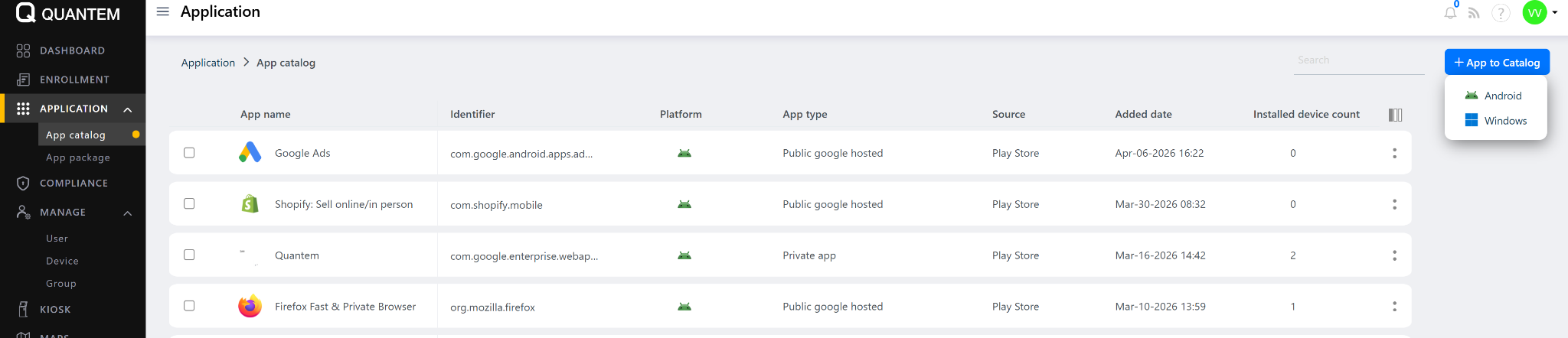
Step 1: Open the App Catalog
Navigate to Application > App Catalog from the left-hand navigation menu.
Step 2: Click on Add App
On the App Catalog page, click the Add App button on the top-right side of the screen.
Step 3: Select Google Play Store
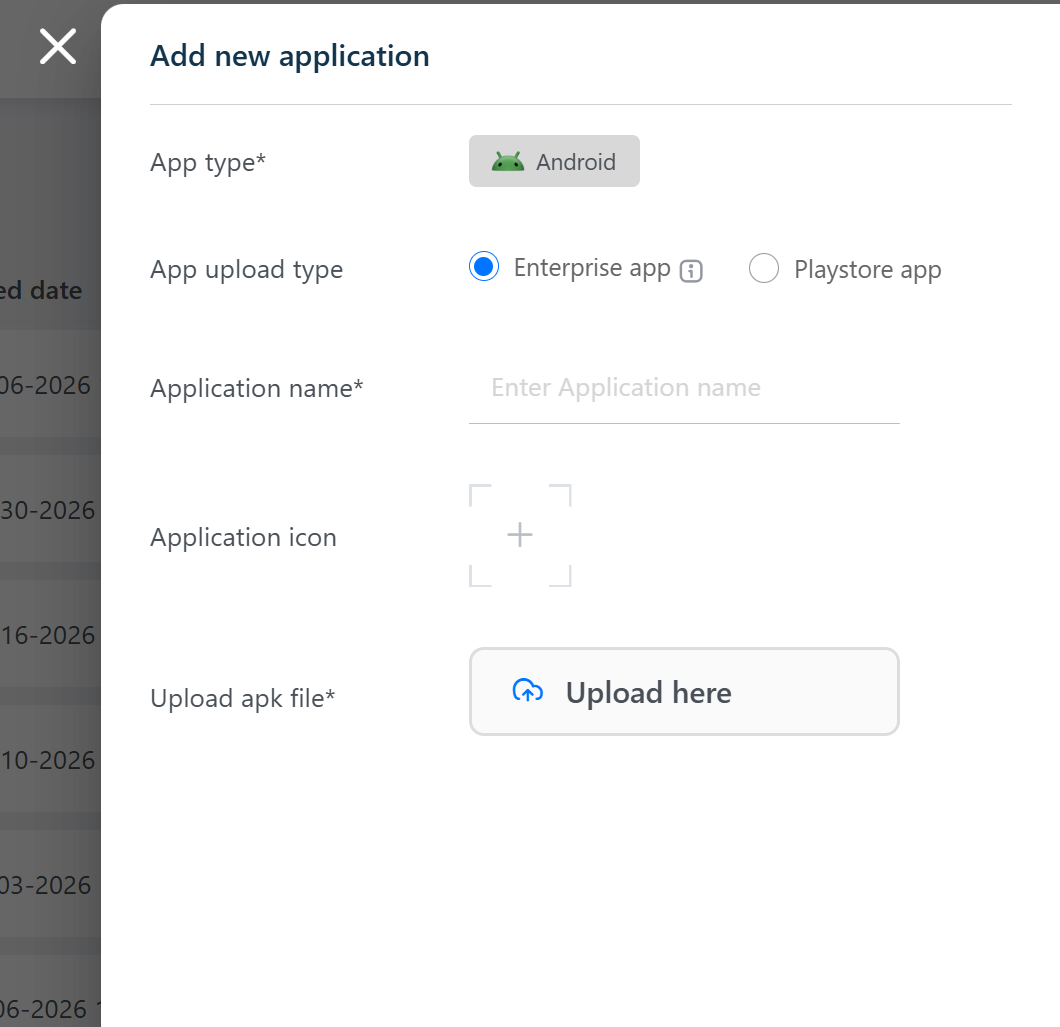
A pop-up will appear with two options:
Enterprise App – For uploading private/in-house APK files
Google Play Store – For whitelisting apps from the public Google Play Store
Click on Google Play Store.
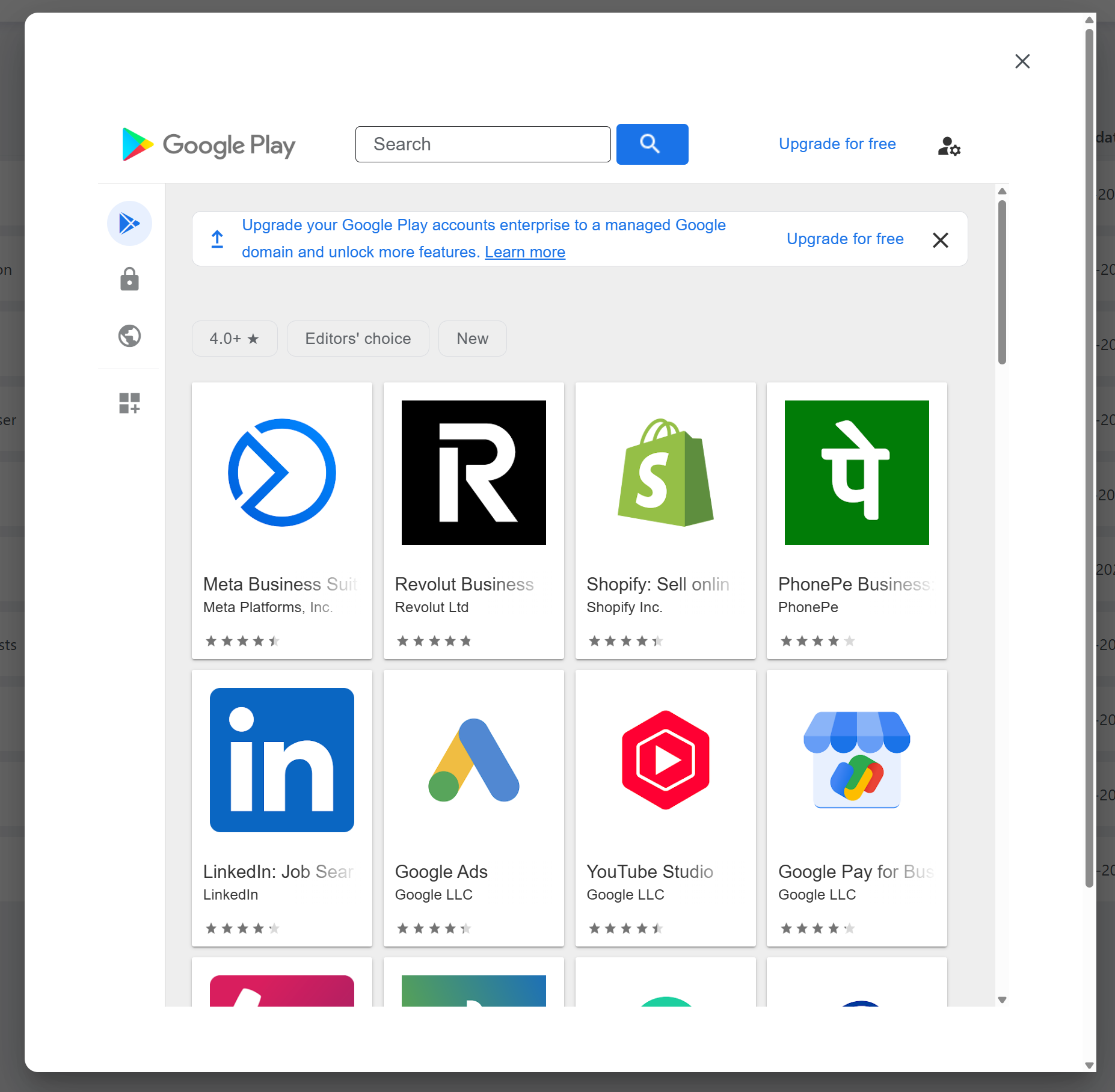
Step 4: Search for the App
A Google-managed iframe will open within the Quantem Console. In the search bar:
Type the name of the application you want to whitelist
Browse the search results and select the desired app
Step 5: Select and Approve the App
Click on the app from the search results. Review the app details and click Select or Approve to whitelist the app for your organization.
Step 6: App Added to Catalog
Once approved, the app will be:
Added to your organization's App Catalog in the Quantem Console
Whitelisted under your organization's Managed Google Play account
Available to be assigned and pushed to devices via Policies, Groups, or Kiosk configurations
Was this article helpful?
That’s Great!
Thank you for your feedback
Sorry! We couldn't be helpful
Thank you for your feedback
Feedback sent
We appreciate your effort and will try to fix the article