Slack Integration in the Quantem Console allows organizations to connect their Slack workspace with Quantem to receive device alerts, notifications, and messages directly in configured Slack channels. Once integrated, notification events configured in the Quantem Console — such as device enrollment, wipe actions, policy updates, and user changes — are automatically pushed to the designated Slack channel in real time.
This is ideal for IT and operations teams using Slack as their primary communication tool, allowing them to receive instant MDM alerts without continuously monitoring the Quantem Console.
How to Access
Log in to the Quantem Console
From the left-hand navigation, click on Integration
Scroll down to the Channel section
Locate the Slack card
Steps to Configure Slack Integration
Step 1: Navigate to Integration
Click Integration from the left navigation. Scroll to the Channel section where the Slack card is displayed.
Step 2: Open Slack Configuration
Click the three-dot menu ( ⋮ ) on the Slack card and select Add and Configure.
Step 3: Authorize Slack Workspace
You will be redirected to Slack's OAuth authorization page. Sign in with your Slack workspace admin credentials and authorize Quantem to access your workspace.
Step 4: Select the Slack Channel
After authorization:
Select the Slack channel where Quantem notifications should be delivered
Enter or select the Channel Name
The Channel ID will be auto-populated
Step 5: Save the Configuration
Click Save to complete the setup.
Step 6: Verify Integration Status
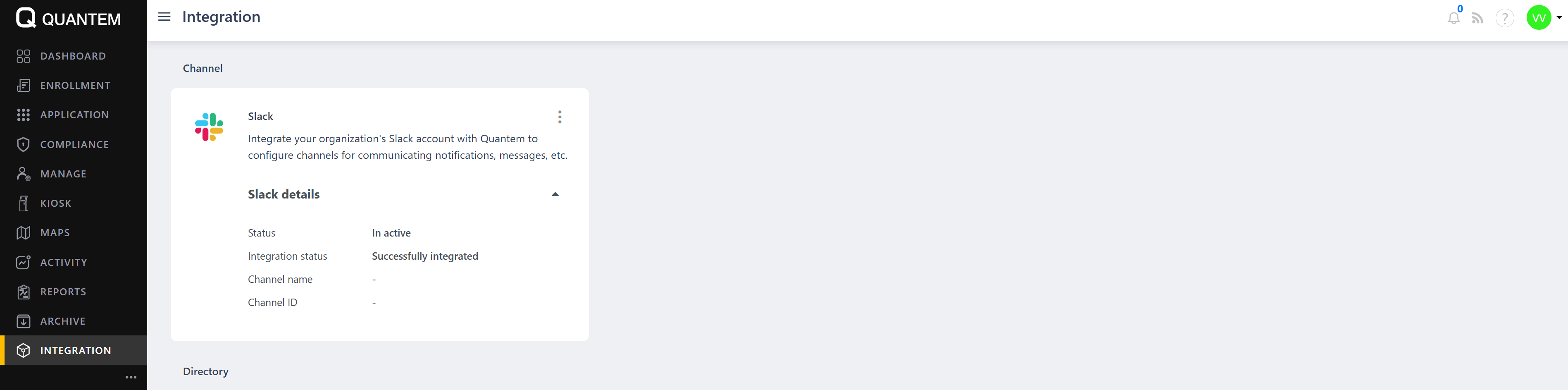
Was this article helpful?
That’s Great!
Thank you for your feedback
Sorry! We couldn't be helpful
Thank you for your feedback
Feedback sent
We appreciate your effort and will try to fix the article