This article describes how to configure notification settings in the Quantem Console, including selecting the events that trigger notifications and the channels through which those notifications are delivered.
Steps
1. Log in to the Quantem Console
Navigate to the Quantem Console URL and sign in using your administrator credentials.
2. Go to Admin Settings
On the bottom-left side of the console, click Admin Settings.
3. Select Notifications
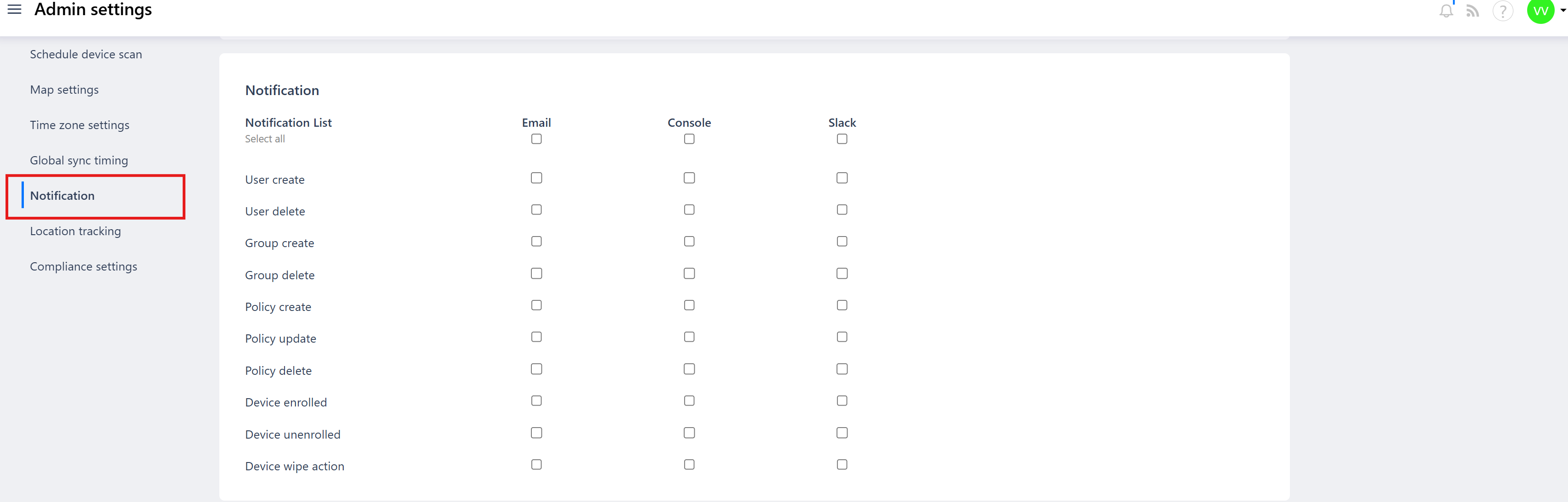
Under Admin Settings, click on Notifications to open the Notification List page.
4. Select Events
You will see a list of notification events. Use Select All to enable all events at once, or individually select the events you want:
User Create
User Delete
Group Create
Group Delete
Policy Create
Policy Update
Policy Delete
Device Enrolled
Device Unenrolled
Device Wipe Action
5. Choose Notification Channels
For each selected event, choose one or more delivery channels:
Email – Notification is sent to the configured admin email address
Console – Notification appears as an in-app alert within the Quantem Console
Slack – Notification is pushed to the configured Slack workspace or channel
6. Save the Settings
Click Save to apply the configuration. Notifications will be triggered immediately for all selected events going forward.
Once saved, the admin will receive notifications through the selected channels whenever a configured event occurs in the Quantem Console.
Was this article helpful?
That’s Great!
Thank you for your feedback
Sorry! We couldn't be helpful
Thank you for your feedback
Feedback sent
We appreciate your effort and will try to fix the article