Google Workspace Integration in the Quantem Console allows organizations to connect their Google Workspace account and automatically sync user data — including email addresses, phone numbers, and names — directly into the Quantem Console. This eliminates the need to manually create or enter user details, making it significantly easier to assign users to BYOD devices, name devices accurately, and manage user-device associations at scale.
Once configured, Quantem syncs with the Google Workspace directory at a defined frequency, automatically importing and updating user accounts from the organization's Google Workspace domain.
Data Transferred: Only User Email, User Name, and Phone Number are synced. No passwords or sensitive credentials are ever shared.
How to Access
Log in to the Quantem Console
From the left-hand navigation, click on Integration
Under the Directory section, locate Google Workspace
Steps to Configure Google Workspace Integration
Step 1: Navigate to Integration
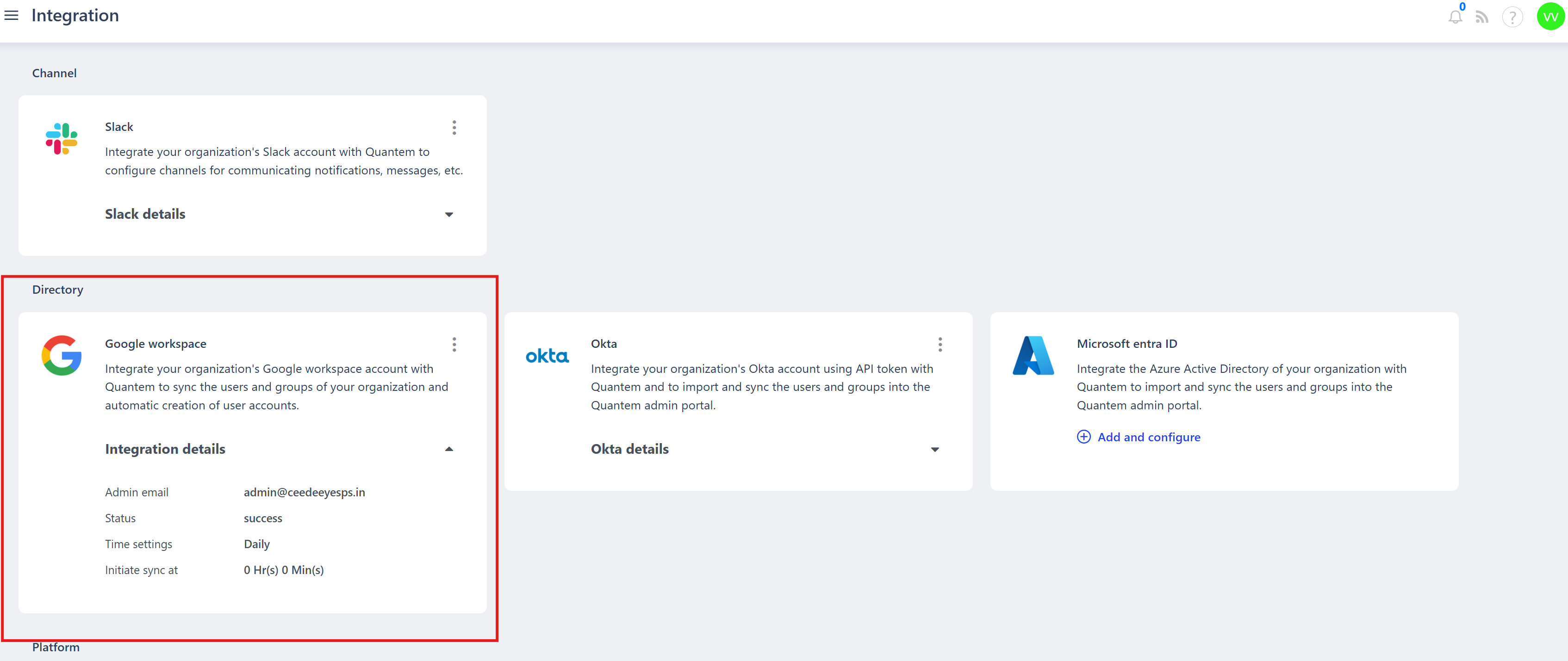
Click on Integration from the left-hand navigation. The Integration page displays three directory options:
Google Workspace
Okta
Microsoft Entra ID
Step 2: Select Google Workspace
Under the Directory section, locate the Google Workspace card.
Step 3: Click Add and Configure
Click Add and Configure or click the three-dot menu ( ⋮ ) → Add on the Google Workspace card.
Step 4: Google SSO Authorization
You will be redirected to Google's SSO (Single Sign-On) authorization page. Sign in with your Google Workspace admin credentials to authorize Quantem to access your organization's directory data.
Step 5: Grant Permissions
Review the permissions requested by Quantem and click Allow / Authorize to grant access to the Google Workspace directory.
Step 6: Configure Sync Settings
After authorization, configure the sync settings:
Step 7: Save the Configuration
Click Save to complete the integration.
Step 8: Verify Integration Status
The Google Workspace card will now display the Integration Details
Was this article helpful?
That’s Great!
Thank you for your feedback
Sorry! We couldn't be helpful
Thank you for your feedback
Feedback sent
We appreciate your effort and will try to fix the article