The Device module in the admin console lets you manage enrolled Android devices. You can view all devices, add new devices, download device information, monitor device status, and perform remote actions such as locking, rebooting, wiping, and managing passwords.
Viewing available devices
In the admin console, go to Manage > Device from the left navigation menu.
A list of enrolled devices is displayed in table format with columns showing alias name, serial number, make, model, OS version, online status, last sync, owner, enrollment status, custom ID, group name, device state, IMEI, MAC address, user name, and enrollment date.
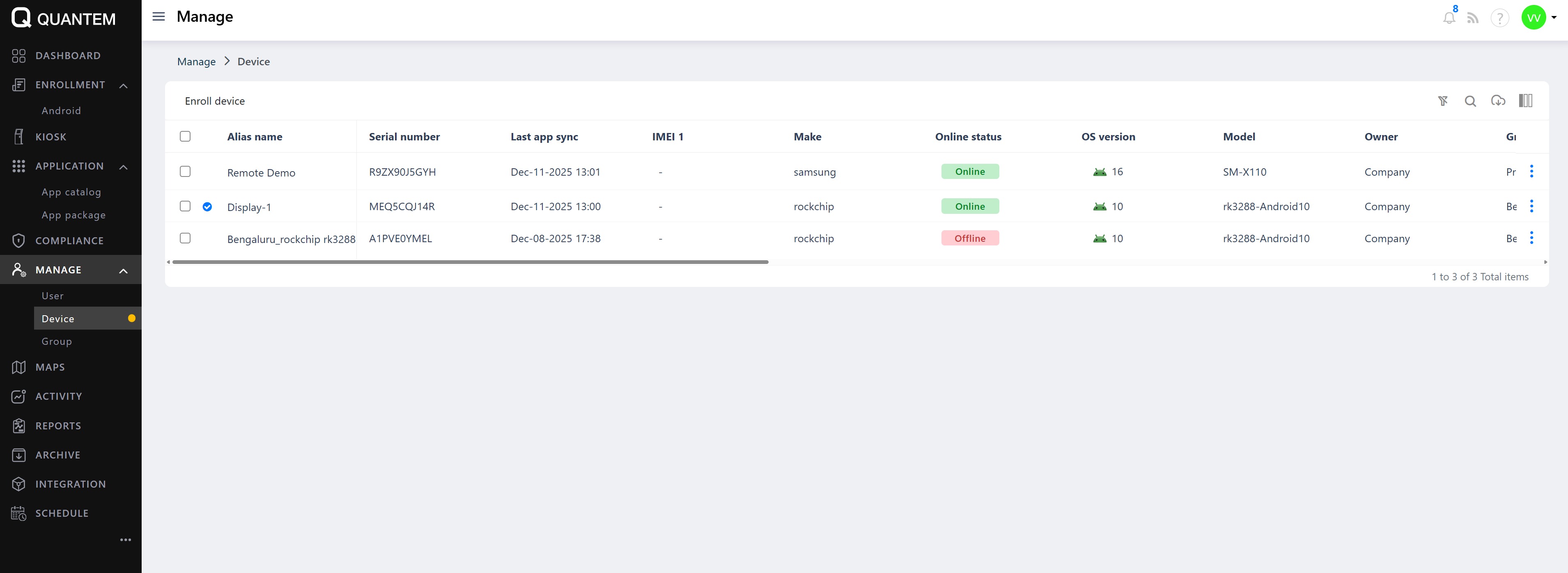
The Device list includes the following features:
Download – Export device details to an Excel file
Context Menu – Right-click options for device actions (sync, lock, ring, wipe, reboot, password management, and more)
Column Chooser – Show or hide table columns
Pagination – Navigate through device lists when there are many devices
Items Per Page – Set the number of devices displayed per page (default is 10)
Viewing device details
From the Device list, click the three vertical dots (⋮) at the end of the device row.
Select View device from the context menu.
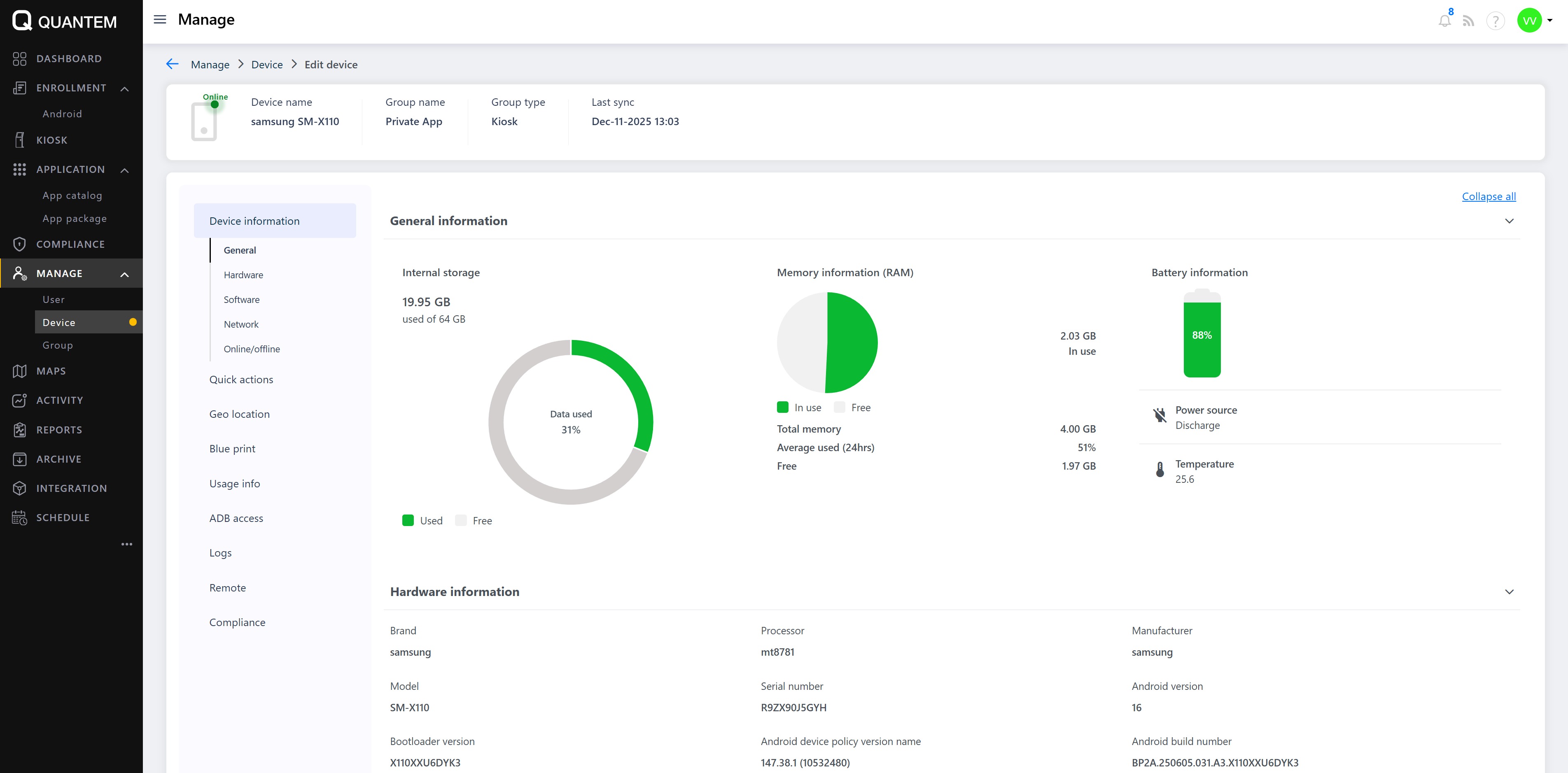
The device details screen opens, showing:
Device overview – Device name, user name, group name, last sync, and group type
Device information – General info (storage, memory, battery, display), hardware details, software version, and network information
Quick actions – Available device management operations (see below)
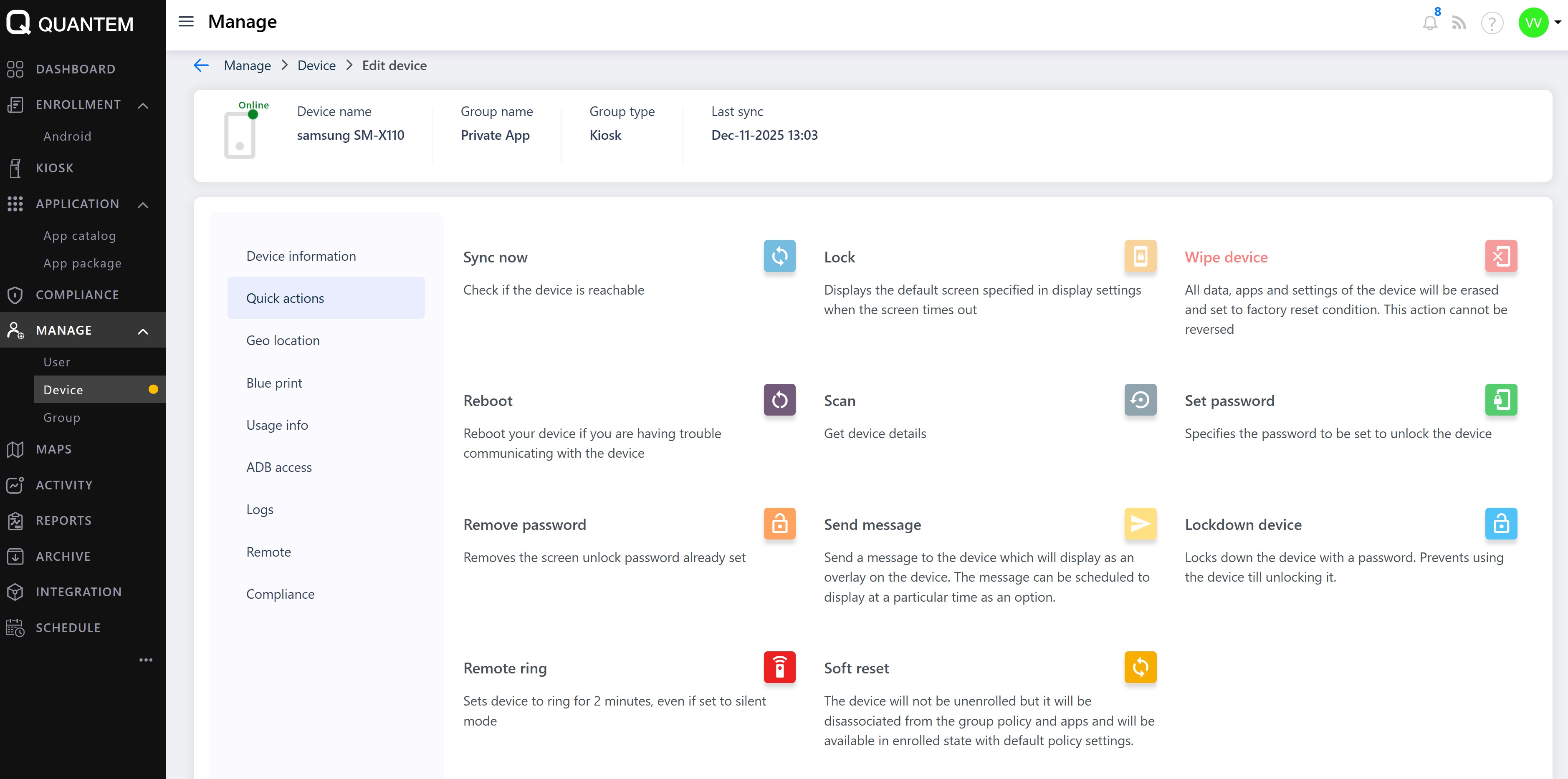
Quick actions available on devices
The Quick actions section provides the following operations:
Sync now – Refresh device status (battery, memory, location, online status)
Lock – Lock the device remotely
Display screen – Show the default screen when the device times out
Wipe device – Completely erase all data, apps, and settings (factory reset). This action cannot be undone.sample.pdf
Reboot – Restart the device to resolve communication issues
Scan – Get updated device details
Set password – Set a screen unlock password on the device
Remove password – Remove the existing screen unlock password
Send message – Send an overlay message to the device; can be scheduled to display at a specific time
Lockdown device – Lock the device with a password until manually unlocked
Remote ring – Ring the device alarm for 2 minutes, even if set to silent mode
Soft reset – Unenroll the device from group policies and apps while keeping it enrolled with default settings
Geolocation tracking
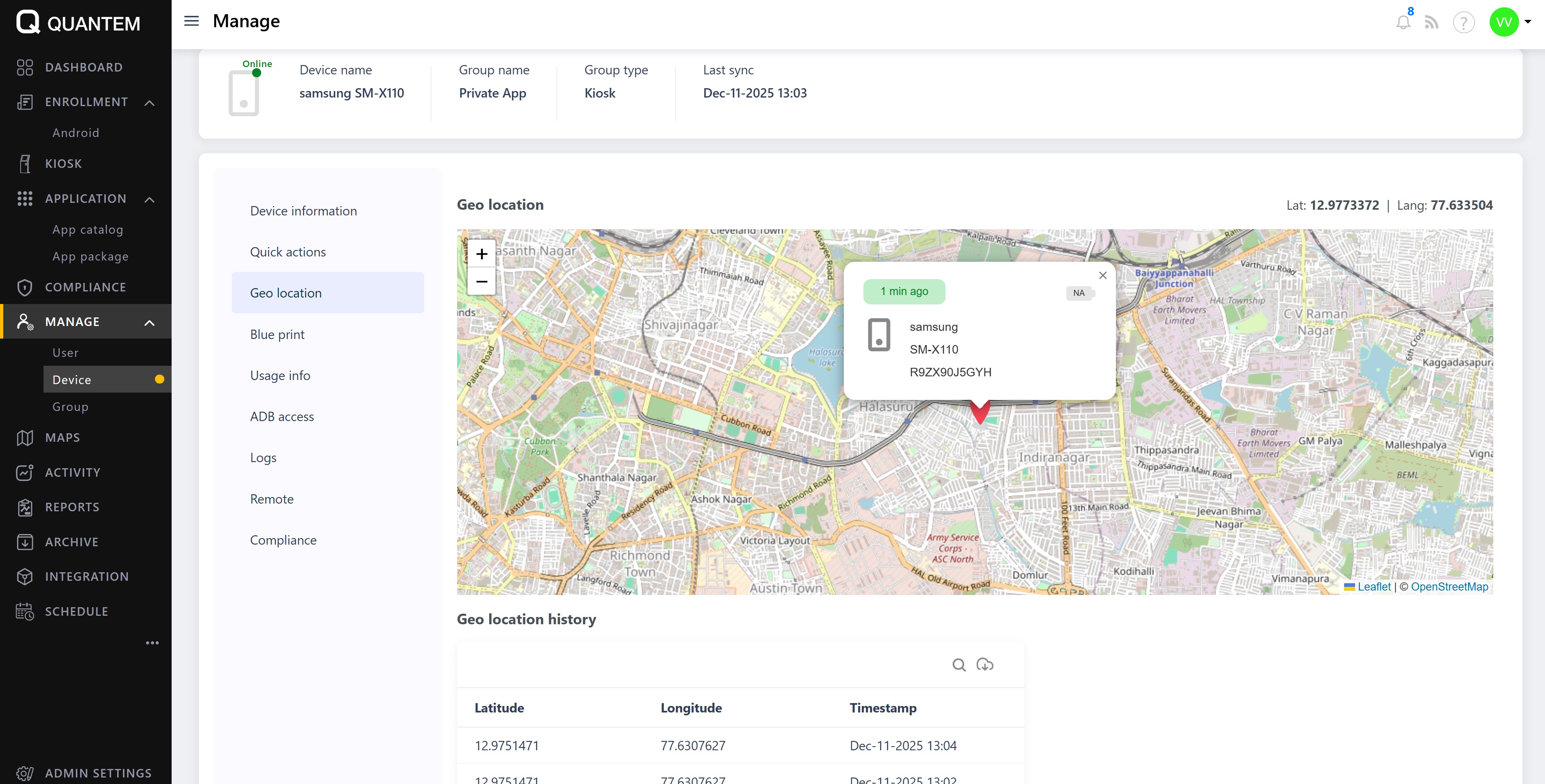
In the device details screen, click Geo location.
The device's current location is marked on a map.
A Geo location history table displays past location records with latitude, longitude, and timestamp.
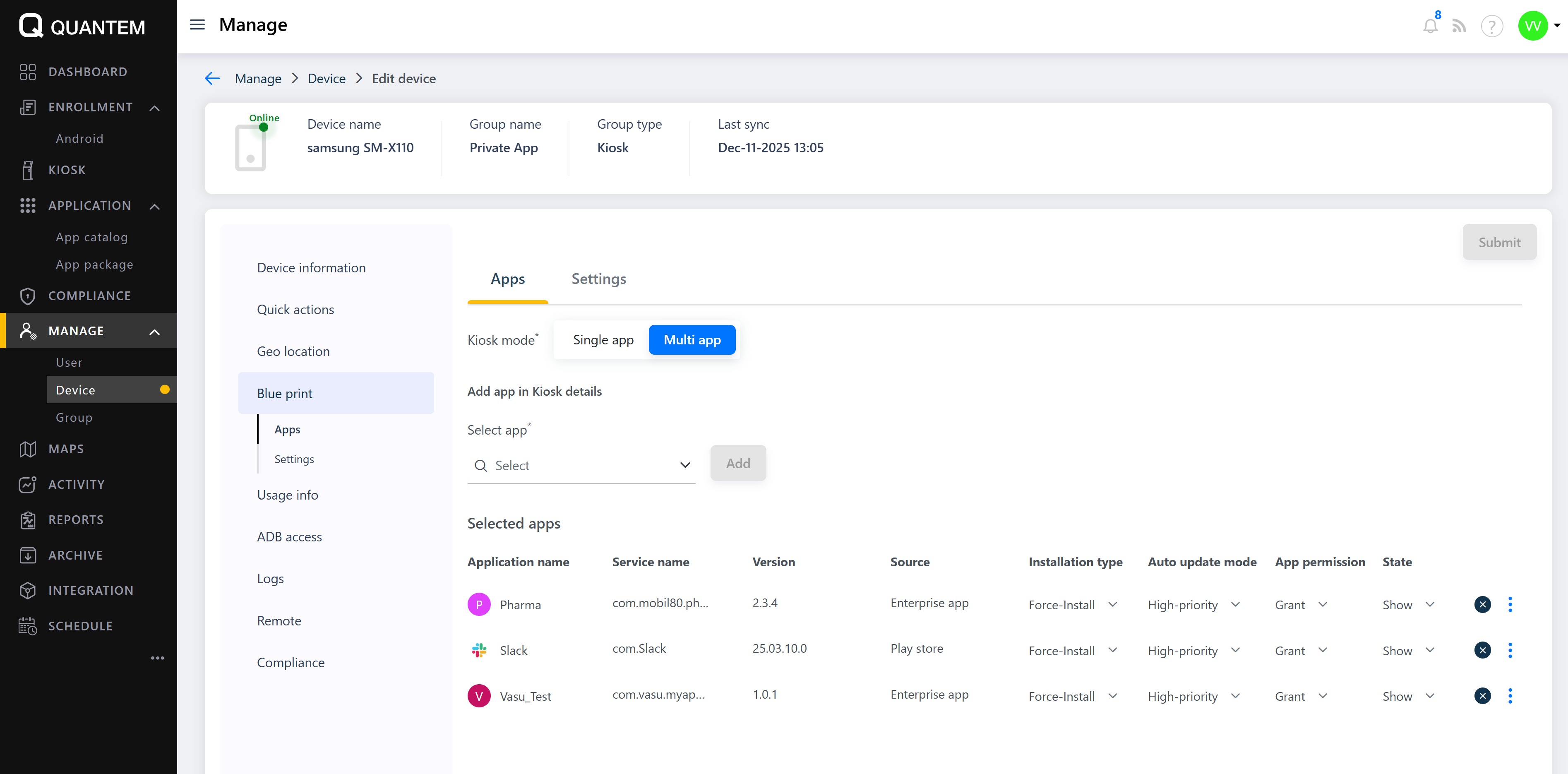
Blueprint and policy management
Click Blueprint in the device details screen.
The blueprint view shows the policies, contents, and apps assigned to the device's group.
Device-level exceptions can be set by updating values and assigning a custom tag. These exceptions apply only to that specific device.
Click Restore to group to revert device-level exceptions back to the group-level policies and apps.
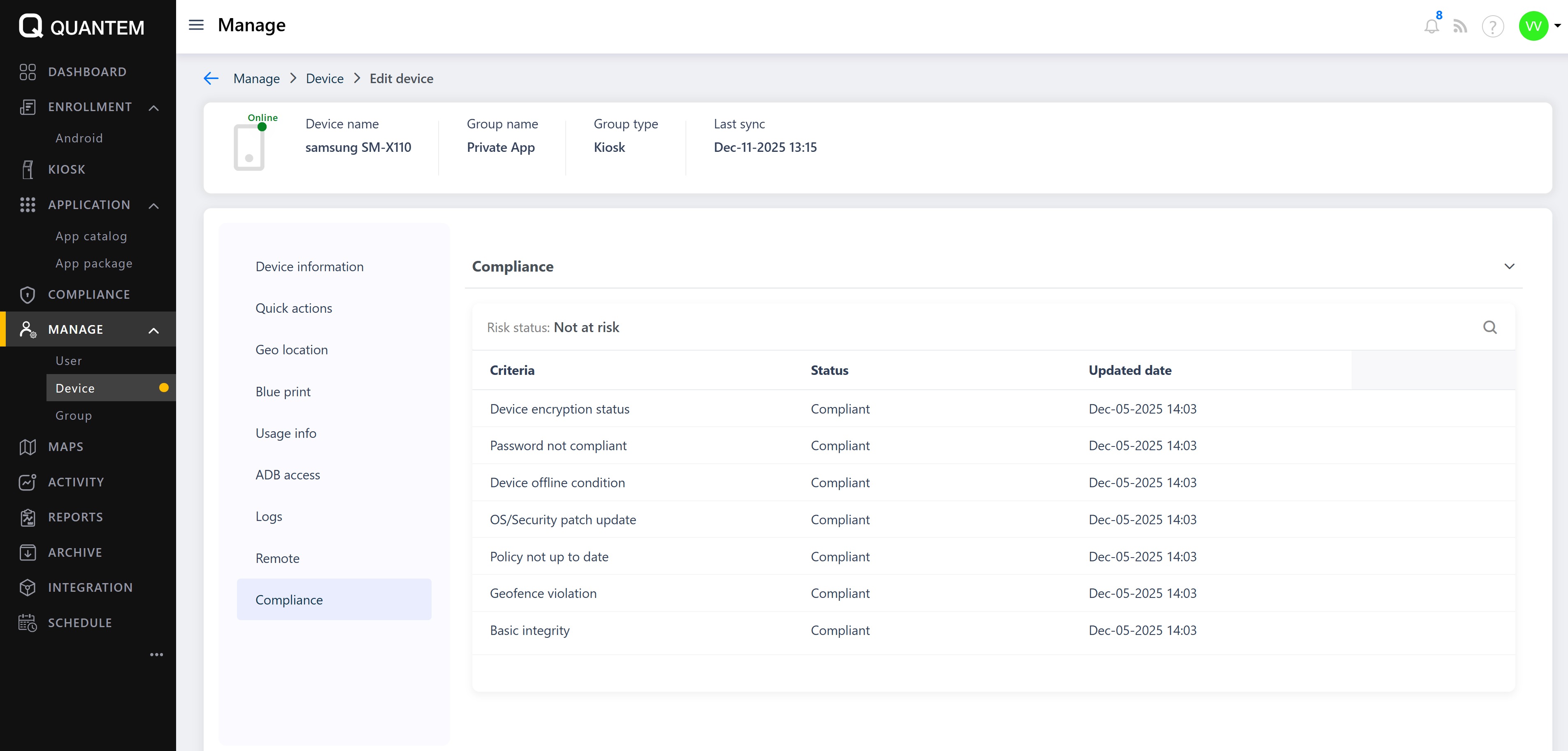
Compliance status
Click Compliance in the device details screen.
The compliance table shows the device's compliance status for various criteria:
Device encryption status
Password compliance
Device offline condition
OS/Security patch updates
Policy updates
Geofence violations
Basic integrity
A Risk status indicator shows whether the device is at risk or compliant.
Device actions
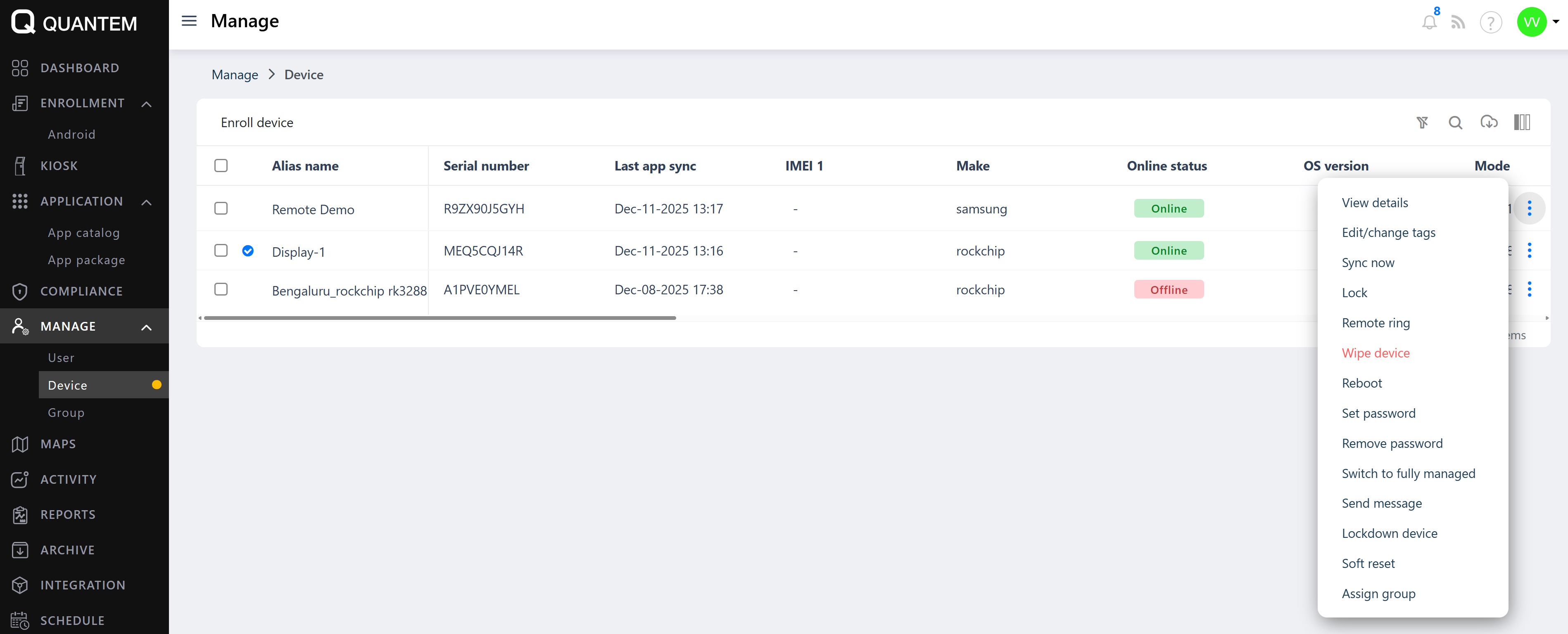
From the Device list, click the three vertical dots (⋮) at the end of a device row to access:
View details – Open the full device details screen
Edit/change tags – Modify device identifiers
Sync now – Refresh device status
Lock – Lock the device
Remote ring – Ring the device alarm
Wipe device – Factory reset the device
Reboot – Restart the device
Set password – Set or change the screen lock password
Remove password – Clear the screen lock password
Switch to fully managed – Convert a device between Kiosk and Fully Managed modes
Send message – Send a notification to the device
Lockdown device – Password-protect and lock the device
Soft reset – Reset to default policies without unenrolling
Assign group – Move the device to a different groups
Was this article helpful?
That’s Great!
Thank you for your feedback
Sorry! We couldn't be helpful
Thank you for your feedback
Feedback sent
We appreciate your effort and will try to fix the article