Global Sync Time controls how frequently the device communicates with the Quantem server. This determines how often device data — such as data usage, location tracking, app activity, and other device information — is updated back into the web console.
Step 1: Log in to the Quantem Console
Open your browser and navigate to the Quantem Console.
Enter your admin credentials and log in.
Step 2: Navigate to Admin Settings
On the bottom-left side of the console, click on Admin Settings.
Step 3: Open Global Sync Time
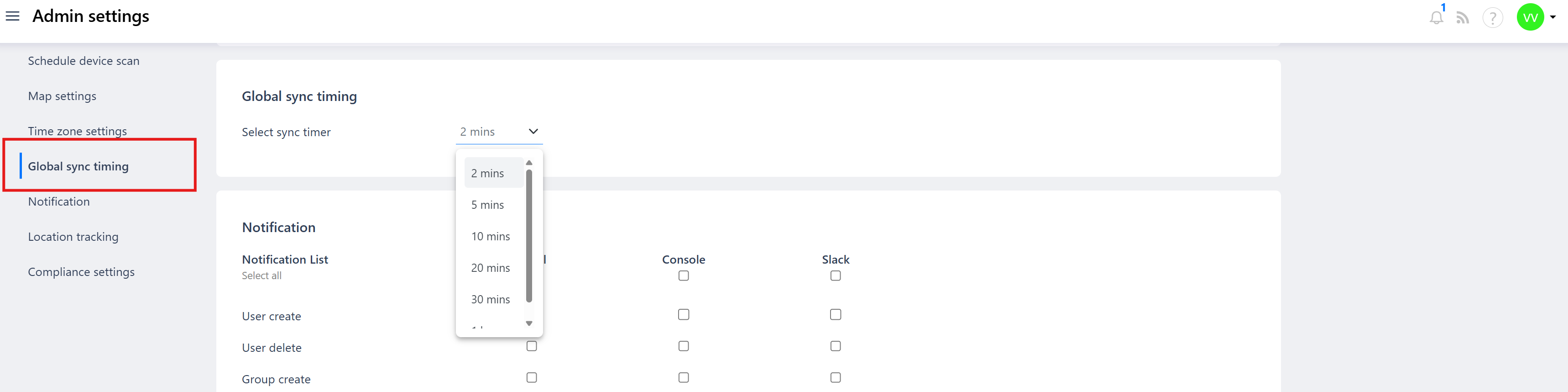
Inside Admin Settings, locate and click on Global Sync Time.
A dropdown will appear with the available sync interval options.
Step 4: Select a Sync Interval
Choose your preferred sync frequency from the following options:
2 Minutes
5 Minutes
10 Minutes
20 Minutes
30 Minutes
1 Hour
Step 5: Save the Configuration
Select the desired interval and save the setting.
The configuration will be applied globally across all enrolled devices.
Note: If the Global Sync Time is set to 2 minutes, the device will continuously communicate with the server — including sending location updates — at very short intervals. This results in higher battery consumption, especially on devices running on battery power (non-plugged-in devices).
What Gets Synced
Device location
Data usage
App activity and status
Device health and compliance status
Any policy or configuration updates pushed from the console
Was this article helpful?
That’s Great!
Thank you for your feedback
Sorry! We couldn't be helpful
Thank you for your feedback
Feedback sent
We appreciate your effort and will try to fix the article