The Multi App Kiosk mode in the Quantem Console locks a managed device to a curated set of multiple applications selected by the admin. Unlike Single App Kiosk which restricts the device to one app, Multi App Kiosk presents users with a controlled launcher showing only the approved apps — while blocking access to all other apps, device settings, and system functions. This is ideal for shared workstations, employee tablets, field devices, or any device that requires access to more than one business application in a controlled environment.
Steps to Set Up a Multi App Kiosk
Step 1: Navigate to Kiosk
From the left-hand navigation, click on Kiosk. The Kiosk page will display all existing kiosk profiles.
Step 2: Create a New Kiosk or Edit Existing
You have two options:
Create New Kiosk — Click on Create Kiosk to set up a new kiosk profile from scratch
Edit Existing Kiosk — If a kiosk profile already exists, click the three-dot menu ( ⋮ ) on the kiosk row and select View/Edit Details to modify it
For a new setup, click Create Kiosk and proceed with the steps below.
Step 3: Enter Kiosk Details
Fill in the following fields in the Create Kiosk screen:
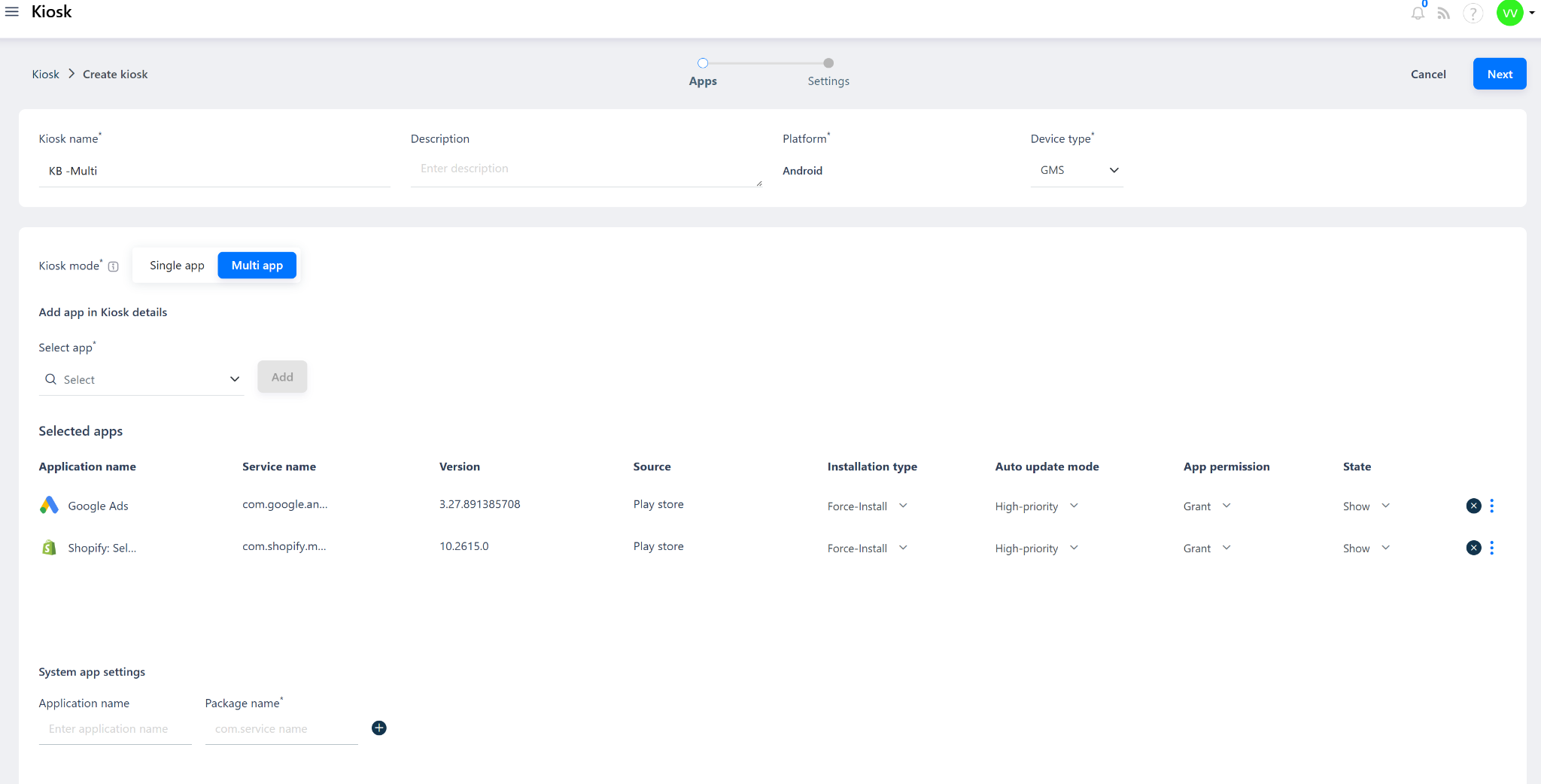
Step 4: Select Kiosk Mode – Multi App
Under Kiosk Mode, two options will be available:
Single App Mode — Locks the device to one application only
Multi App Mode — Allows multiple apps to be accessible on the kiosk launcher
Select Multi App Mode to proceed with a multi app kiosk setup.
Step 5: Add Applications
Click Add to open the app selection screen
From the list of whitelisted apps in the App Catalog, select all the applications you want to make available on the kiosk launcher
You can add multiple apps — each selected app will appear as an icon on the kiosk launcher screen
Click Add to confirm the selections
Step 6: Configure Kiosk Launcher Settings
In Multi App Mode, configure the kiosk launcher appearance and behavior:
Step 7: Review and Submit
Click Next to review the full kiosk configuration summary
Verify all selected apps and settings are correct
Click Submit to save the kiosk profile
The kiosk profile will now appear in the Kiosk list on the console.
Step 8: Assign the Kiosk Profile
Once the kiosk profile is saved, assign it to the target device or group using one of the following methods:
Assign to a Device — Navigate to Manage > Device, select the target device, and assign the kiosk profile directly
Assign to a Group — Navigate to Manage > Group, select the target kiosk group, and assign the kiosk profile to the group. All devices in the group will receive the kiosk configuration
Was this article helpful?
That’s Great!
Thank you for your feedback
Sorry! We couldn't be helpful
Thank you for your feedback
Feedback sent
We appreciate your effort and will try to fix the article