Web Kiosk Mode in the Quantem Console allows admins to lock a managed device to display and run a specific web application (URL) as the kiosk experience. A Web App in this context is essentially a website or web-based tool that behaves like a native app on the device — when the user taps the web app icon, it opens the configured URL directly. This is ideal for devices that need to display a web portal, dashboard, form, or any browser-based tool in a locked kiosk environment.
Setting up a Web Kiosk involves two main stages:
Whitelisting the Web App in the App Catalog via the Google iframe
Assigning the Web App to a Kiosk profile and deploying it to a device or group
Part A – Whitelist the Web App in the App Catalog
Step 1: Navigate to App Catalog
Log in to the Quantem Console
From the left navigation, click on Application
Click on App Catalog
Step 2: Open Add App
On the top-right side of the App Catalog page, click on Add App.
Step 3: Select Platform and App Source
A pop-up will appear. Select the following:
Platform: Android
App Source: Google Play Store
Click to proceed. The Google-managed iframe will open within the console.
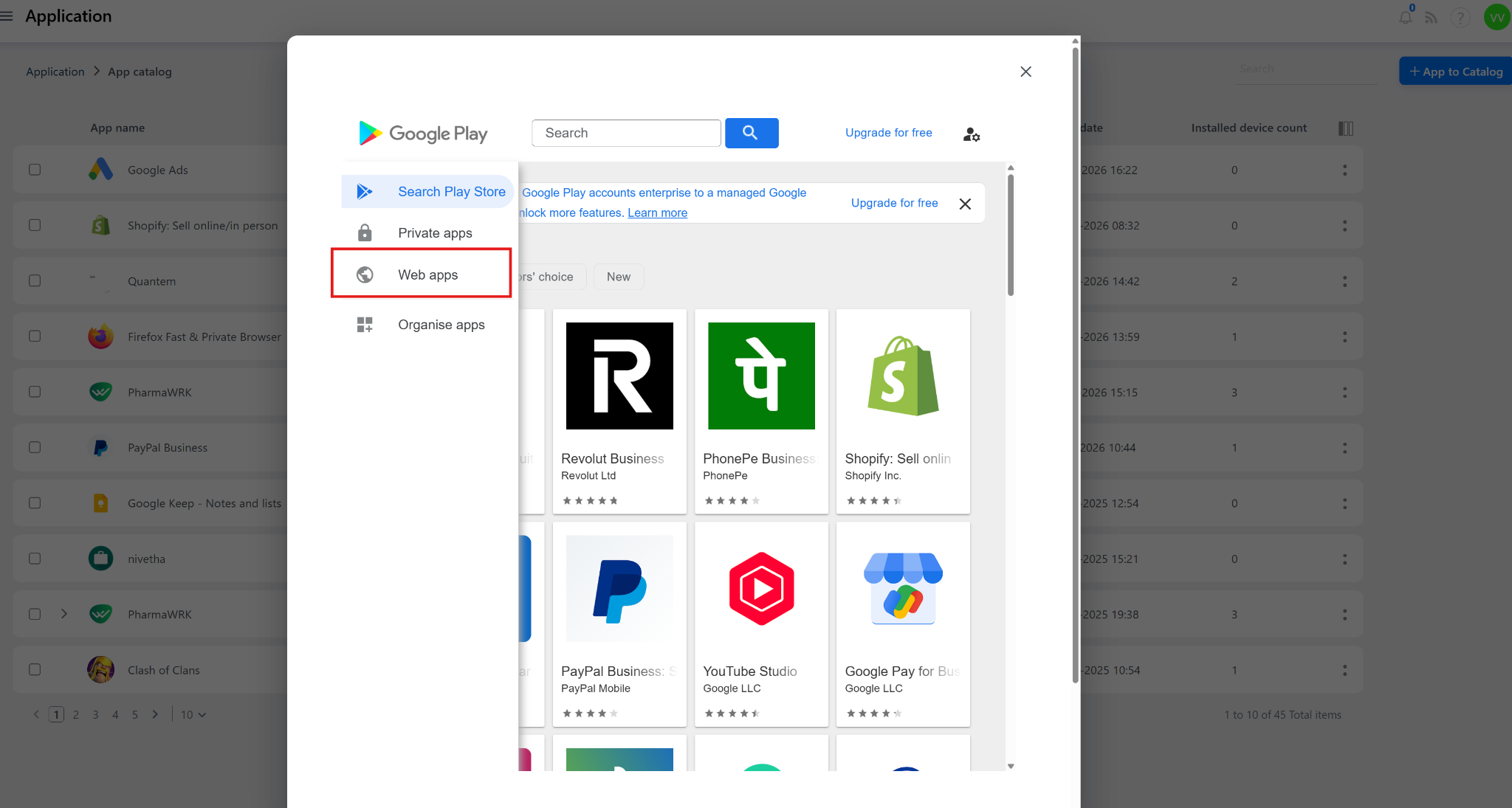
Step 4: Navigate to Web Apps in the iframe
Inside the Google iframe:
On the left-hand side, locate and click on Web Apps
A list of existing web apps (if any) will be displayed
Step 5: Create a New Web App
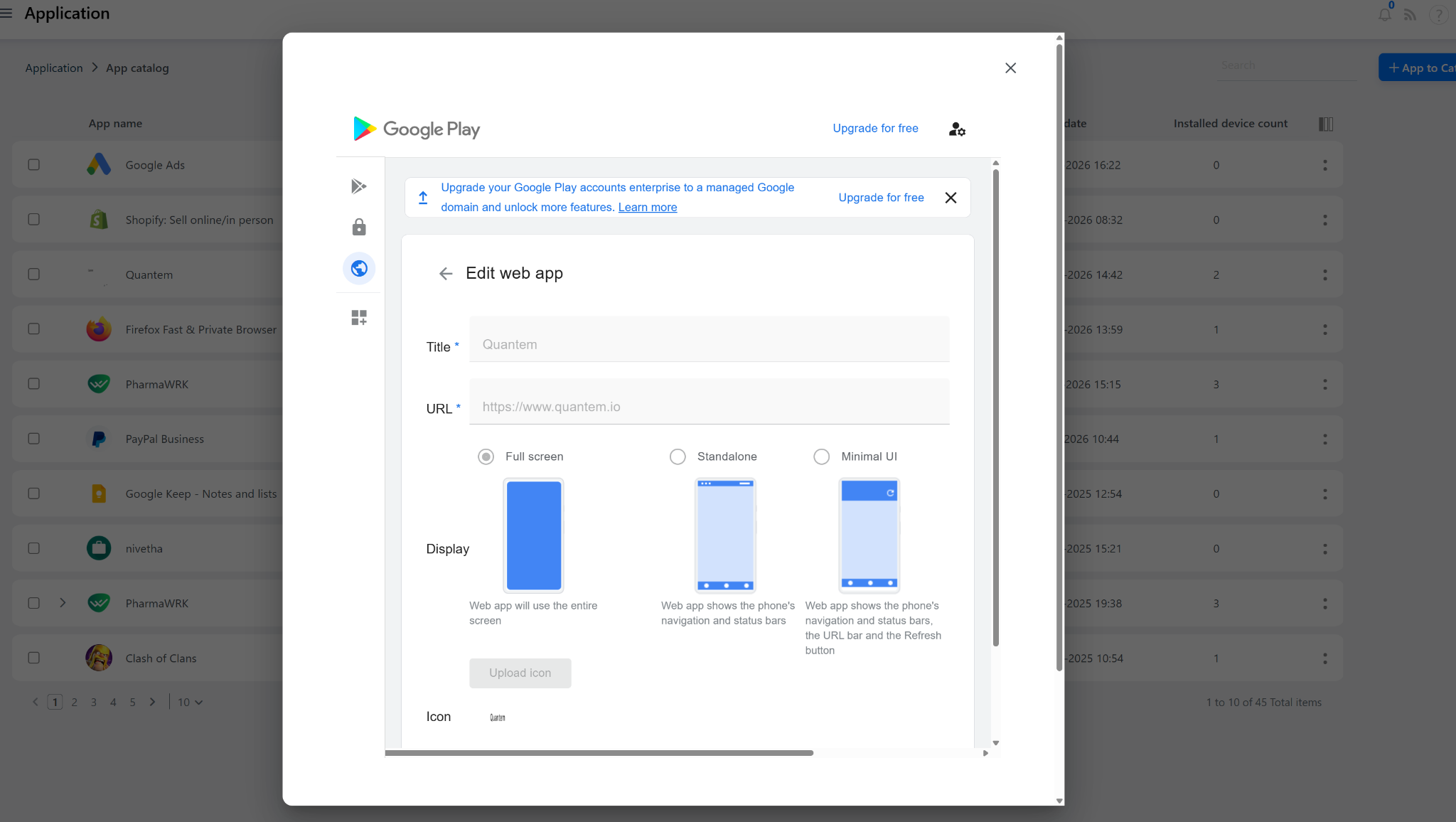
Click the + (Plus) icon at the bottom of the Web Apps section
A web app creation form will appear. Fill in the following fields:
Step 6: Create the Web App
Click Create. The web app will be:
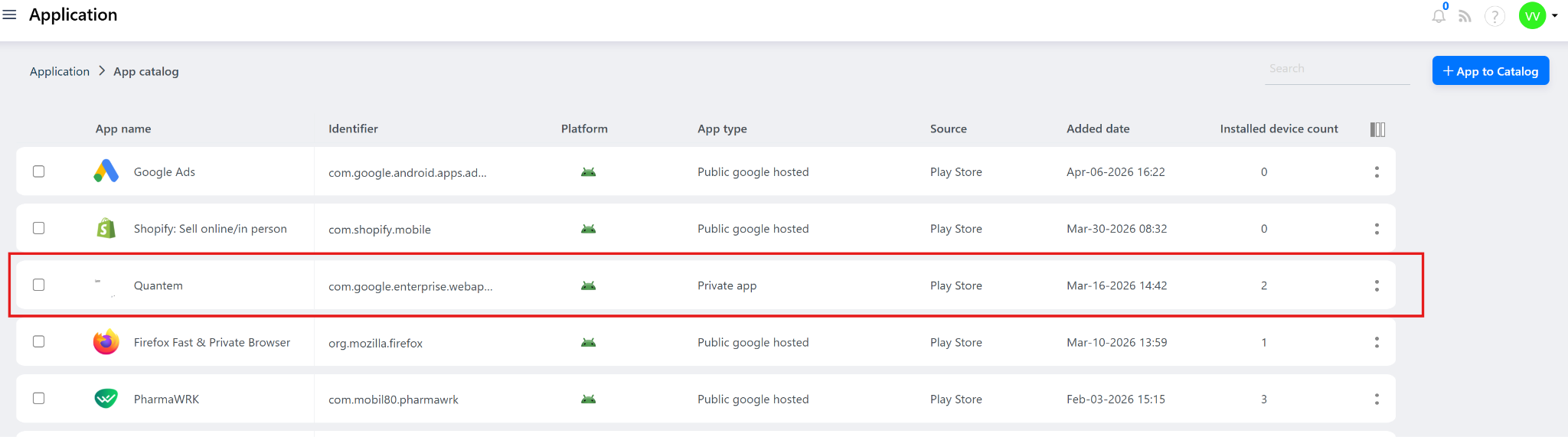
Created under your organization's Managed Google Play account
Automatically whitelisted and added to the App Catalog in the Quantem Console
Available for selection in Kiosk profiles and policy assignments
Part B – Assign the Web App to a Kiosk Profile
Step 7: Navigate to Kiosk
From the left-hand navigation, click on Kiosk.
Step 8: Create a New Kiosk or Edit Existing
Create New Kiosk — Click Create Kiosk to set up a new kiosk profile
Edit Existing Kiosk — Click the three-dot menu ( ⋮ ) on an existing kiosk row and select View/Edit Details
Step 9: Enter Kiosk Details
Step 10: Add the Web App
Click Add in the app selection screen
From the App Catalog list, locate and select the web app that was whitelisted in Part A
Click Add to confirm
Step 11: Set the Kiosk System Launcher
Select the same web app as the Kiosk System Launcher
This ensures the device boots directly into the web app URL upon startup
Step 12: Review and Submit
Click Next to review the kiosk configuration
Verify the web app and launcher settings are correct
Click Submit to save the kiosk profile
Step 13: Assign the Kiosk Profile
Assign the saved kiosk profile to the target device or group:
Assign to a Device — Navigate to Manage > Device, select the device, and assign the kiosk profile
Assign to a Group — Navigate to Manage > Group, select the kiosk group, and assign the kiosk profile. All devices in the group will receive the web kiosk configuration
Was this article helpful?
That’s Great!
Thank you for your feedback
Sorry! We couldn't be helpful
Thank you for your feedback
Feedback sent
We appreciate your effort and will try to fix the article