This article explains how to switch a device from Fully Managed mode to Kiosk mode and back. This is useful
in scenarios like rental or subscription businesses where device access changes based on payment status.
Example Customer Use Case
A mobile rental customer uses this feature as follows:
When the user is active and payments are on time, the device is kept in Fully Managed mode so the user has full access with minimal restrictions.
If the payment for the next month is not received, the device is switched to Kiosk mode with limited apps so the user can only perform basic actions (for example, call or contact the rental shop to unlock the device).
Switching a Device from Fully Managed to Kiosk
Log in to the admin console.
From the left-side dashboard, navigate to Manage → Devices.
In the Devices list, hover over the device you want to convert.
Click the three-dot (⋮) icon on the right-hand side of the device row.
From the menu, select Switch to Kiosk.
The device will now switch from the fully managed policy to the assigned kiosk policy, and only kiosk policy settings will be applied on the device.
Switching a Device from Kiosk to Fully Managed
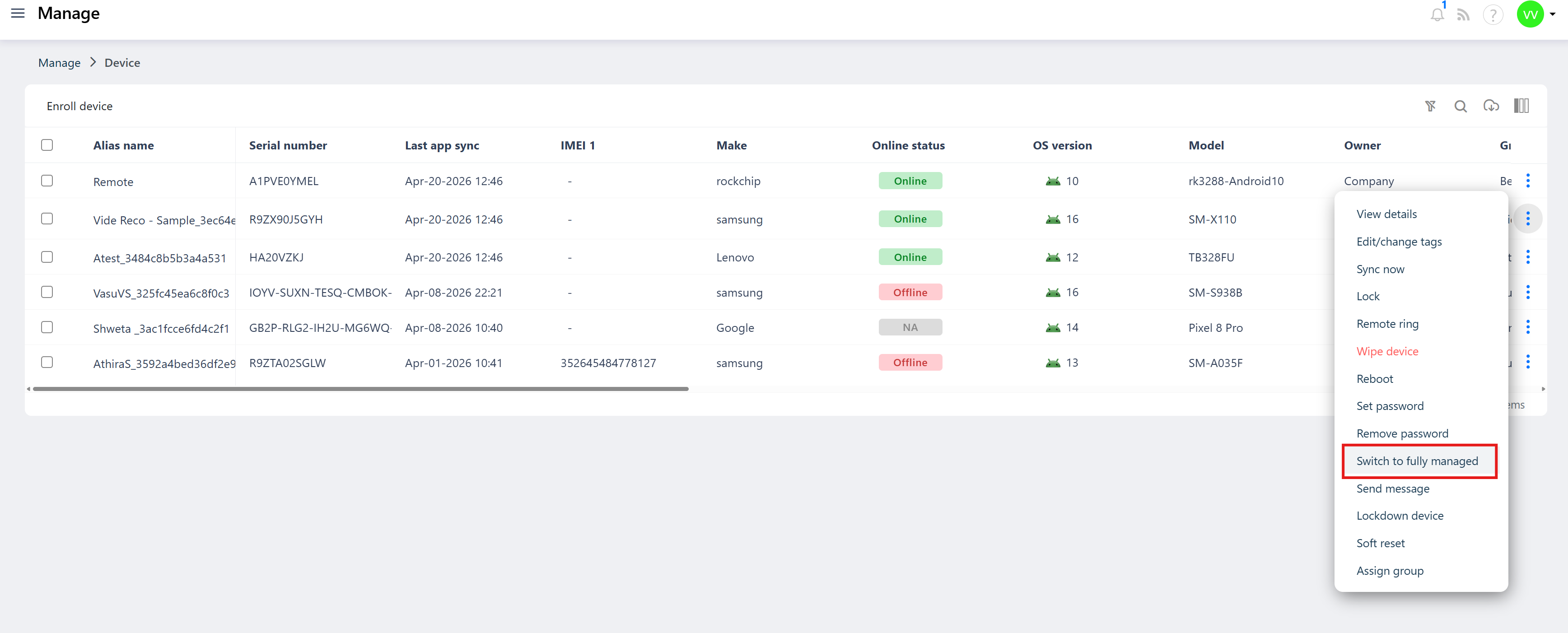
Go to Manage → Devices in the admin console.
Locate the device that is currently in Kiosk mode.
Click the three-dot (⋮) icon on the right-hand side of the device row.
Select Switch to Fully Managed from the options.
The device will switch back to the fully managed policy, restoring full access as per your fully managed configuration.
Was this article helpful?
That’s Great!
Thank you for your feedback
Sorry! We couldn't be helpful
Thank you for your feedback
Feedback sent
We appreciate your effort and will try to fix the article