The Password Policy feature allows administrators to define password rules and security standards for fully managed Android devices. This ensures consistency and compliance across all managed endpoints.
Accessing the Policy Settings
Login to the web console using your admin credentials.
Navigate to Compliance → Policies in the left navigation menu.
The Policies section opens, displaying a list of existing policies and an option to create a new one.
To modify an existing policy, click the Edit icon.
To define a new policy, click Create Policy.
Configuring Password Settings
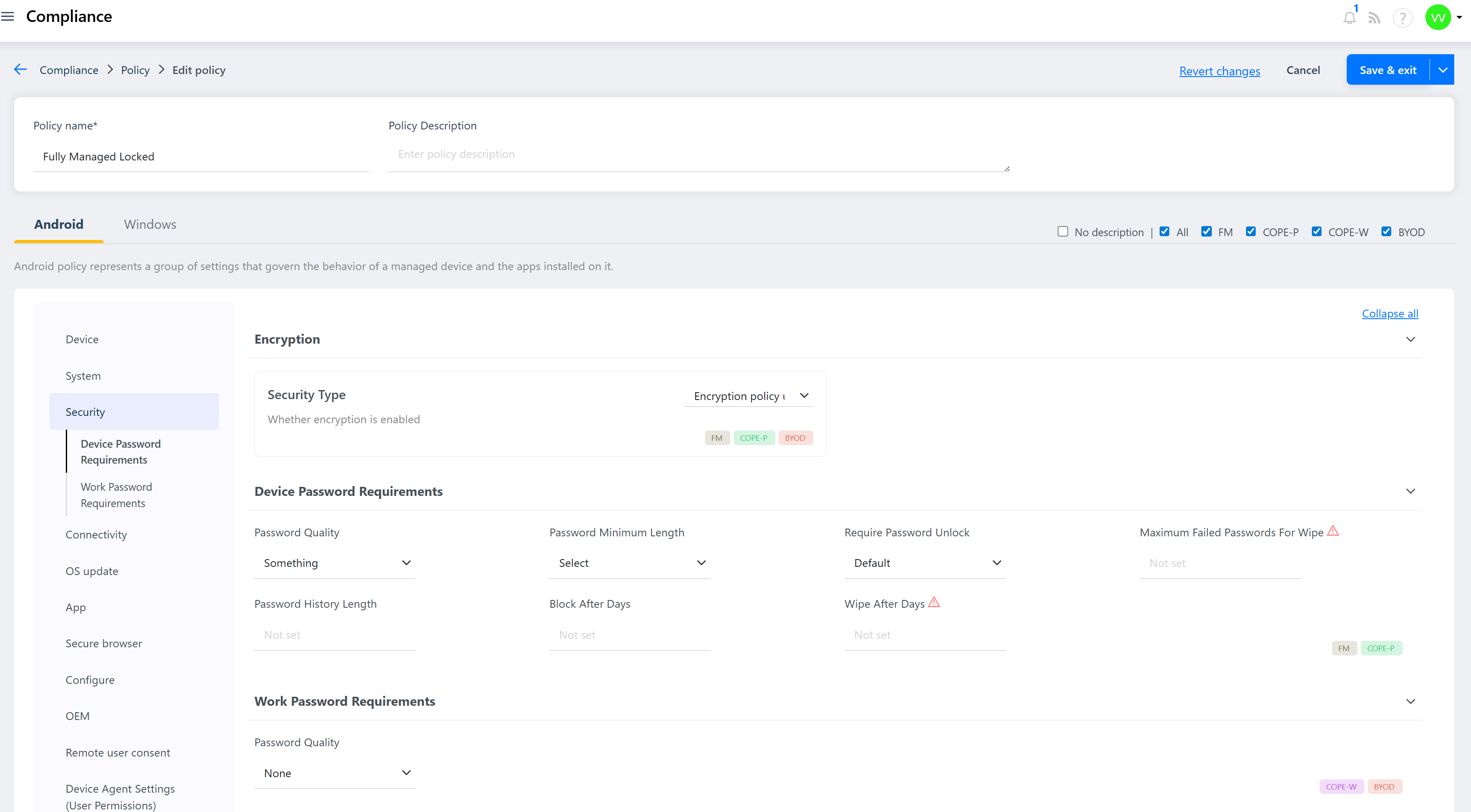
On the policy configuration screen, click the Security Policy section.
Under the Device Password Policy dropdown, select the type of password requirement you want to enforce.
Available options include: Something, Numeric, Alphabetic, and Alphanumeric.
Once the type is selected, configure the following parameters as per your organization’s security standards:
Password Quality – Defines the complexity level required for device passwords.
Password Minimum Length – Sets the minimum number of characters in the password.
Require Password to Unlock – Enforces password entry to unlock the device.
Default Allowed – Determines if the policy is optional or mandatory by default.
Maximum Failed Passwords for Wipe – Specifies the number of failed attempts before the device performs a data wipe.
Password History Length – Prevents users from reusing recent passwords.
Block After Days / Wipe After Days – Automatically blocks or wipes the device after a set number of days without policy compliance.
After configuring the desired options, click Save to apply the policy.
Assigning the Password Policy
Once saved, the policy can be assigned to a group or to individual devices under your fully managed environment.
Assigned devices will automatically receive and enforce the configured password rules on their next sync.
Was this article helpful?
That’s Great!
Thank you for your feedback
Sorry! We couldn't be helpful
Thank you for your feedback
Feedback sent
We appreciate your effort and will try to fix the article