The Enable System App option within the kiosk policy allows administrators to make pre-installed (system) applications available on devices. This is useful for enabling native apps such as Settings, Camera, or File Manager that are not part of the managed app catalog by default.
Accessing the Kiosk Policy
Log in to the admin console using your administrator credentials.
Navigate to Kiosk from the left-hand side menu.
Select the kiosk policy where you want to enable the system application.
The selected kiosk configuration will open, displaying various sections including Apps, Settings, and Policies.
Adding a System Application
Go to the Apps section within the kiosk policy.
Scroll down to the bottom of the section.
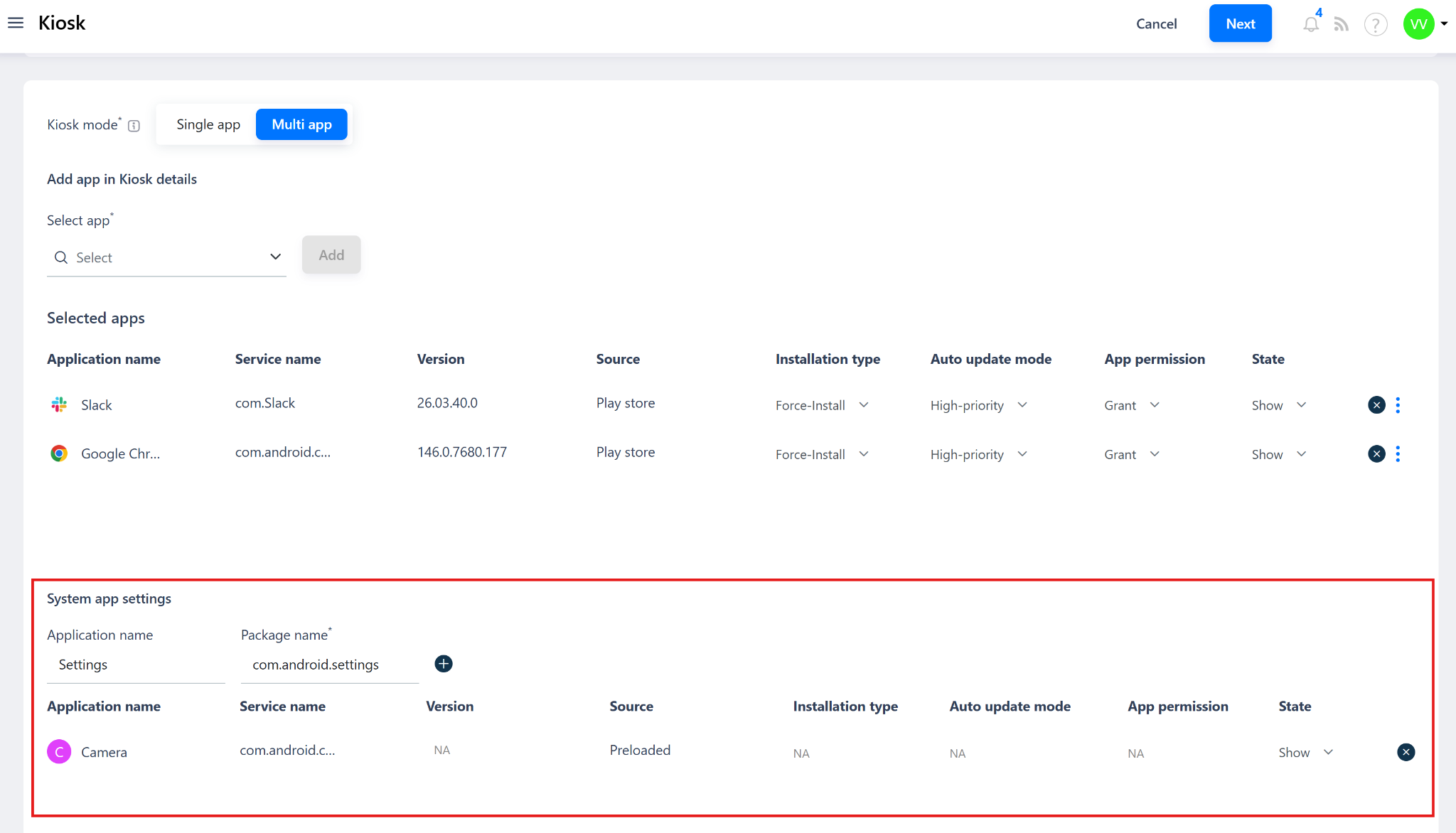
Click on the Add System App option.
In the dialog box, enter the following details:
Package Name – The full package identifier of the system app (for example, com.android.settings or com.android.camera).
App Name – A display name for the system app.
Once the details are entered, click Add to include the app in the kiosk configuration.
Saving and Applying the Configuration
After adding the required system app(s), click Save to update the kiosk policy.
Assign the policy to a group or directly to specific devices.
The system apps you’ve added will become accessible on the devices after the next kiosk sync or reboot.
Was this article helpful?
That’s Great!
Thank you for your feedback
Sorry! We couldn't be helpful
Thank you for your feedback
Feedback sent
We appreciate your effort and will try to fix the article