This article explains how to change the console theme and configure branding (favicon and company logo) in the Quantem admin console.
Step 1: Log In to the Quantem Console
Sign in to the Quantem Console using your administrator credentials.
Step 2: Open My Settings
1. In the top-right corner of the console, click the profile icon (bottom icon).
2. A small pop-up menu will appear with three options.
3. Select My Settings.
Step 3: Navigate to Theme and Branding
1. On the My Settings page, scroll down.
2. Locate the Theme and Branding section.
Step 4: Select a Theme
Under Theme, choose one of the four available options:
- Quantem
- Neo
- Dark
- Gray
The selected theme controls the overall look and feel of the console UI.
Step 5: Configure Branding
Under Branding, upload the following assets:
- Icon: A small icon that appears in the browser tab when the dashboard is minimized. This is your favicon.
- Company Logo: Your organization's logo that will be displayed in the console header and branding areas.
Tip: Use clear, high-quality images to ensure your branding looks professional across all screen sizes.
Step 6: Save Changes
1. After selecting the theme and uploading branding assets, click Save.
2. The updated theme and branding will be applied to the console immediately for all users.
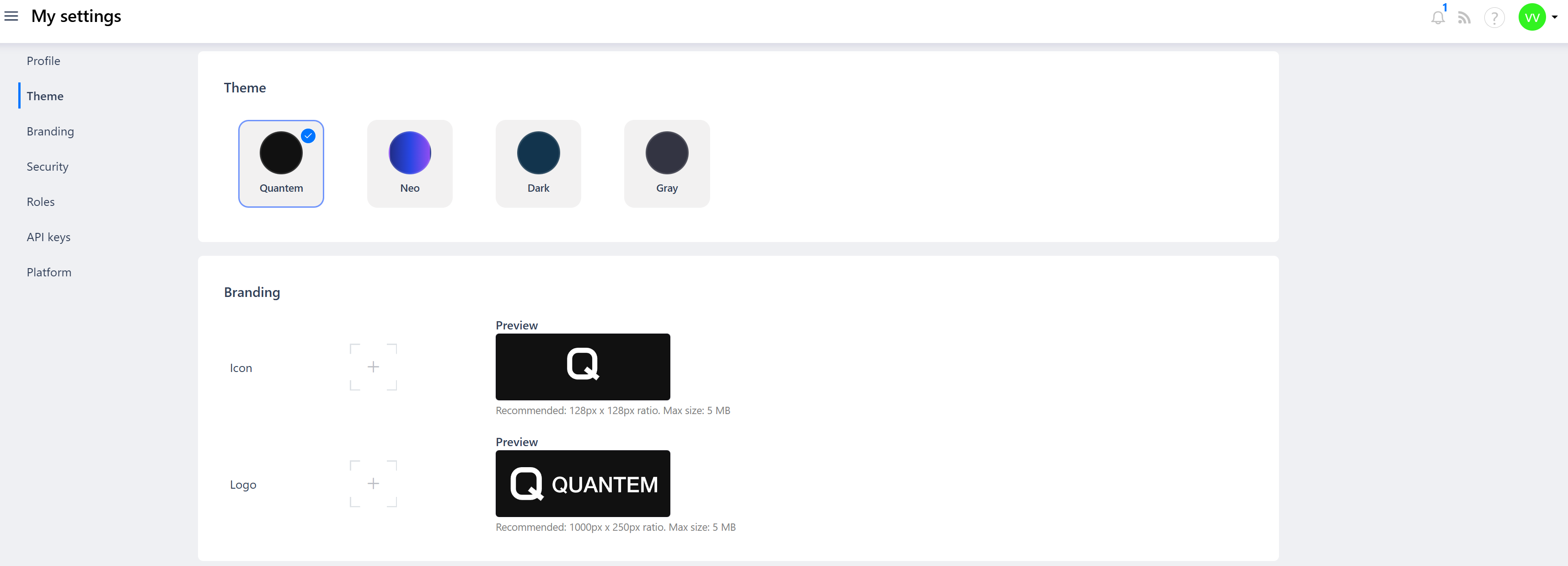
Once saved, all users who access the Quantem Console will see the updated theme and company branding applied across the interface.
Was this article helpful?
That’s Great!
Thank you for your feedback
Sorry! We couldn't be helpful
Thank you for your feedback
Feedback sent
We appreciate your effort and will try to fix the article