The App Text Color setting allows administrators to customize the display text color for app names shown on kiosk devices. This helps maintain consistent branding or improve visibility of text against different background designs.
Accessing the Kiosk Policy
Log in to the admin console using your administrator credentials.
Navigate to the Kiosk section from the left-hand menu.
Open an existing kiosk policy or create a new kiosk configuration.
Once the kiosk profile is open, click the Settings option at the top of the screen.
The Kiosk Settings page will appear, displaying various customization options.
Configuring App Text Color
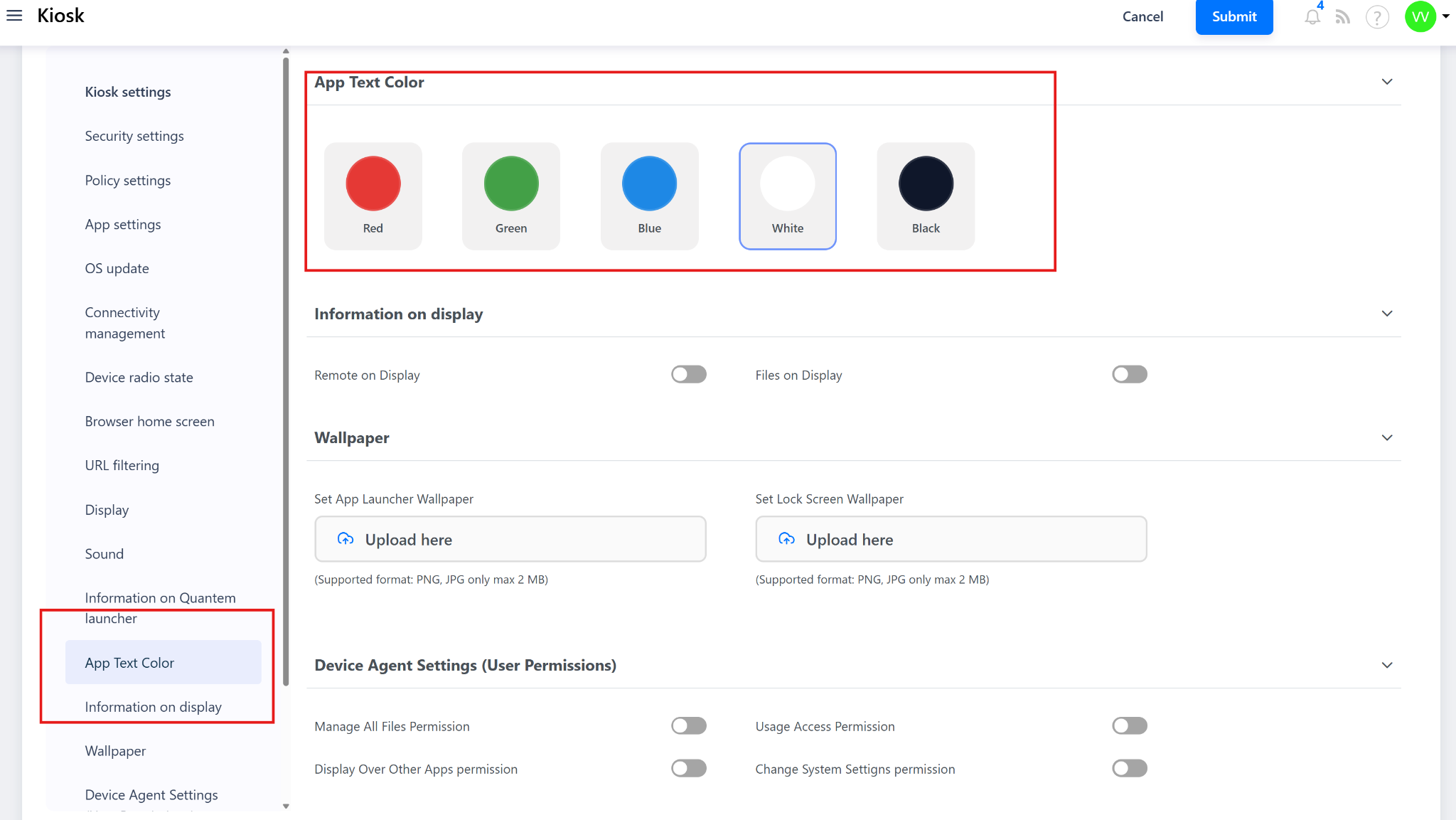
Under the Settings section, locate the App Text Color option.
Choose one of the five available color options for the app text.
This color determines how app names appear on the kiosk home screen.
After selecting the preferred color, click Save to apply the change.
Applying the Configuration
Once saved, the selected app text color will be reflected across all devices using that kiosk policy.
If the kiosk is already assigned to groups or devices, the new text color will update automatically on the next device sync.
Was this article helpful?
That’s Great!
Thank you for your feedback
Sorry! We couldn't be helpful
Thank you for your feedback
Feedback sent
We appreciate your effort and will try to fix the article