The Managed Configuration feature allows administrators to define custom settings or parameters for whitelisted apps directly within a kiosk profile. This helps tailor app behavior to meet enterprise or use-case-specific requirements on managed devices.
Accessing the Kiosk Settings
Log in to the admin console with your administrator credentials.
Navigate to Kiosk from the left navigation menu.
Select an existing kiosk profile or create a new kiosk configuration as required.
Open the selected kiosk profile to view its configuration options.
Adding and Whitelisting Apps
In the Apps section of the kiosk, click Add App.
From the list, select the app you want to whitelist and click Add.
Once added, the app will appear under the Selected Apps list within the kiosk.
Configuring Managed Settings for a Whitelisted App
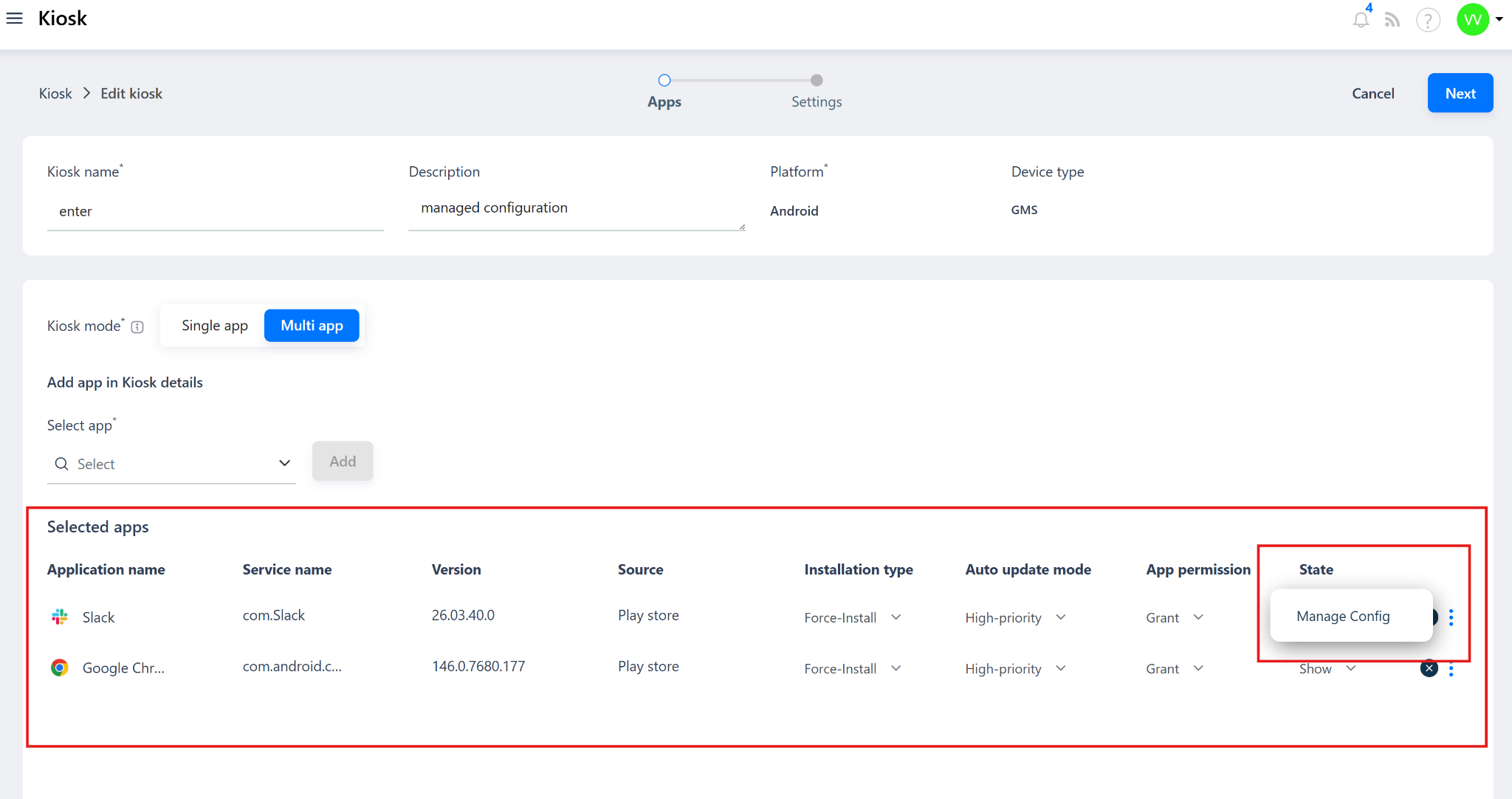
In the Selected Apps list, locate the whitelisted app.
Click the three-dot (⋮) icon on the right-hand side of the app entry.
Select Managed Config from the context menu.
The Managed Configuration window opens. Use the available options to set or update configuration parameters as required for the app.
These settings vary by app and are defined by the developer (for example, default URLs, display modes, or feature toggles).
Once you’ve defined the required configuration values, click Save to apply the settings.
Saving and Assigning the Kiosk
After configuring managed settings, click Save on the main kiosk page.
Assign the kiosk to a group (or multiple groups) to roll out the updated configuration to devices.
Once assigned, all devices enrolled under that kiosk will automatically receive the new managed configuration during their next policy sync.
Was this article helpful?
That’s Great!
Thank you for your feedback
Sorry! We couldn't be helpful
Thank you for your feedback
Feedback sent
We appreciate your effort and will try to fix the article