The Wi-Fi Configuration option in a kiosk profile allows administrators to predefine Wi-Fi network settings for devices enrolled under the kiosk. This ensures seamless network connectivity and prevents users from modifying or connecting to unauthorized networks.
Accessing Wi-Fi Configuration Settings
Log in to the admin console with your administrator credentials.
Navigate to Kiosk from the left-hand menu.
Select an existing kiosk profile or create a new one.
Once inside the kiosk profile, click the Settings option at the top of the screen.
The Kiosk Settings page will open.
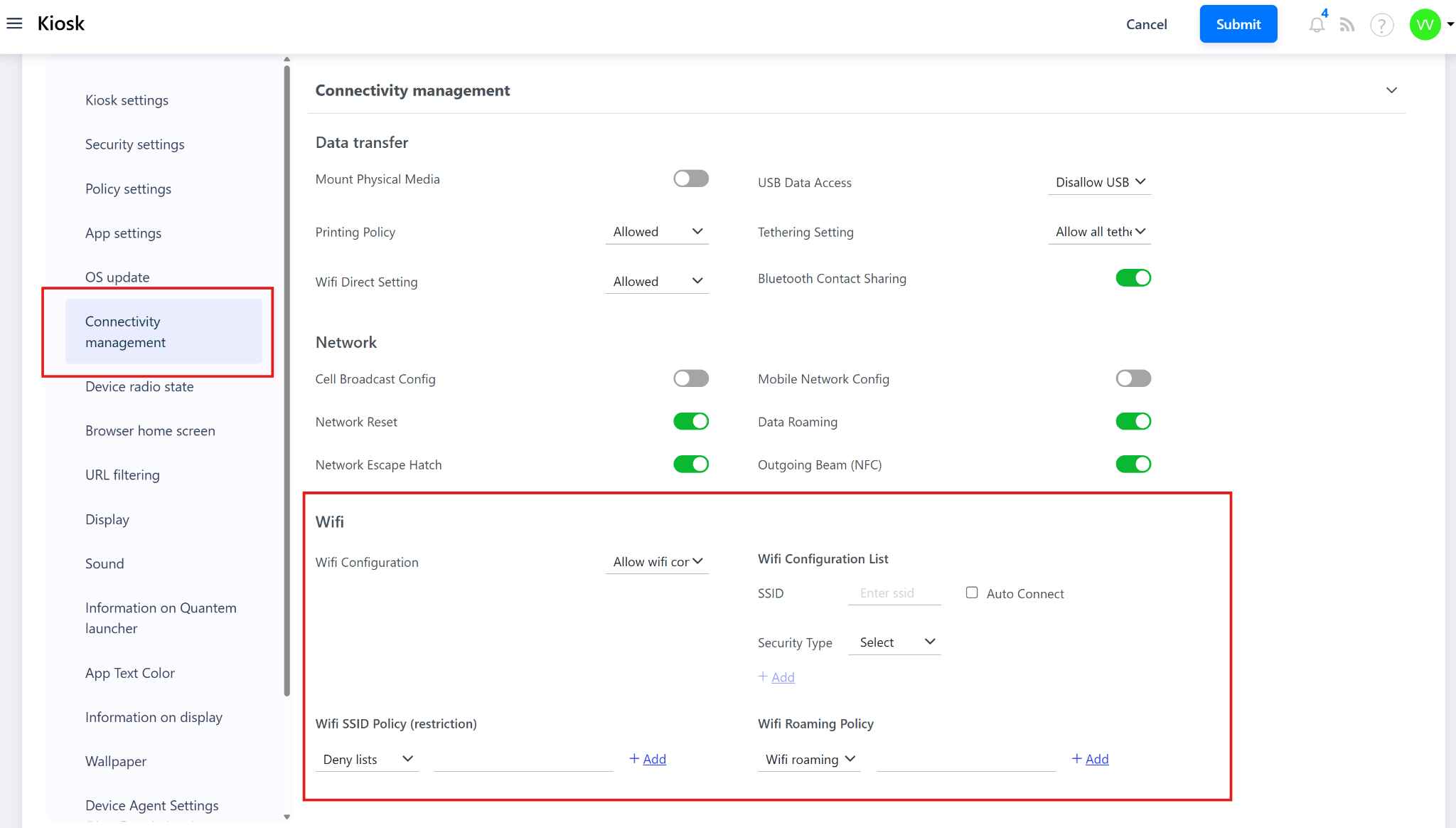
In the left navigation panel, click Connectivity Management.
Under this section, select Wi-Fi Configuration.
Configuring Wi-Fi Policies
The Wi-Fi Configuration page includes multiple settings to manage how devices connect to Wi-Fi networks.
Wi-Fi Configuration Options
Allow Wi-Fi Config – Enables devices to connect to Wi-Fi networks manually.
Disallow Add Wi-Fi Config – Prevents users from adding new Wi-Fi configurations on the device.
Disallow Wi-Fi Config – Completely restricts access to Wi-Fi configuration options.
Adding a Wi-Fi Network
Under Wi-Fi Configuration List, enter the following details for the network you want to preconfigure:
SSID – Enter the Wi-Fi network name.
Auto Connect – Enable this option if the device should connect automatically when the network is available.
Security Type – Choose one of the following options:
None
WEP-PSK
WPA-PSK
Once all details are entered, click Add to include the network in the configuration list.
Wi-Fi SSID Policy (Restriction)
You can restrict device connections to specific Wi-Fi networks using one of the following options:
Deny Lists – Specify Wi-Fi networks that devices are not allowed to connect to.
Allow Lists – Specify the only Wi-Fi networks devices are allowed to connect to.
To apply restrictions, select the appropriate list option and click Add to specify the SSIDs.
Wi-Fi Roaming Policy
Control how Wi-Fi roaming is handled on devices by selecting one of the following options:
Wi-Fi Roaming Default – Uses standard roaming behavior.
Wi-Fi Roaming Aggressive – Enables quick switching between available access points for stronger connectivity.
Click Add to apply the selected roaming policy.
Saving and Assigning the Configuration
Once Wi-Fi settings are configured, click Save to apply changes to the kiosk profile.
Assign the updated kiosk profile to the desired device group to push the Wi-Fi configuration to enrolled devices.
Was this article helpful?
That’s Great!
Thank you for your feedback
Sorry! We couldn't be helpful
Thank you for your feedback
Feedback sent
We appreciate your effort and will try to fix the article