Device Tags in the Quantem Console allow admins to add custom labels or identifiers to enrolled devices for easy categorization, filtering, and organization. Tags act as metadata attached to a device — helping admins quickly identify, group, search, and filter devices based on specific attributes such as location, department, device role, or any custom classification relevant to the organization's fleet management needs.
Instead of relying solely on device names or group assignments, tags provide an additional layer of organization that makes large fleet management more efficient and precise.
Example Tags: Warehouse, Floor-1, Sales-Team, Chennai-Office, Kiosk-Device, Field-Agent, Under-Repair, Test-Device
Steps to Add a Tag to a Device
Step 1: Navigate to Manage > Device
From the left-hand navigation, click Manage and then click Device. All enrolled devices will be listed.
Step 2: Select the Device
Click on the device you want to tag to open its detail page.
Step 3: Locate the Tag Option
On the device detail page, locate the Tags field — found in the device overview section at the top of the device detail page, or via the three-dot menu ( ⋮ ) on the device row.
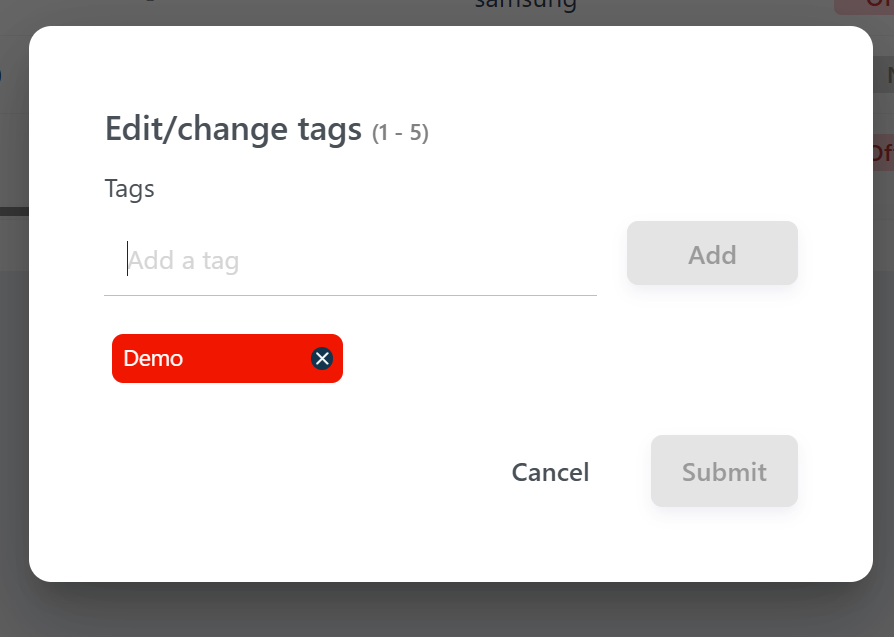
Step 4: Add a Tag
Click on the Tags field or the tag icon
Type the desired tag name in the input field
Press Enter or click Add to confirm
Repeat to add multiple tags to the same device
Step 5: Save
Click Save to apply the tag(s) to the device. The tag will now be visible in the device list and device detail page.
Was this article helpful?
That’s Great!
Thank you for your feedback
Sorry! We couldn't be helpful
Thank you for your feedback
Feedback sent
We appreciate your effort and will try to fix the article