The Group module in the Quantem Console allows admins to organize devices and users into groups for easier policy and app management. This article covers all group-related functionalities including creating, editing, viewing, and deleting groups, as well as managing users, policies, and apps within a group.
How to Access
Log in to the Quantem Console
From the left navigation, click Manage
Click on Group
Group List – Overview
The Group List screen displays all available groups in a table view with the following details:
Group List Controls
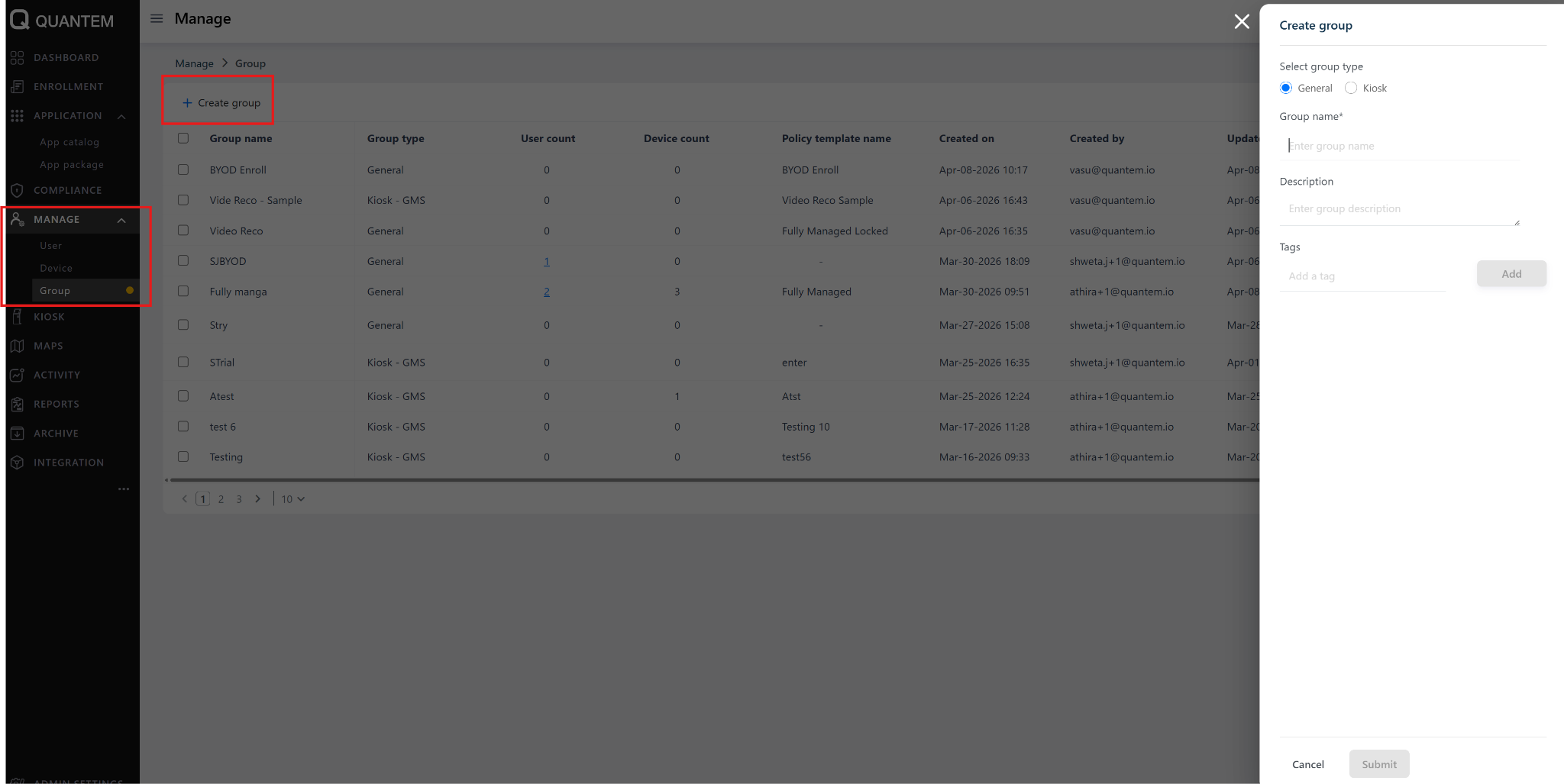
1. Create Group
Click the Create Group icon at the top of the Group List screen.
A Create Group pop-up will appear with General and Kiosk options.
Select the group type by clicking the appropriate radio button.
Fill in the following fields:
Group Name (Mandatory) – Name of the new group
Description (Optional) – A brief description of the group
Tags (Optional) – Tags to associate with the group
Click Submit.
The new group will be created and appear in the Group List screen.
2. Edit Group Name
From the Group List screen, click the three vertical dots ( ⋮ ) at the end of the group row.
From the context menu, select Edit Group Name.
The existing group details will be displayed.
Edit the required fields and click Submit. The updated values will be saved for the selected group.
3. View / Edit General Group Details
From the Group List screen, click the three vertical dots ( ⋮ ) at the end of the general group row.
From the context menu, select View/Edit Details.
The group details screen will be displayed with:
Top section – Group name, Total users, Description, Group type, Policy name, Package name
Bottom section – Tabs for User, Policy, App Package, and Contents
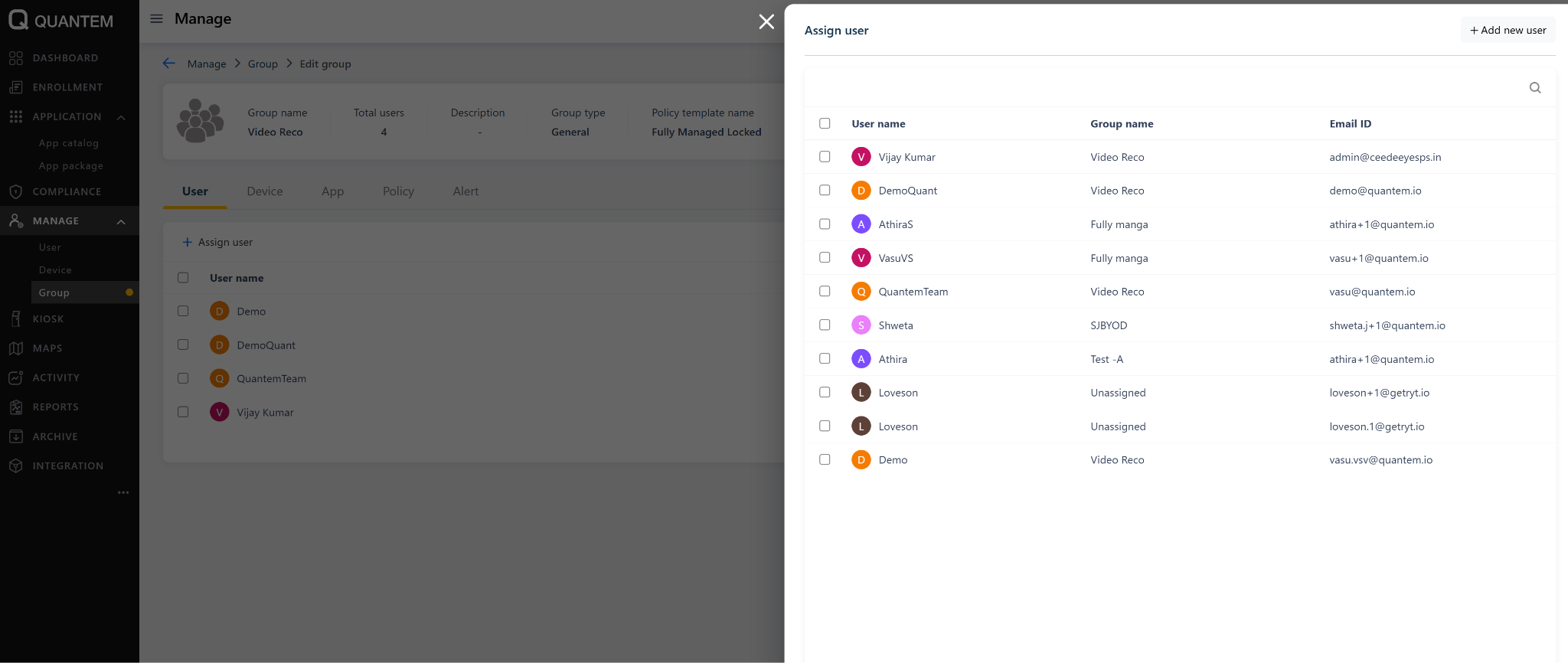
4. Assign Users to a Group
In the View/Edit Group Details screen, go to the User tab.
Click the Assign User icon at the top.
An Assign User pop-up will appear.
Select one or more users using the checkboxes and click Submit.
The selected users will be assigned to the group.
Note: If selected users are already part of another group, they will be automatically unassigned from the previous group and assigned to the new group.
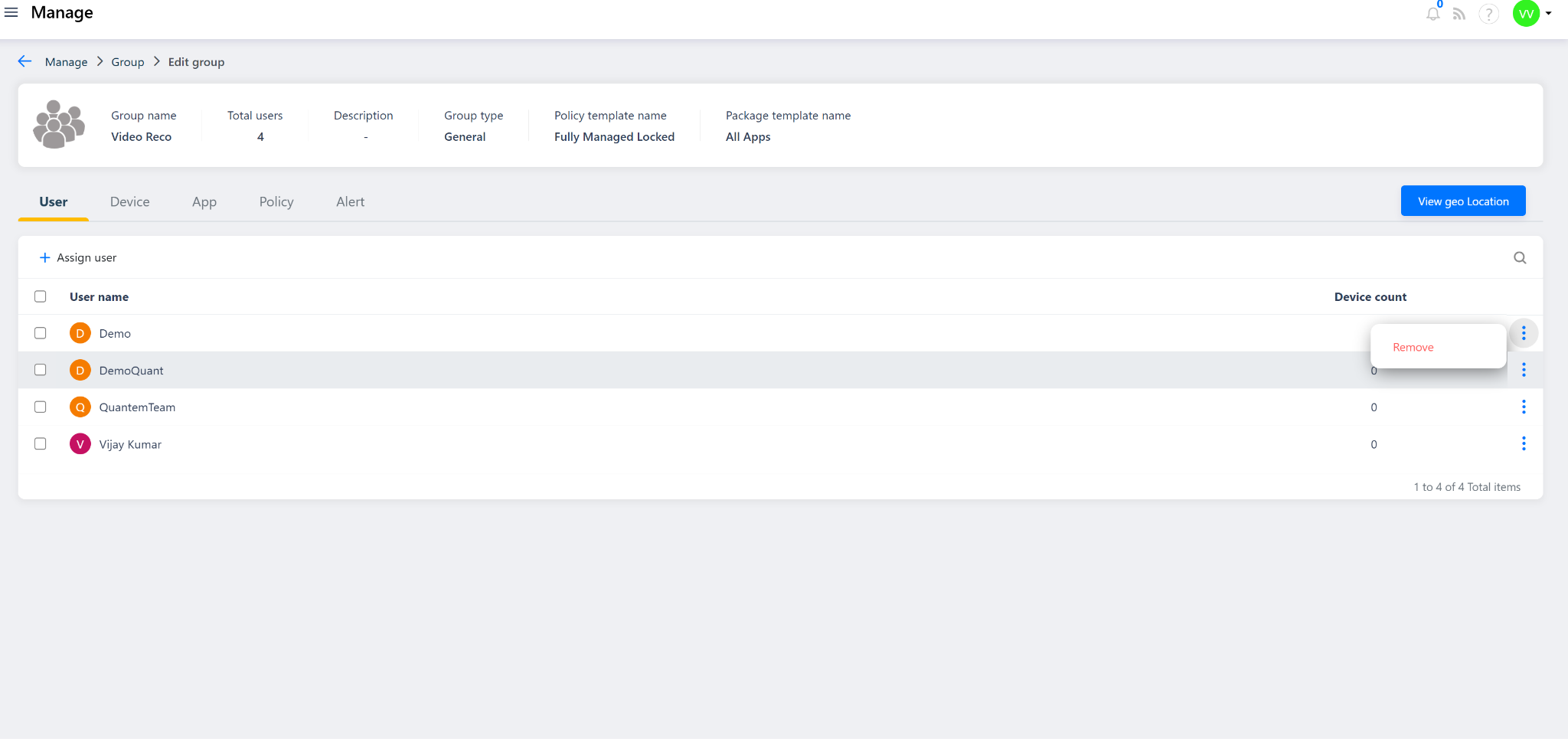
5. Remove Users from a Group
In the View/Edit Group Details screen, go to the User tab.
Select the user(s) to be removed and click Remove from the context menu or the Remove icon at the top.
A confirmation pop-up will appear. Type the phrase "Remove" in the text box.
Click Continue. The selected users will be removed from the group.
6. Change Policy of a Group
In the View/Edit Group Details screen, go to the Policy tab.
Click the Change Policy button in the top-right corner.
A Change Policy pop-up will appear with a list of available policies.
Select the desired policy and click Submit.
A warning message will appear indicating that the policy change will affect associated devices. Click Confirm.
The new policy will be applied to the group and all associated devices.
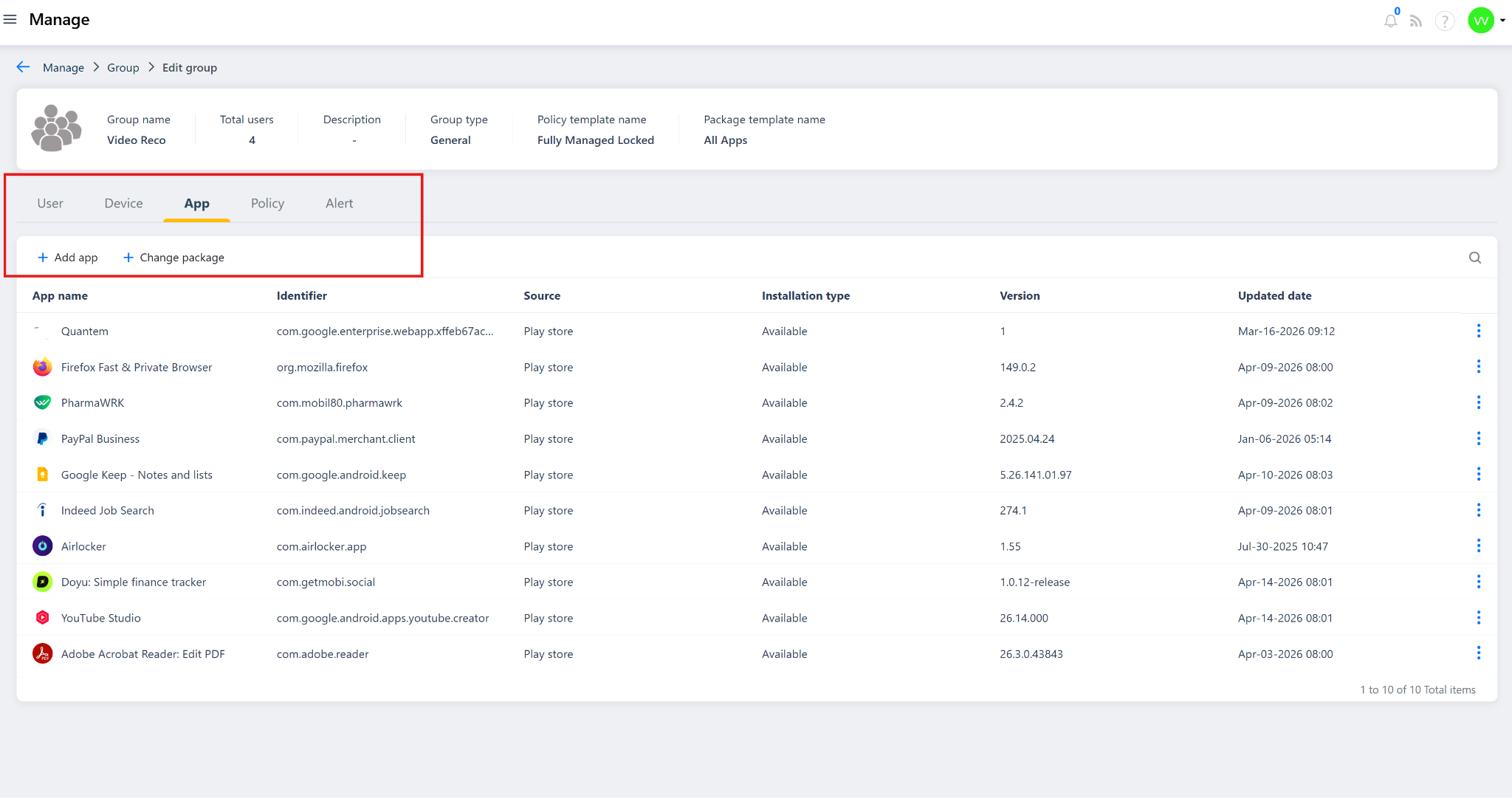
7. Add / Remove Apps in App Package
In the View/Edit Group Details screen, go to the App Package tab.
The tab will display all apps from the currently assigned package.
Available actions include:
Add app
Manage permission
Manage config
Clear app data
Remove app
When changes are made to the package, the original package will be automatically detached from the group and a new dedicated package will be created and attached to the group.
The new dedicated package will be applied to all associated devices automatically.
8. Delete Group
From the Group List screen, click the three vertical dots ( ⋮ ) at the end of the group row.
From the context menu, select Delete.
A confirmation message will be displayed.
Click Continue to delete the group.
Important: The Delete option is only available when no users are assigned to the group. A group with assigned users cannot be deleted. Remove all users from the group before attempting to delete it.
9. View / Edit Kiosk Group Details
From the Group List screen, click the three vertical dots ( ⋮ ) at the end of the kiosk group row.
From the context menu, select View/Edit Group Details.
The kiosk group details screen will be displayed with:
Top section – Group name, Total devices in group, Description, Group type, Launcher mode, Kiosk name
Bottom section – Tabs for Device and App
10. Enroll Kiosk Device to a Kiosk Group
From the Group List screen, click the three vertical dots ( ⋮ ) at the end of the kiosk group row.
From the context menu, select Enroll Kiosk.
Note: The Enroll Kiosk option is available only for Kiosk groups.The Quick Enrollment screen will be displayed with a generated QR code.
Factory reset your device and tap 6 times anywhere on the welcome screen.
Once the QR scanner opens on the device, scan the QR code displayed on the screen.
The enrollment process will begin on the device. Follow the on-screen steps and grant all required permissions.
Once enrollment is complete, the device will appear under Manage > Device with enrolled status.
Was this article helpful?
That’s Great!
Thank you for your feedback
Sorry! We couldn't be helpful
Thank you for your feedback
Feedback sent
We appreciate your effort and will try to fix the article