User Management in the Quantem Console allows the Super Admin to control who can access the Quantem Console and at what level. The Super Admin can invite team members, assign roles, and define permission scope — ensuring only authorized personnel can log in and perform actions on the console.
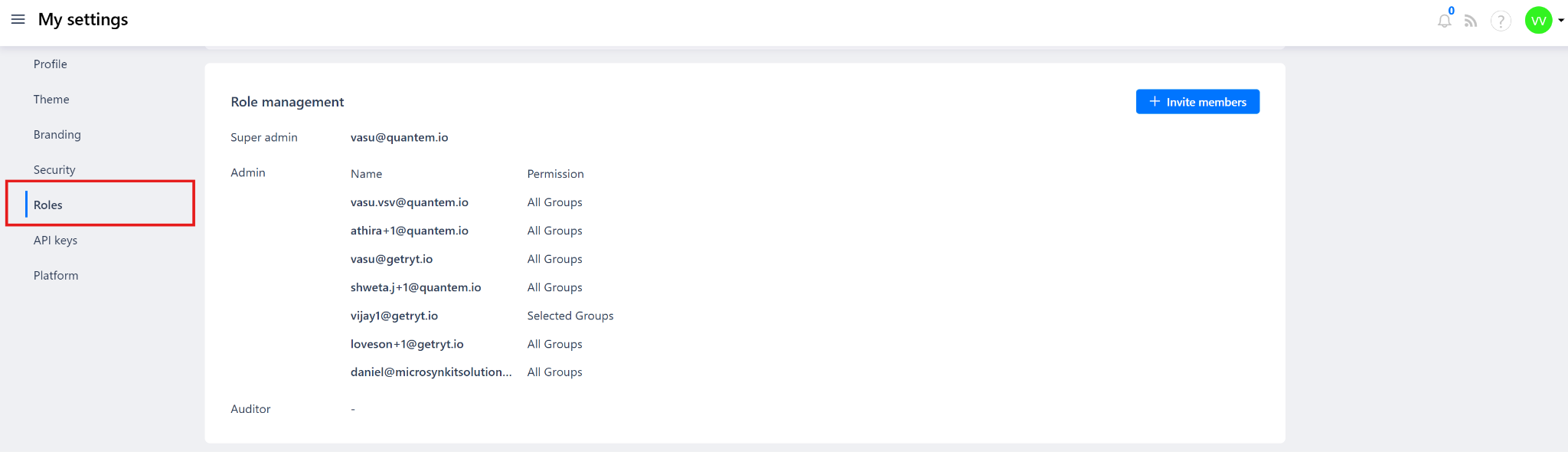
Each Quantem account supports only one Super Admin and multiple Admin users. Admins can be granted access to All Groups or Selected Groups based on their responsibility. The Auditor role provides read-only access — Auditors can view the console but cannot perform any actions.
How to Access
Log in to the Quantem Console
Click on the profile icon on the top-right corner
Select My Settings
From the left-side menu, click on Security
Scroll down to the Role Management section
Role Types in Quantem
Admin Permission Scope
When inviting an Admin, the Super Admin assigns a Permission Scope:
Steps to Invite a New Team Member
Step 1: Go to My Settings > Security > Role Management
Step 2: Click + Invite Members on the top-right
Step 3: In the invite pop-up, fill in:
Email address of the team member
Role — Admin or Auditor
Permission Scope — All Groups or Selected Groups
If Selected Groups, choose the specific groups to assign
Step 4: Click Send/Submit — the member receives an email invitation to join the console
Step 5: Once the invite is accepted, the member appears in the Role Management list under their assigned role.
Was this article helpful?
That’s Great!
Thank you for your feedback
Sorry! We couldn't be helpful
Thank you for your feedback
Feedback sent
We appreciate your effort and will try to fix the article