The USB File Transfer Restriction policy in the Quantem Console allows admins to control and restrict the transfer of data between a managed device and a local machine via USB connection. This prevents unauthorized data exfiltration or file transfer to and from managed kiosk devices. The setting is configured under Connectivity Management within the Kiosk profile settings and applied to all devices assigned to that kiosk profile or group.
Steps to Configure USB File Transfer Restriction
Step 1: Navigate to Kiosk
From the left-hand navigation, click on Kiosk. All existing kiosk profiles will be listed.
Step 2: Create or Edit a Kiosk Profile
Create New — Click Create Kiosk to start a new kiosk profile
Edit Existing — Click the three-dot menu ( ⋮ ) on an existing kiosk row and select View/Edit Details
Step 3: Open Kiosk Settings
Inside the kiosk profile, click on Settings in the top-right corner of the kiosk profile screen.
Step 4: Navigate to Connectivity Management
In the Settings page, scroll down to locate the Connectivity Management section.
Step 5: Configure USB Data Access
Under Connectivity Management, locate the USB Data Access option and select one of the following:
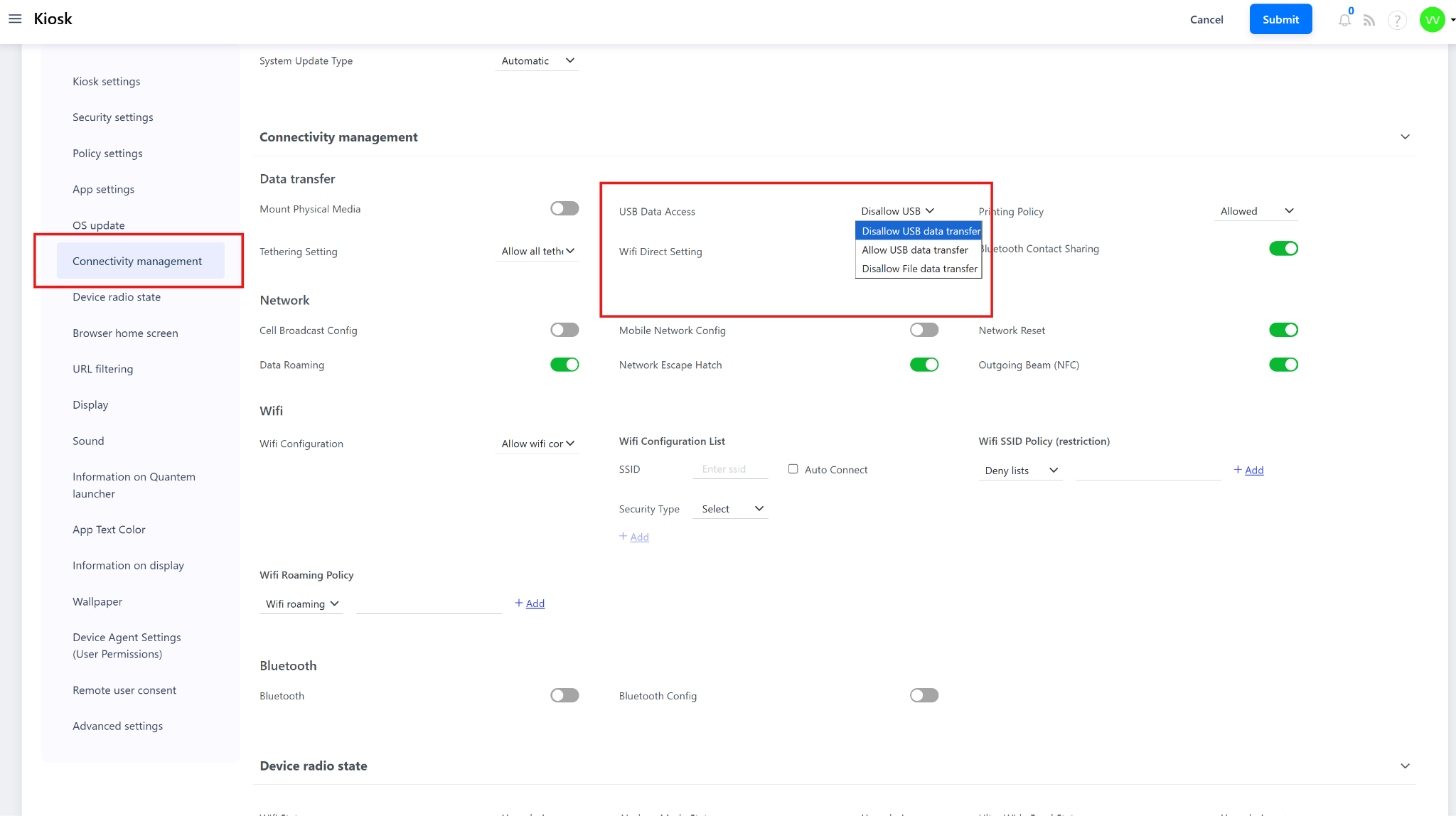
Step 6: Save the Kiosk Profile
After configuring both settings, click Save to apply the configuration to the kiosk profile.
Step 7: Assign the Kiosk Profile
Assign the saved profile to the target device or group:
Assign to a Device — Navigate to Manage > Device, select the device, and assign the kiosk profile
Assign to a Group — Navigate to Manage > Group, select the kiosk group, and assign the profile. All devices in the group will receive the USB restriction policy
Was this article helpful?
That’s Great!
Thank you for your feedback
Sorry! We couldn't be helpful
Thank you for your feedback
Feedback sent
We appreciate your effort and will try to fix the article