App Package Management in the Quantem Console allows admins to bundle multiple applications together into a single package instead of assigning apps individually to each group or device. More than 50 applications can be bundled into one package and then directly assigned to a group or an individual device — simplifying large-scale app deployment and management.
How to Access
Log in to the Quantem Console
From the left navigation, click on Application
Click on App Packages
Step 1: Navigate to App Packages
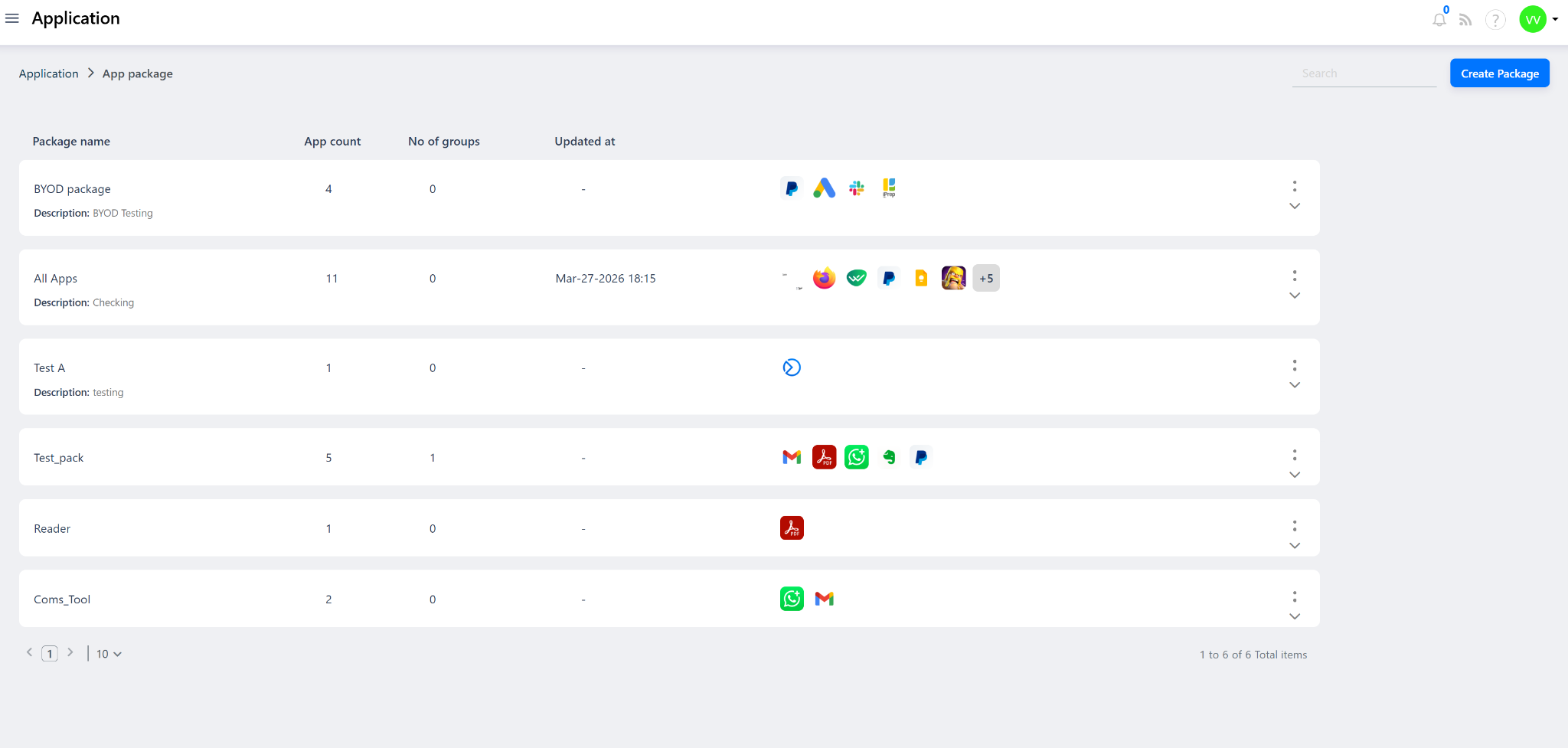
Go to Application > App Packages from the left-hand navigation menu.
Step 2: Create a New Package
On the App Packages page, click on Create New Package.
Step 3: Name the Package
Enter a meaningful name for the package so it can be easily identified when assigning to groups or devices.
Step 4: Select Apps for the Package
From the list of available apps in the App Catalog:
Select all the applications you want to include in this bundle
You can add up to 25 applications per package
Apps can include Google Play apps, Enterprise apps, or System apps that have been whitelisted in the App Catalog
Step 5: Save the Package
Once all required apps are selected, click Save. The package will be created and listed under App Packages.
Step 6: Assign the Package
After saving, the package can be assigned in two ways:
Assign to a Group – The package will be pushed to all devices within that group
Assign to an Individual Device – The package will be pushed directly to a specific device
All apps within the package will be silently installed on the target devices upon assignment.
Was this article helpful?
That’s Great!
Thank you for your feedback
Sorry! We couldn't be helpful
Thank you for your feedback
Feedback sent
We appreciate your effort and will try to fix the article