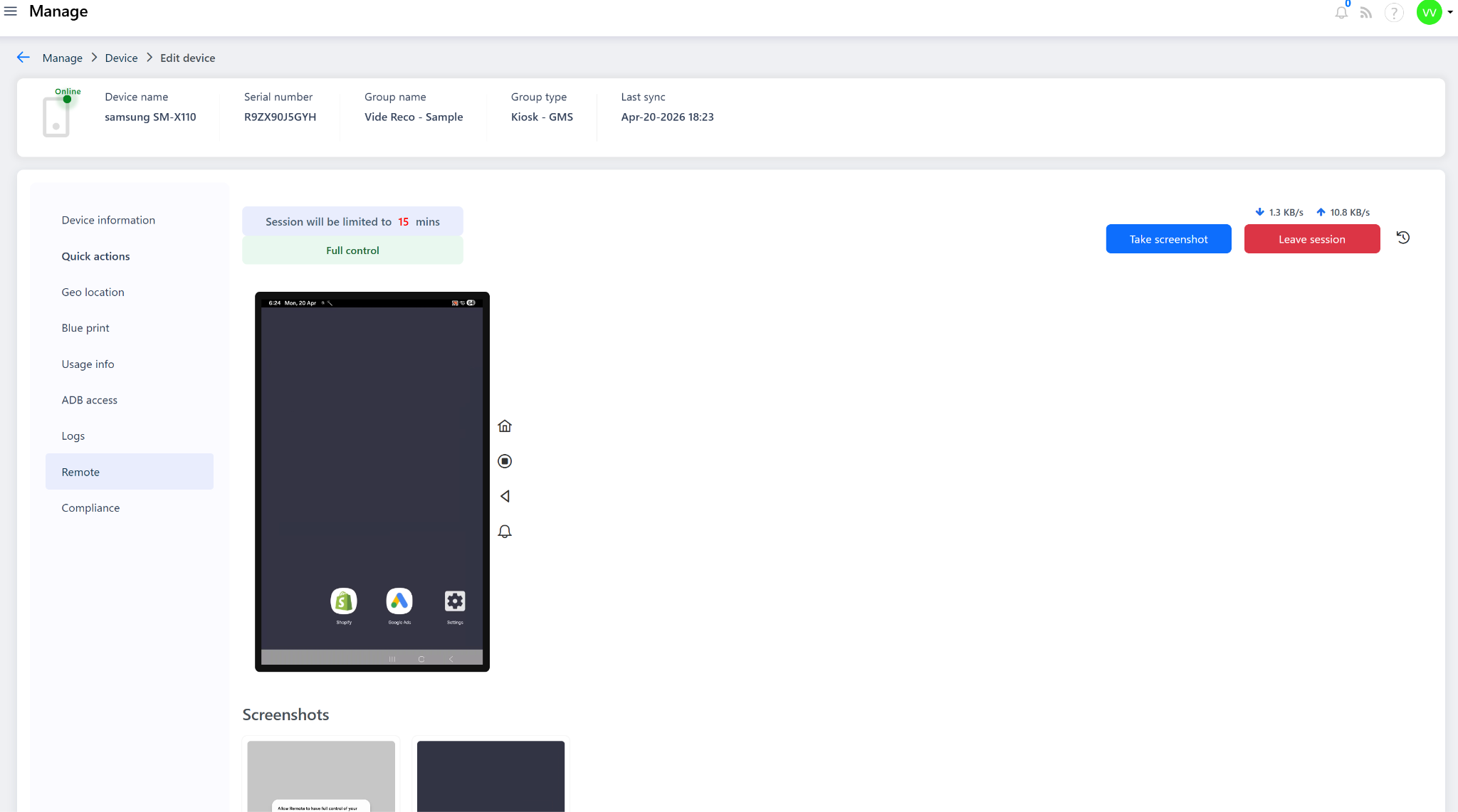
Remote Device Control in the Quantem Console allows IT admins to remotely access, view, and fully control an enrolled device directly from the web console — without needing physical access to the device. This is highly useful during device troubleshooting and remote support when the device is at a distant location but connected to the internet. Admins can interact with the device screen in real-time, navigate apps, configure settings, and capture screenshots — all from the Quantem Console.
Session Limit: Each remote session is limited to 15 minutes with Full Control access.
How to Access
Log in to the Quantem Console
Navigate to Manage > Device
Select the target device
Click on Remote from the left-side menu
Click Start Session on the top-right
The live device screen will appear — the admin now has full control
Steps to Use Remote Control
Step 1: Initiate the Session
Click Start Session. The device screen will load in the console with a real-time display.
Step 2: Control the Device
Use the on-screen buttons alongside the device display to interact:
Step 3: Take Screenshots
Click Take Screenshot (top-right) to capture the current device screen. All screenshots are saved in the Screenshots section below the device display — useful for documenting issues or creating support records.
Step 4: Monitor Data Transfer
Real-time ↓ Download and ↑ Upload speed indicators are shown in the top-right during the session — useful for monitoring bandwidth on cellular-limited devices.
Step 5: End the Session
Click Leave Session when done.
Remote Access Modes
1. Attended Remote Session (Default)
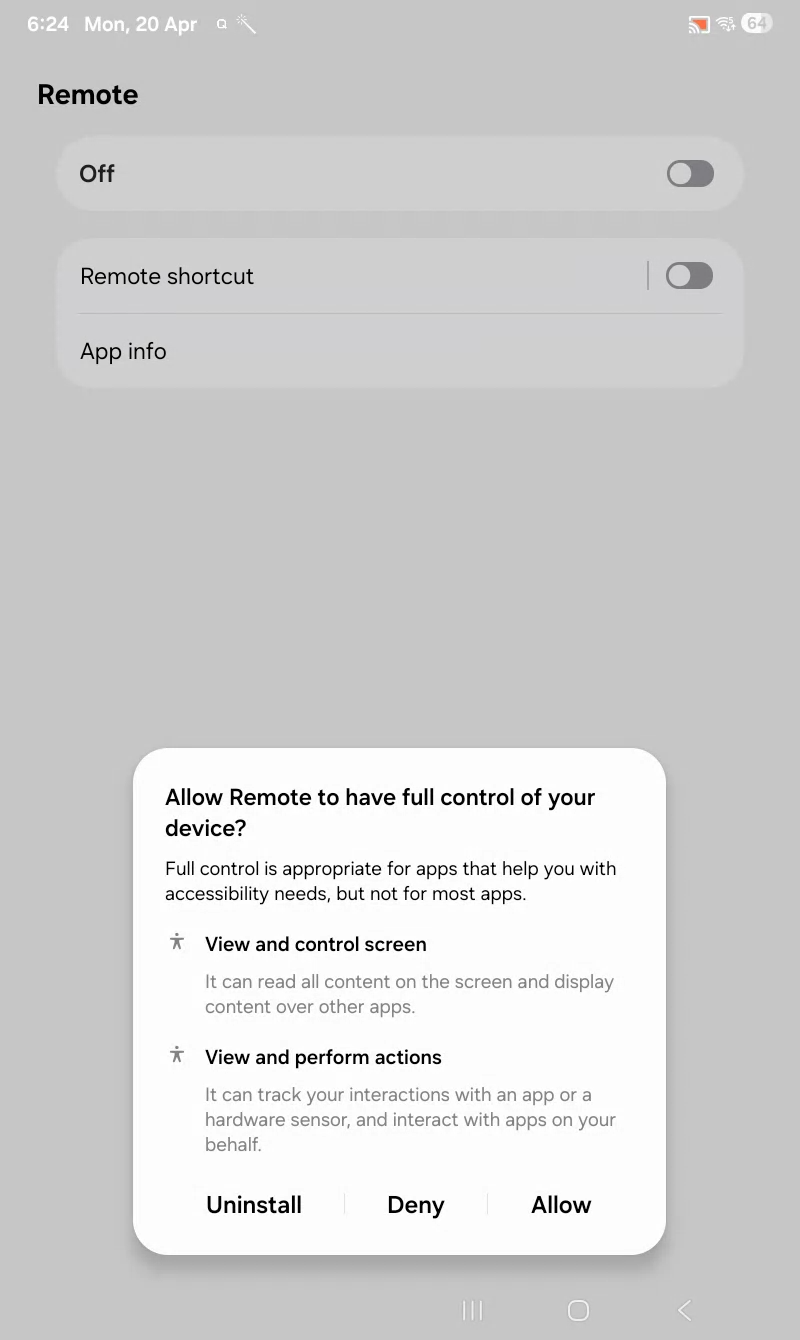
When initiated, the device user receives a consent prompt on the device
The user must manually approve the request before the admin can take control
Best used when the device user is present and available
2. Unattended Remote Session
Admin can take control without any user consent on the device
Requires one of the following to be configured:
Enabling Unattended Remote Access
Option A — OEM/ODM Signed Plugin (Recommended for Enterprise):
Requires the Quantem Remote Plugin to be signed by the device manufacturer (OEM/ODM)
Once signed, the plugin is silently installed on the device — no user intervention needed
Eliminates the need for user permission grants on every session
Contact your Quantem account manager for details on obtaining the signed plugin for your device manufacturer
Option B — Accessibility Permission (Alternative Method):
On the device, go to Settings
Navigate to Accessibility Settings
Locate Quantem MDM in the accessibility apps list
Enable / Grant the Accessibility permission for the Quantem app
Once granted, Quantem will automatically handle permission prompts — allowing the admin to initiate and control remote sessions without manual user consent each time
Why this works: Android's Accessibility permission allows the Quantem app to simulate user interactions (taps, swipes, navigation) — enabling full remote control without user intervention.
Was this article helpful?
That’s Great!
Thank you for your feedback
Sorry! We couldn't be helpful
Thank you for your feedback
Feedback sent
We appreciate your effort and will try to fix the article